Enroll remote users in MFA
Let users outside your network enroll in MFA through UserLock Anywhere, a VPN, RD Gateway, IIS applications or UserLock VPN Connect.
Users who work outside the corporate network enroll in MFA through the connection they use. They can only choose among the methods you enable: see Configure your MFA methods.
Connection | Enrollment starts | Methods users can enroll |
|---|---|---|
Workstation from outside (UserLock Anywhere) | At Windows sign-in | All methods |
Laptop with an active VPN connection | When the user unlocks the session | All methods |
UserLock VPN Connect | When the user starts the VPN connection | Push notifications, Authenticator app (TOTP) |
IIS web application | At first access to the application | Push notifications, Authenticator app (TOTP), FIDO2 security keys |
RD Gateway | At Remote Desktop session sign-in | Push notifications, Authenticator app (TOTP), FIDO2 security keys |
Authenticator app (TOTP) includes Token2 programmable tokens.
Note
USB keys (HOTP), such as YubiKey and Token2 HOTP keys, can only be enrolled from a session opened directly on the computer. Remote users can enroll them from a workstation outside the network or during a VPN connection, but not through RD Gateway, a web application or UserLock VPN Connect.
The Desktop Agent reaches the UserLock server through the UserLock Anywhere public URL. If the user isn’t enrolled yet, the enrollment prompt appears when they sign in to Windows.
Requirements:
The UserLock Desktop Agent installed on the workstation.
UserLock Anywhere configured with a public URL. See Install UserLock Anywhere on IIS.
Internet access on the workstation.
To enroll the user:
Apply an MFA policy to the user. See Create the MFA access policy.
Ask the user to sign in to Windows outside the network and follow the enrollment guide for their method.
If a corporate laptop is already outside the network when you enable MFA, the user can enroll during a VPN connection. Enrollment starts when the user unlocks their session.
Requirements:
The UserLock Desktop Agent installed on the laptop.
A VPN connection to the corporate network.
A session opened directly on the laptop, not through Remote Desktop.
To enroll the user:
Apply an MFA policy to the user. See Create the MFA access policy.
Ask the user to connect to the VPN, then lock and unlock their session. The unlock starts enrollment.
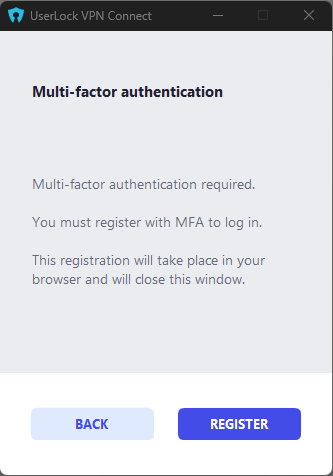
When a user connects with UserLock VPN Connect and isn’t enrolled yet, a browser window opens to guide them through enrollment.
Requirements:
UserLock VPN Connect installed and configured. See Install the UserLock VPN Connect.
A web browser on the user’s computer.
To enroll the user:
Apply an MFA policy to the user. See Create the MFA access policy.
Ask the user to start the VPN connection in UserLock VPN Connect and follow the steps in the browser window.
When a user opens a web application protected with UserLock MFA and isn’t enrolled yet, the enrollment page opens in the browser.
Requirements:
The IIS agent and the UserLock IIS MFA application. See IIS Applications.
For FIDO2 security keys, an IIS MFA public URL within the relying-party ID domain. See Enable FIDO2 security keys.
To enroll the user:
Apply an MFA policy to the user for IIS sessions. See Create the MFA access policy.
Ask the user to open the web application and follow the enrollment steps in the browser.
When a user opens a Remote Desktop session through RD Gateway and isn’t enrolled yet, the enrollment prompt appears at session sign-in.
Requirements:
MFA set up for RD Gateway sessions. See RD Gateway.
Remote Desktop access through the gateway.
For FIDO2 security keys, a session host and a Remote Desktop client that support security key redirection. See FAQ > FIDO2 security keys.
To enroll the user:
Apply an MFA policy to the user. See Create the MFA access policy.
Ask the user to connect through RD Gateway and follow the enrollment guide for their method.