Deploy the Desktop agent with Group Policy
Deploy the UserLock Desktop agent with Group Policy on machines that allow no inbound network traffic. Only outbound traffic from the machines to the UserLock server is needed.
From UserLock 13.1, you can protect machines that accept no inbound network traffic. Instead of letting the UserLock server push the agent, you deploy the Desktop agent MSI packages with Group Policy. The agent then connects out to the UserLock server.
Use this method when:
Your security policy blocks ping, SMB or Remote Registry towards workstations and servers.
You already deploy software with Group Policy and want UserLock to follow the same process.
The same steps apply to a third-party deployment tool: deploy the same MSI packages and the same server name setting with your own tool.
Note
Deploying from the UserLock console is still supported. In that case, the network requirements for console deployment still apply. See Requirements.
A UserLock 13.1 Primary server installed and configured. See Install and configure UserLock.
Rights to create or edit a Group Policy Object (GPO) linked to the machines to protect.
Only outbound traffic from the protected machines to the UserLock server:
From | To | Protocol | Port | Used for |
|---|---|---|---|---|
Protected machines | UserLock server | ICMP (ping) | – | Agent checks the server is reachable |
Protected machines | UserLock server | SMB | TCP 445 | Agent communication and MSI download from the |
Protected machines | DNS | DNS | UDP/TCP 53 | Resolving the server FQDN |
Nothing is required from the UserLock server towards the protected machines: no ping, no SMB, no Remote Registry and no admin$ access.
The UserLock service impersonation account does not need administrative rights on the protected machines with this deployment method.
To check, log on to a protected machine and run:
ping <UserLock server FQDN>
explorer \\<UserLock server FQDN>
The server must answer the ping and File Explorer must list its shares, including UserLockDownloads.
Open Group Policy Management on a domain controller or a machine with the RSAT tools.
Create a GPO linked to the OUs that contain the machines to protect, or pick an existing one.
Right-click the GPO ▸ Edit.
A dedicated GPO is easier to maintain and to roll back than the Default Domain Policy.
The templates are in the UserLock installation folder on the server (default: C:\Program Files (x86)\ISDecisions\UserLock\).
Copy
UserLock.admxto%windir%\PolicyDefinitions(or to the Central Store\\<domain>\SYSVOL\<domain>\Policies\PolicyDefinitions).Copy
UserLock.admlto the language subfolder, for examplePolicyDefinitions\en-US.Reopen the GPO editor. The settings appear under Computer Configuration ▸ Policies ▸ Administrative Templates ▸ UserLock ▸ Agent.
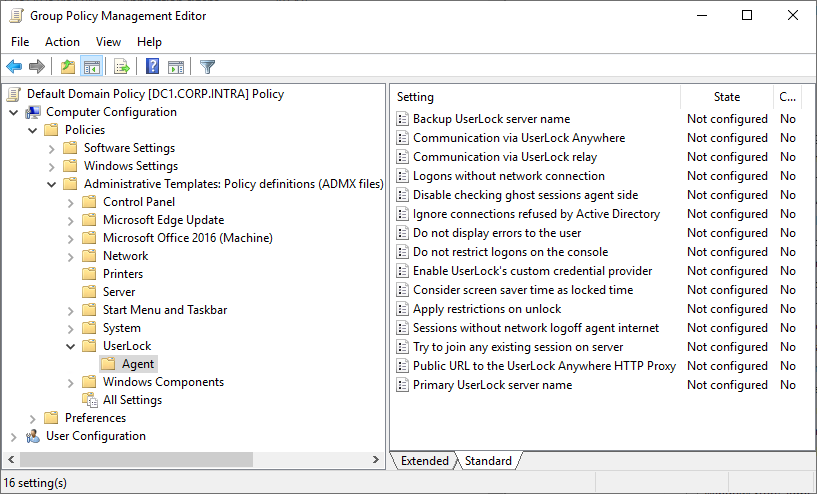
Go to Computer Configuration ▸ Policies, right-click Administrative Templates ▸ Add/Remove Templates… ▸ Add.
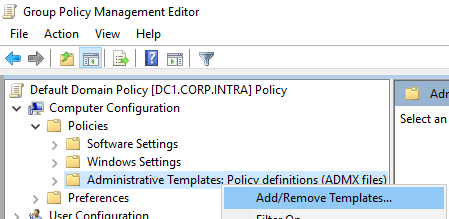
Select
UserLock.admin the UserLock installation folder.The settings appear under Administrative Templates ▸ Classic Administrative Templates (ADM) ▸ UserLock ▸ Agent.
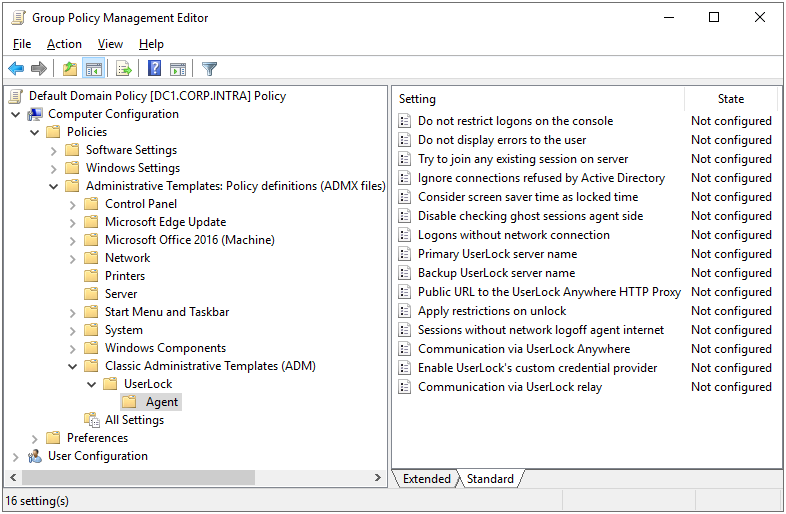
This is the only setting the agent needs to reach the server.
In UserLock ▸ Agent, open Primary UserLock server name.
Select Enabled and enter the FQDN of the Primary server, for example
ulserver.corp.local.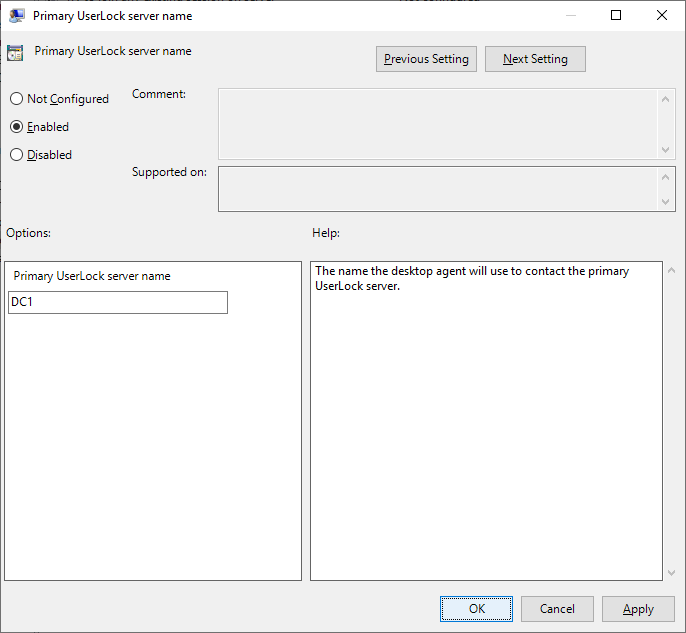
Click OK.
If you have a Backup server, set Backup UserLock server name the same way.
The other agent settings in this template are optional. Settings deployed by GPO take priority over values set on the machine.
UserLock setup creates the UserLockDownloads share on the server. It contains the agent packages.
Go to Computer Configuration ▸ Policies ▸ Software Settings ▸ Software installation.
Right-click ▸ New ▸ Package…
Browse to the network path
\\<UserLock server>\UserLockDownloadsand selectULAgent_x64.msi. Do not use a local path: the machines must reach the package over the network.Select Assigned and click OK.
Add
ULAgent_x86.msifrom the same share, as Assigned.Open its Properties. On the General tab, rename it, for example
UserLock Agent (32-bit).On the Deployment tab, click Advanced… and untick Make this 32-bit X86 application available to Win64 machines. The x86 package must only install on 32-bit machines.
Click OK twice.
Assigned packages install at computer startup. If Group Policy runs before the network is ready, the package cannot be downloaded and the install is skipped until the next restart. This setting is recommended.
Go to Computer Configuration ▸ Policies ▸ Administrative Templates ▸ System ▸ Group Policy.
Open Specify startup policy processing wait time.
Select Enabled and set Amount of time to wait (in seconds) to
120.Click OK.
The agent installs at the first computer startup after the machine has received the GPO. No user action is needed.
To test on a machine right away:
Log on to the machine as an administrator and run
gpupdate /force.Windows reports that software installation requires a restart. Accept it.
The agent installs during startup.
For the rest of the fleet, wait for the normal Group Policy refresh and for the machines to restart. For machines that rarely restart, such as servers, plan a restart.
Open Control Panel ▸ Programs and Features.
Check that UserLock Agent is listed (UserLock Agent (32 bits) on 32-bit machines).
Go to Environment ▸ Machines and refresh. The Desktop agent of the machine shows Installed.
Go to Activity ▸ Active sessions. The sessions open on the machine are listed.
Lock the machine and refresh the view. The session status changes to Locked.
Note
Before the agent is installed, machines that block inbound traffic show Unknown with No answer to the ping. This is expected.
Go to Access policies and add a policy for a test user: Permanent ▸ Session limits.
Set Workstation to Limit to 1 and save.
With a session open on one machine, log on as the same user on a second machine.
The logon is denied with a message naming the machine where the first session is open.
Once a 13.1 or later agent is installed, you can upgrade it from the UserLock console or with the automatic deployment mode, as for an agent deployed by UserLock. The protected machines still don't need to accept inbound traffic: the agent updates itself through its permanent connection to the server, and the UserLock service account doesn't need administrative rights on the machines.
You don't need to update the MSI package in the GPO. After such an upgrade, Windows settings can still show the version of the MSI package.
UserLock can't uninstall an agent installed with the MSI package. Remove the package from the GPO, or uninstall it on the machine. See Windows Installer package.
Symptom | What to check |
|---|---|
The agent is not installed after a restart | Run |
The install fails at startup | Check the network wait setting (step 5). Check that the package path is the UNC path to |
The x86 package installs on 64-bit machines | Untick Make this 32-bit X86 application available to Win64 machines in the x86 package (step 4). |
The agent is installed but the console still shows it as not installed, or no sessions appear | From the machine, check |
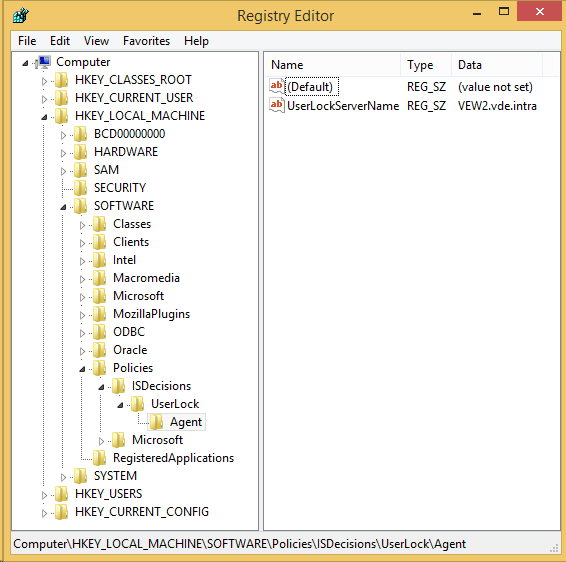
To check the values received by a machine, open HKLM\SOFTWARE\WOW6432Node\Policies\ISDecisions\UserLock\Agent in the Registry Editor (HKLM\SOFTWARE\Policies\ISDecisions\UserLock\Agent on 32-bit machines):
Deploying the Desktop agent: other agent settings, MSI properties and manual installation.
MFA implementation: once the agent is deployed everywhere, set up multi-factor authentication.