Global search
Learn what UserLock global search returns, how it matches search terms and which permissions each result category requires.
Global search finds Active Directory objects, console pages, settings and documentation articles from a single search window, opened from the Search field of the main navigation bar or with Ctrl+K.

Results appear as you type, grouped into eight categories:
Category | Returns |
|---|---|
Machines | Computer objects from Active Directory |
Users | User accounts from Active Directory |
Groups | Groups from Active Directory |
OUs | Organizational units from Active Directory |
Pages | The Dashboard and every page of the Environment, Access Policies, Activity, Reporting and Server settings menus |
Settings | Setting blocks of the Server settings pages |
Advanced settings | Individual advanced settings |
Documentation | Articles from the online UserLock documentation |
Some categories require a read permission, defined in Permissions:
Category | Required permission |
|---|---|
Machines | Machines and agents (read) |
Users, Groups, OUs | Activity / Reporting (read) |
Advanced settings | Server settings (read) |
Without the required permission, the category does not appear in the results. A new operator has Activity / Reporting (read) by default.
Note
Pages, Settings and Documentation are never filtered by permission. Selecting a page or setting you are not allowed to view opens the Permission denied page.
Each category shows up to three results, with a counter giving the total number of matches. Categories without any match, or that require a permission you do not have, are hidden. If no category returns a result, the window displays No results.
Categories appear as soon as their search completes. A green check in the search field indicates that all searches have completed.
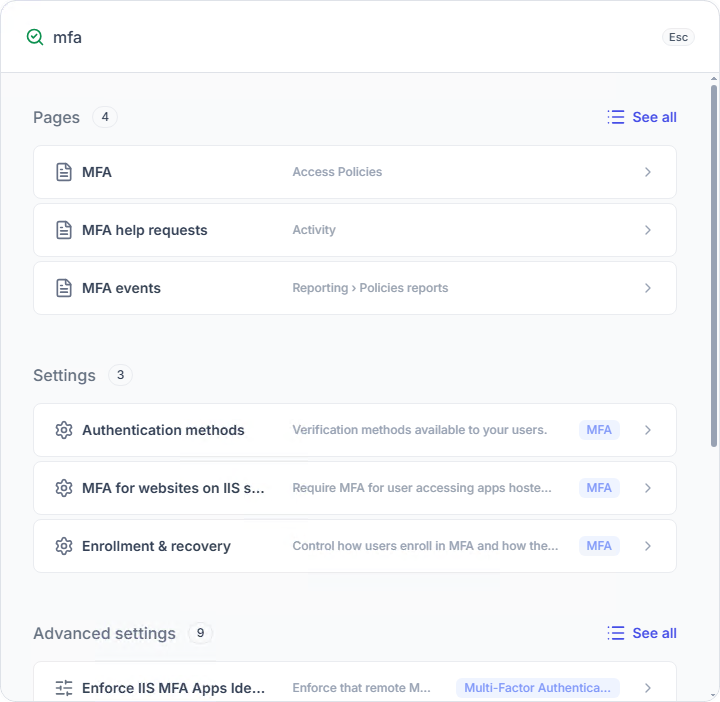
When a category has more than three results, See all lists all of them, 20 per page. When the search fails for a category, the category displays Search failed with a Try again button.
Each result shows its location: the parent OUs of an Active Directory object, or the menu of a page. A tag shows the domain of users, groups and OUs, and the Server settings page or Advanced settings category of a setting.
Machines, Users, Groups and OUs search the Active Directory directory. Without a domain prefix, the search covers every domain of the forest.
Note
Results include every matching object in the directory, whether or not an access policy applies to it. A user found by global search is not necessarily protected by UserLock.
Matching is not case-sensitive and depends on the length of the search term:
With one or two characters, the term must match the start of a name, such as the account name, first name or last name.
From three characters, the term can appear anywhere in one of the following attributes.
Category | Compared attributes |
|---|---|
Machines |
|
Users |
|
Groups |
|
OUs |
|
The description of a machine, group or OU is never compared.
To search a single domain, prefix the term with the NetBIOS domain name, for example CONTOSO\amar. With a domain prefix, only the start of a name is compared, whatever the length of the term.
For a user named Alice Martin, with the account CONTOSO\amartin:
Search term | Result | Reason |
|---|---|---|
| Found | Her first name starts with the term |
| Not found | With fewer than three characters, the term must start a name |
| Found | From three characters, the term can appear anywhere in a name |
| Found | Her account name starts with the term |
| Not found | With a domain prefix, only the start of a name is compared |
On a UserLock server that is not joined to a domain, Users returns the server's local accounts. They are compared on displayName, sAMAccountName and name only. See Server types.
For Pages and Settings, matching is not case-sensitive and has no minimum length, unlike Active Directory objects. The search term can appear anywhere in:
the name of the page or setting block,
its description,
the menu path of the page, for example Environment or Reporting,
for Settings, the name of the Server settings page and the labels of the fields in the block,
hidden keywords, for example
2FAfor MFA pages,SAMLor the name of an SSO application such asAWSfor Single Sign-On, orSMTPfor Email settings.
Text is compared in the console display language and in English. An English term finds a result even when the console is displayed in another language.
A result can appear even when its name does not contain the search term. For example, mfa returns the Authentication methods block, because this block belongs to the MFA page, and reporting returns every page of the Reporting menu.
Advanced settings are compared only with their label and description, with the same rules: no minimum length, not case-sensitive.
The Documentation category searches the online UserLock documentation. When the console is displayed in English or French, results come from the documentation in that language. For any other language, they come from the English documentation.
The search request is sent from the machine where the console runs:
Console | Machine that needs outbound access |
|---|---|
Web Console | The administrator's workstation, where the web browser runs. The IIS server that hosts the Web Console is not involved. |
Desktop Console | The UserLock server, where the Desktop Console is installed. |
This machine needs outbound HTTPS access (TCP 443) to:
subdomains of
algolia.net, which host the documentation search service,www.isdecisions.com, to open the selected articles.
Without this access, the Documentation category displays Search failed. The other categories are not affected. On a UserLock server without Internet access, documentation search fails in the Desktop Console but still works in the Web Console, if the administrator's workstation has Internet access.
Note
Every search term is also sent to Algolia, the third-party service that hosts the documentation search index. This includes terms typed to find machines, users, groups or OUs.
Before you type, the search window shows:
Recent, the last eight search terms and opened results,
Favorites, the entries you chose to keep.
You can add an entry to your favorites or remove it from either list. Selecting an entry runs the search again or opens the result.
Recent searches and favorites are stored on the machine that runs the console: in the web browser for the Web Console, on the UserLock server for the Desktop Console. They are not synchronized between browsers or machines.
Key | Action |
|---|---|
Ctrl+K | Opens global search |
Tab | Moves to the next element in the search window |
Enter | Opens the selected result |
Up and Down arrows | Scroll the result list |
Esc | Closes the search window |