Save and use your recovery codes
Save the recovery codes UserLock gives you at MFA enrollment and use one to sign in when your phone, token or key is unavailable.
Useful resources
If your organization enables them, UserLock displays a list of recovery codes once, when you enroll in MFA. Each code lets you sign in one time when your usual MFA method is unavailable, for example if you forgot your phone or your key.
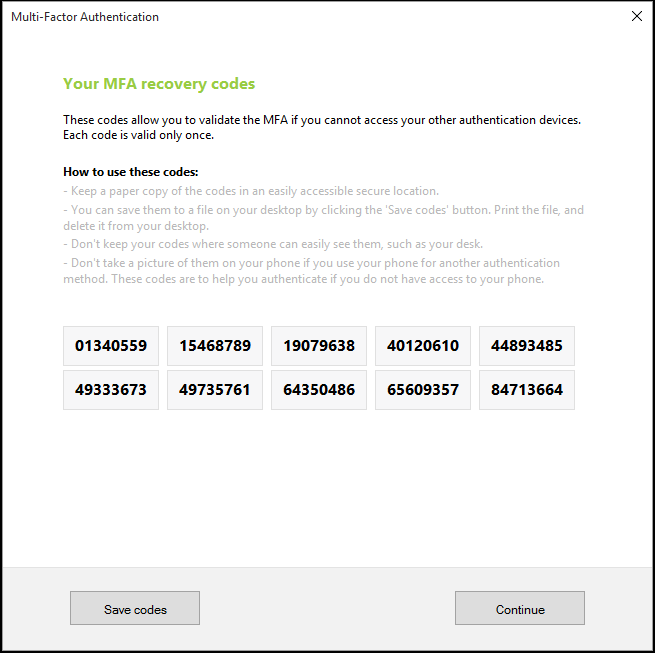
UserLock shows your codes only once, and nobody can display them again. Save them as soon as they appear:
in a password manager, or
on a printed copy kept in a safe place.
Don’t keep them in a screenshot or in an unprotected file.
Enter your Windows credentials.
In the MFA prompt, enter one of your recovery codes instead of your usual code. If the prompt waits for a push approval, select Enter code first. If it waits for a security key, select Cancel to open the Choose how to verify your identity menu, then select Enter code.
Cross the code off your list: each code works only once.
Contact your administrator. After they reset your MFA configuration, you enroll again at your next sign-in and receive new codes.