Configure your MFA methods
Choose which MFA methods users can enroll with, enable each one, and set up backup methods and recovery codes in UserLock.
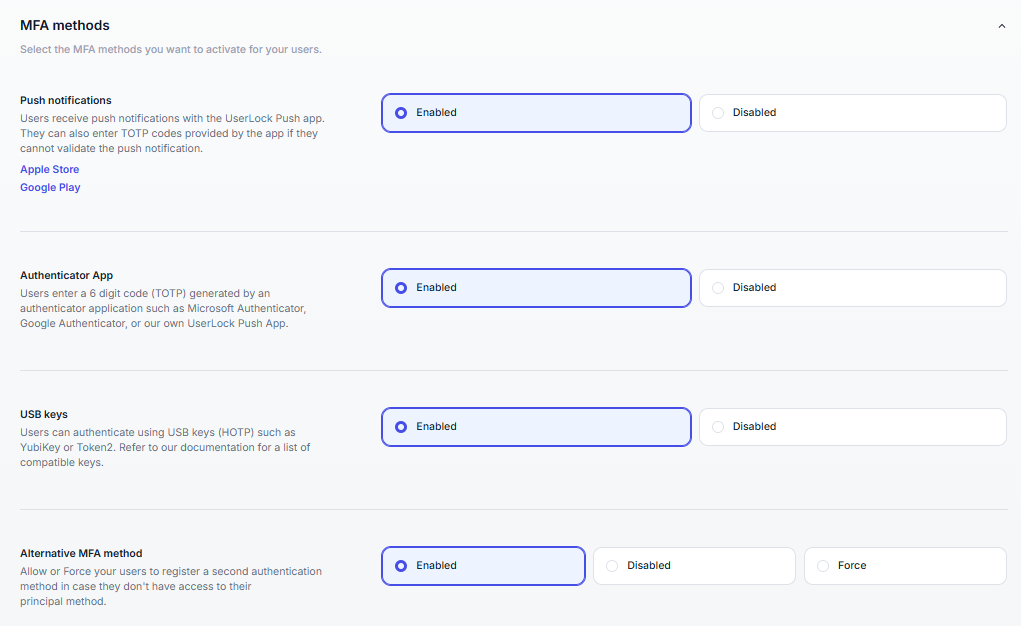
MFA methods are the ways users confirm their identity at sign-in:
Push notifications
Authenticator apps (TOTP)
USB keys (HOTP)
FIDO2 security keys.
You enable them in ⚙️ Server settings ▸ MFA, under Authentication methods.
Each card shows how many users are enrolled with the method. Click this count to list them. The switch enables or disables the method.
Before you enable methods, keep in mind:
MFA methods are enabled for the whole UserLock server. MFA access policies decide when users authenticate, not which method they use.
Users choose among the enabled methods when they enroll.
At least one method must stay enabled.
Disabling a method doesn’t remove existing enrollments. Users already enrolled can still sign in with it, but new users can’t choose it.
To move a user to another method, reset their MFA configuration. The user enrolls again at the next sign-in.
A user can’t combine FIDO2 security keys with Push notifications or USB keys (HOTP).
Component | Requirement |
|---|---|
License | Subscription license. With a permanent license, the Push notifications switch is locked. |
Primary UserLock server | Outbound HTTPS access (TCP 443) to |
Computers outside the corporate network | UserLock Anywhere configured, and Internet access on the computer. |
Users’ phones | UserLock Push app installed. |
In ⚙️ Server settings ▸ MFA, turn on Push notifications. UserLock connects to the IS Decisions push notification server.
Wait for Connection established!, then close the dialog.
Select Save.
If the activation fails, the dialog shows an error code. Check that the primary server has Internet access, and contact IS Decisions support if the error persists.
Users enroll with any TOTP authenticator app, such as Google Authenticator or Microsoft Authenticator, or with a Token2 programmable token..
In ⚙️ Server settings ▸ MFA, turn on Authenticator app (TOTP).
Select Save.
Users enroll a YubiKey or a Token2 HOTP key. They must enroll it from a session opened directly on the computer, not through Remote Desktop.
In ⚙️ Server settings ▸ MFA, turn on USB keys (HOTP).
Select Save.
Component | Requirement |
|---|---|
UserLock Server | Version 13.1 or later. Enable FIDO2 from the primary server: backup servers receive the FIDO2 configuration from it. |
UserLock Desktop Agent | Version 13.1 or later, on the computers where users sign in with a key. |
Security keys | FIDO2 (CTAP2) keys, used over USB or with an NFC reader. |
IIS applications | IIS agent and UserLock IIS MFA application, with a public URL that uses HTTPS and a domain name. |
SSO | UserLock IIS MFA application, installed before you enable FIDO2. |
Remote Desktop and RemoteApp |
Each key is bound to a relying-party ID (RP ID): a domain name that you choose when you enable FIDO2. Choose it according to where users sign in with their key:
Windows sessions only: keep the domain UserLock proposes, or enter another domain of your choice.
IIS applications or SSO: use the domain of the IIS MFA public URL, or one of its parent domains. For
https://auth.example.com/ulmfa, useexample.com.
The RP ID must be a domain name with at least one dot. It can’t be an IP address.
⚠️ Important
Changing the RP ID later forces every FIDO2 user to enroll again. If users might sign in to IIS applications or SSO later, choose the domain of the future IIS MFA public URL now.
Go to ⚙️ Server settings ▸ MFA.
If users sign in to IIS applications or SSO, under MFA for websites on IIS servers, set the Public URL.
Turn on FIDO2 security keys. The Configure FIDO2 dialog opens.
In FIDO2 Relying Party ID, check the proposed domain and change it if needed.
Select Continue, then Save.
Note
Enabling FIDO2 removes the private URL from MFA for websites on IIS servers, if one is configured.
For other questions, such as PIN policy, Remote Desktop support, offline sign-in or lost keys, see FAQ > FIDO2 security keys.
A backup method lets users sign in when their main method is unavailable, for example when they forget their phone.
In ⚙️ Server settings ▸ MFA, under Enrollment & recovery, the Alternative MFA method setting has three options:
Enabled: users can register a backup method if they want.
Disabled: users can’t register a backup method.
Force: users must register a backup method to complete enrollment.
Enabled and Force are available when at least two methods are enabled, or when only FIDO2 security keys is enabled, since users can then register a second key.
Note
The console refuses to save Force when FIDO2 security keys is enabled with only one other method, either Push notifications or USB keys (HOTP).
Users who enroll with that method would have no possible backup, because a security key can’t serve as their backup.
To save, also enable Authenticator app (TOTP), or choose Enabled instead of Force.
Recovery codes are single-use codes that users enter when their MFA method is unavailable. UserLock generates them at enrollment and shows them only once.
In ⚙️ Server settings ▸ MFA, under Enrollment & recovery, turn on Recovery codes.
In Codes per user, enter a number from 4 to 20.
Select Save.
Click View example to see the codes as users see them. Codes can’t be displayed again: if a user loses them, reset their MFA configuration.
Note
On a computer that can’t reach the UserLock server, recovery codes stay valid until the computer reconnects. UserLock then marks the codes used offline as used.