Settings
Reference for the global FileAudit settings that control event collection, storage, notifications, access, and licensing.
The Settings section holds the global parameters that apply across all monitored paths and components. They control how FileAudit collects audited events, where it stores them, how it sends notifications, who can access the console, and how the license is managed.
Each subsection below corresponds to a tab in the Settings configuration window.
FileAudit collects access events from the Windows Security log of each monitored machine. Scan options decide which of those events are kept and how a few specific cases are handled before storage. Tuning these options directly affects event volume, database growth, and reporting relevance.
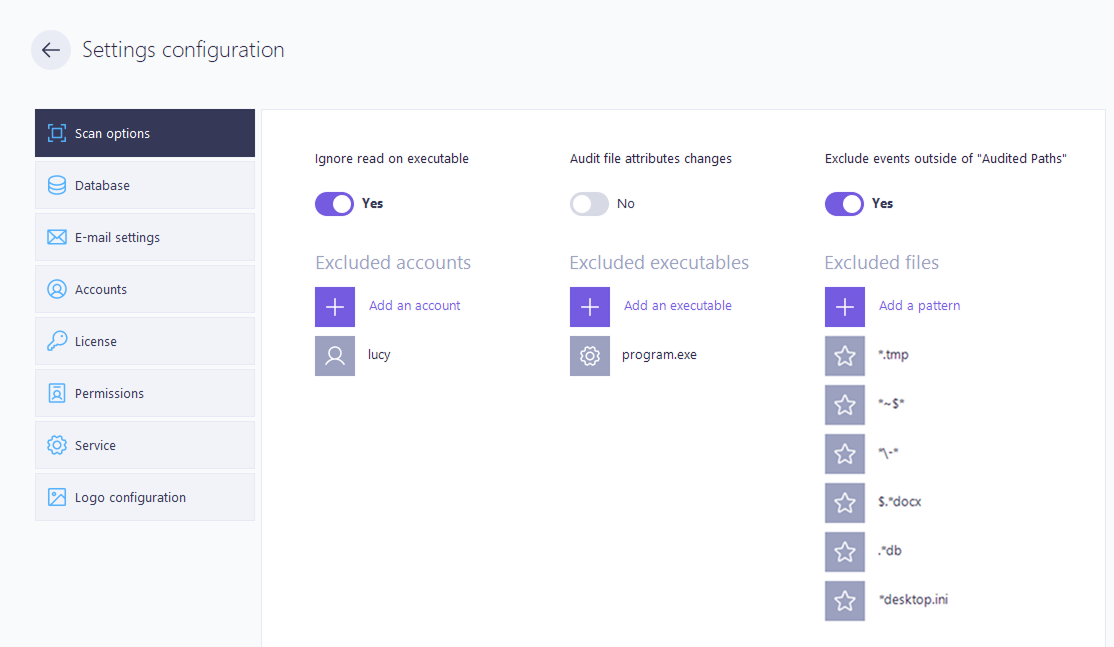
Exclusions drop matching access events before they reach the database. Excluded events are never recorded. Three exclusion types are available:
Accounts: ignore all access events generated by the specified user accounts, for every access type.
Executables: ignore events generated by the specified processes. Useful for backup agents, antivirus, indexing services, or scripts that would otherwise flood the audit.
File patterns: ignore events based on the file name. Wildcards are supported for this type only:
*matches any string,?matches a single character.
Wildcards apply to file patterns only. Account and executable exclusions match exact entries, as they appear in the reports.
💡️ Tip
Excluding noisy service accounts and executables is the most effective way to keep the database lean and reports readable.
When Windows Explorer lists executable files, it loads their icons, which generates read access events on those files. FileAudit ignores these read events by default so they do not clutter the audit.
This setting affects read access only. Execute access events are always recorded. Turn it off only if you specifically need to capture read attempts on executable files.
When enabled, FileAudit audits changes to NTFS file attributes such as read-only and hidden. This option is disabled by default.
⚠️ Important
Enabling this option changes the NTFS audit configuration that FileAudit applies to paths. Paths already configured for auditing will not capture attribute changes until they are reconfigured.
Recheck the audit configuration of existing paths so the required NTFS settings are applied. Paths added afterward include them automatically.
NTFS auditing can sometimes be left in place on folders that FileAudit does not monitor, either from a manual configuration or from another tool. These folders generate unwanted events.
When this option is enabled, FileAudit processes only events that occur within paths it actually monitors. Events from any other location are discarded.
The Database tab shows the database that stores collected events and lets you register additional archive databases.
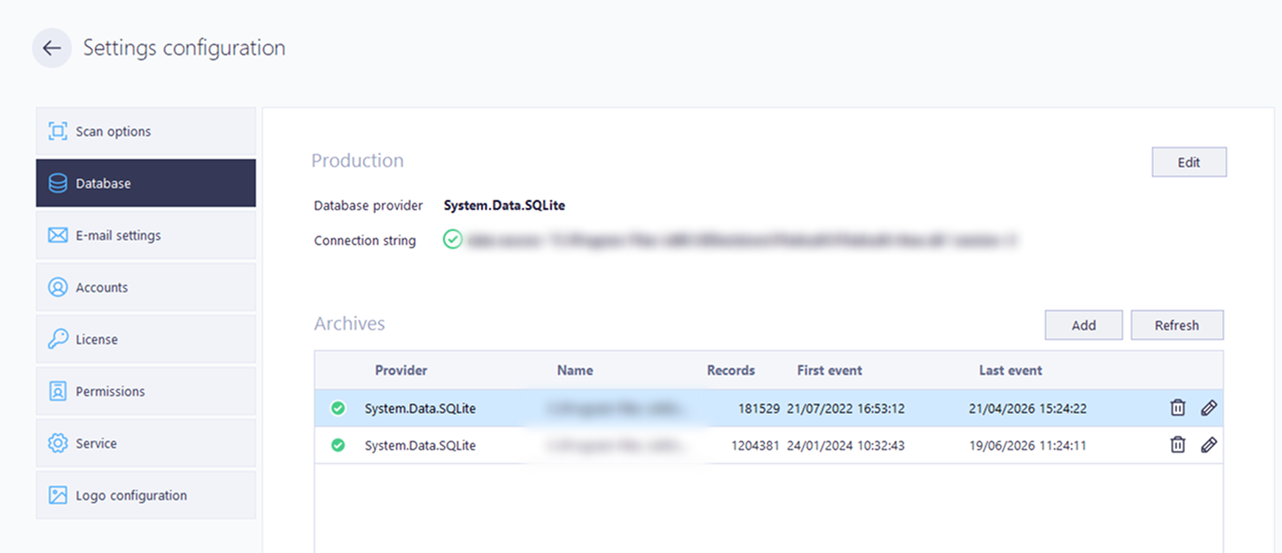
The production database receives every access event FileAudit collects. FileAudit ships with an embedded SQLite database and uses it automatically unless another provider is configured. Supported engines include SQLite, Microsoft SQL Server and SQL Server Express, and MySQL.
Two read-only fields describe the active database:
Database provider: the engine currently in use, for example
System.Data.SqlClient.Connection string: the server, database name, and authentication parameters the FileAudit service uses to connect.
Edit opens the database wizard to point FileAudit at a different database.
Regardless of the provider, the database itself, including availability, backups, performance, and storage, remains the customer's responsibility.
To move the production data to another engine, see Migrate to another database Guide. For the underlying schema, see Database architecture Reference.
An archive is a separate database that holds older events you have moved out of production to keep the production database small. Registering an archive here makes it available as a data source: when running a report, you can choose to query the production database or one of the registered archives.
The Archives list shows, for each archive: provider, name, record count, first event date, and last event date. As with production, archive databases are maintained by the customer.
To create and populate an archive, see Archive database Guide.
FileAudit sends automated reports and real-time alerts by email. Both require a configured SMTP server. The SMTP configuration covers the server address, the port (for example 25, 465, or 587), SSL encryption, the sender email address, and the authentication mode.
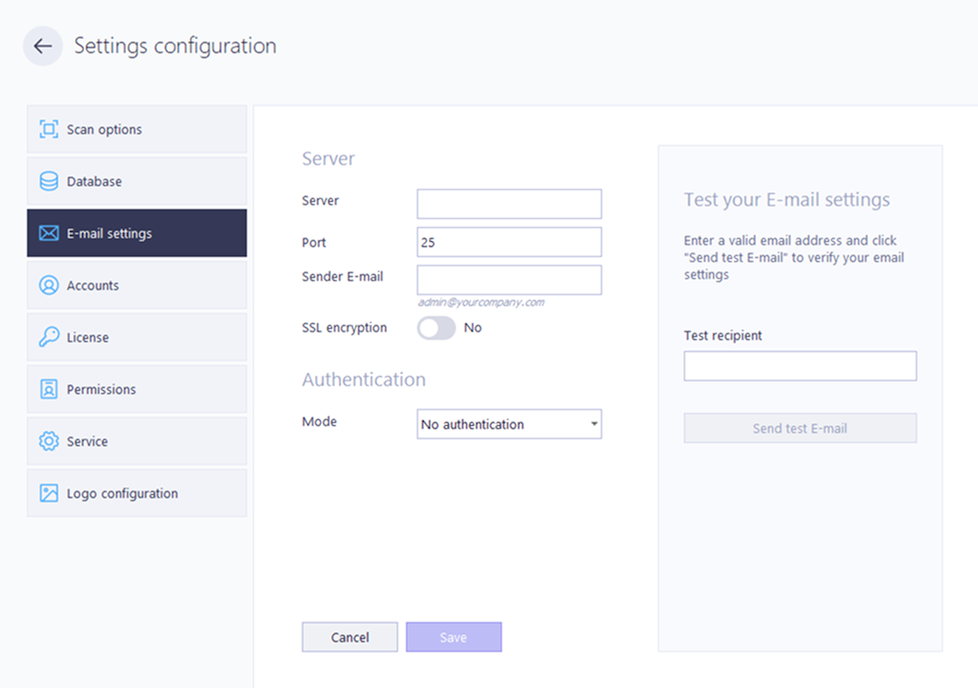
FileAudit supports several authentication modes, depending on the mail server:
Anonymous: no authentication.
Windows authentication: uses the FileAudit service credentials.
Provide credentials: a dedicated username and password.
OAuth2: for Microsoft or Google providers, requiring a Client ID, a Client Secret, and an interactive sign-in. OAuth2 also requires the Microsoft Edge WebView2 component on the console machine.
Email must authenticate successfully for reports and alerts to be delivered.
A Test email option sends a message to a recipient you specify, which confirms SMTP connectivity, authentication, and delivery in one step.
For the full setup, including OAuth2 for Microsoft and Google, see Configure email settings Guide.
FileAudit scans the Windows Security log of each audited machine in real time. The scan requires at least local administrator privileges on the target machine.
By default the FileAudit service runs under the LocalSystem account, which is usually enough for the local machine but is sometimes insufficient when auditing a remote machine.
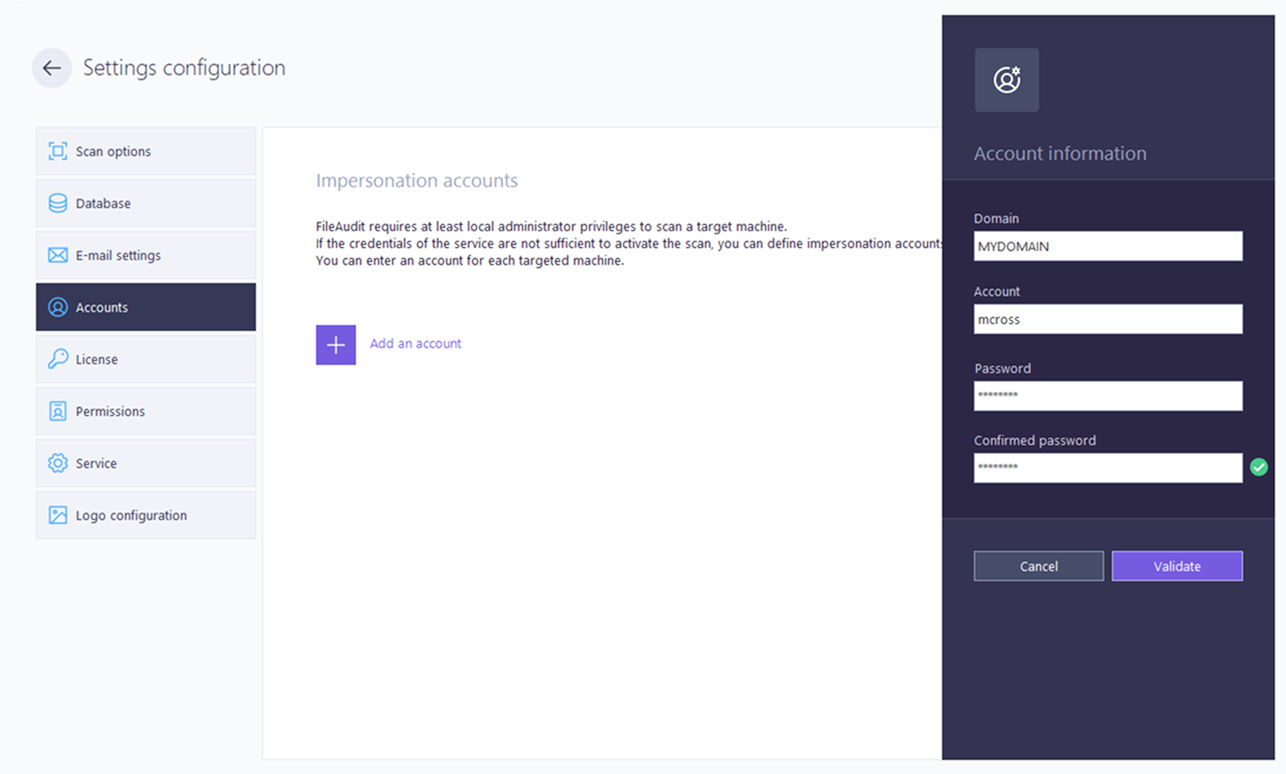
When the service credentials are not enough, you define impersonation accounts in this tab. FileAudit uses them instead of the service credentials to reach the target machine. If several audit paths target different machines, you can assign a specific account per machine.
An impersonation account must hold the local Log on as a batch job right on the audited machine. Domain administrator accounts (Administrators) have this right by default, so no change is normally needed when using one. If that policy has been altered, add the impersonation account to it manually.
Note
To use a local administrator account in a workgroup, enter a single dot in the domain field.
The License tab shows the current license and its usage.
The Details section reports the license type, the expiration date, and the licensed capacity in servers and users.
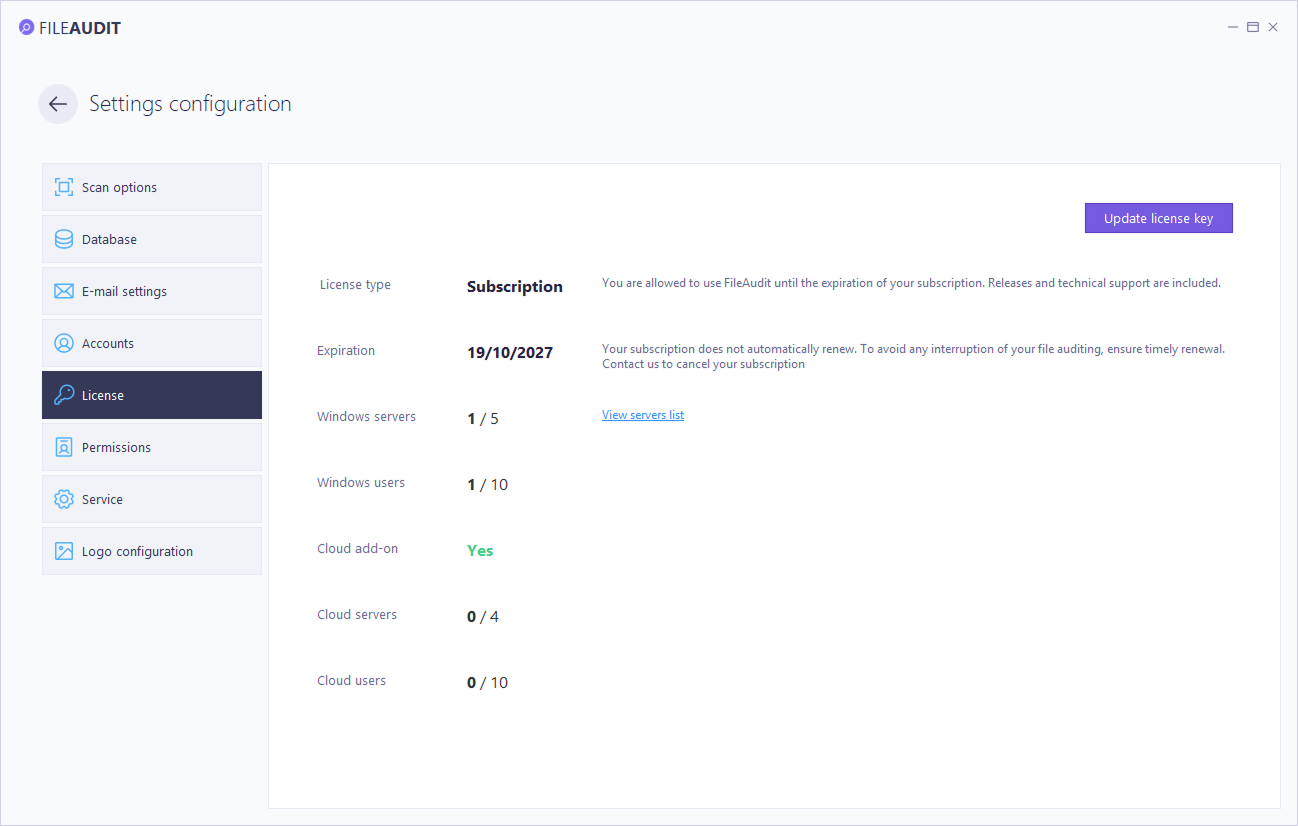
Usage is shown against that capacity for Windows servers and users, and for cloud servers and users when the Cloud add-on is licensed.
Registering a serial number is done from this tab. See Manage your license Guide.
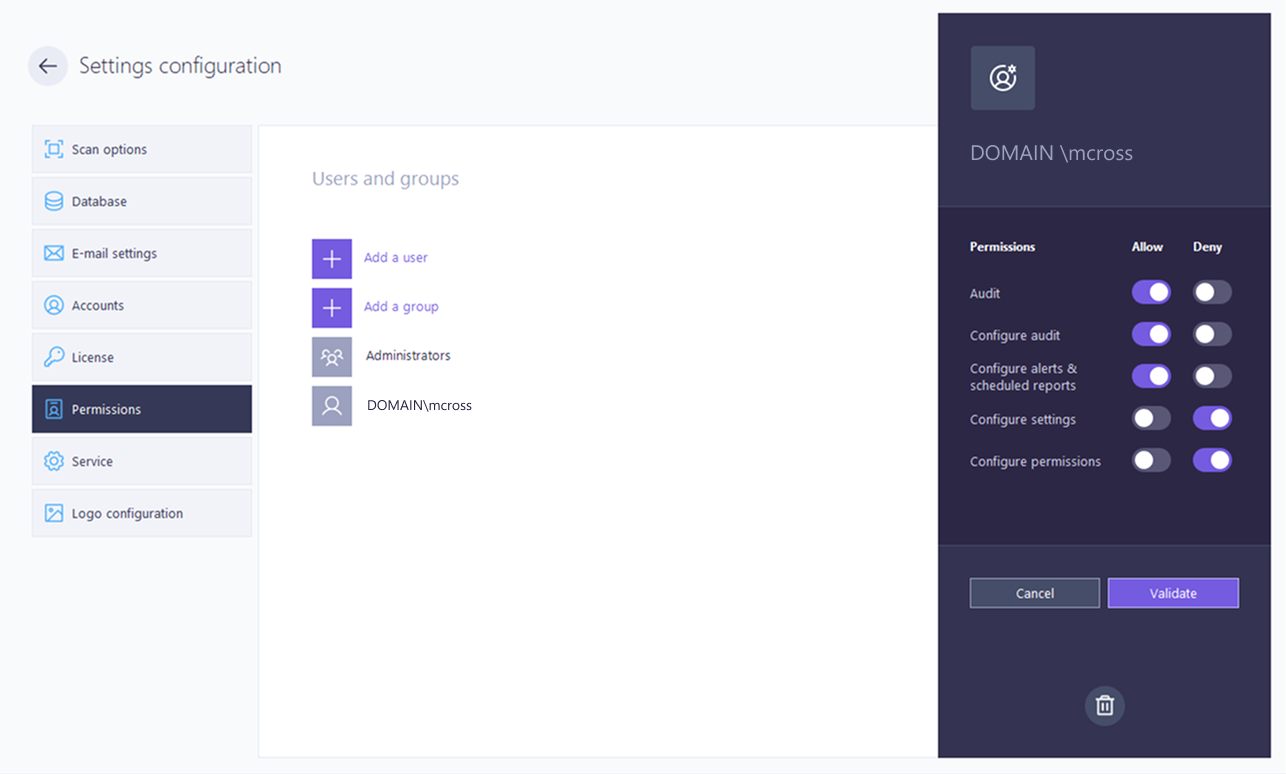
FileAudit permissions grant or deny access to features of the console for specific users or groups. They control the console only and do not affect file system permissions.
Permission | Controls |
|---|---|
Audit | Display of the reports |
Configure Audit | Creating, modifying, or deleting an audited path |
Configure Alerts & scheduled reports | Creating, modifying, or deleting alerts and scheduled reports |
Configure settings | Access to the Settings configuration |
Configure permissions | Access to the Permissions section itself |
FileAudit resolves rights the same way Windows does:
Deny overrides Allow: if a user belongs to several accounts and any one of them denies a feature, access is denied.
Neither set means denied: when neither Allow nor Deny is defined, access is denied, unless the account belongs to a group where the right is explicitly allowed.
⚠️ Important
Do not delete the default administrators rule, or you may lock yourself out of the feature.
To grant access to a user or group, see Set up FileAudit permissions Guide.
This tab controls remote access to the FileAudit service and service-level email notifications.
Enabling remote connections lets any FileAudit console on the network connect to this service. It also allows delegating the audit to non-IT users: once granted access through Permissions, they manage the audit from their own console. This feature cannot be disabled from a remote console.
The console connects to the service on a configurable port, 2000 by default. Any port change requires a service restart before it takes effect; you can save and restart immediately, or save only and restart manually later.
To set up a remote console, see Connect remotely to a FileAudit service Guide.
Note
⚠️ Important
Make sure the configured port is allowed through your firewall.
The tab also enables email notifications for the different service-level events FileAudit encounters.
For the events themselves, see Warnings Reference.
This tab customizes the layout of generated reports. You can:
add a corporate header logo,
add an optional header slogan,
replace the footer logo.
Each option is enabled individually; enabling one reveals its configuration field, where you browse for an image or type the slogan text.
These changes apply to reports printed or exported from the File Access Viewer and to scheduled reports sent by email as PDF. They affect report presentation only and do not change any application behavior.
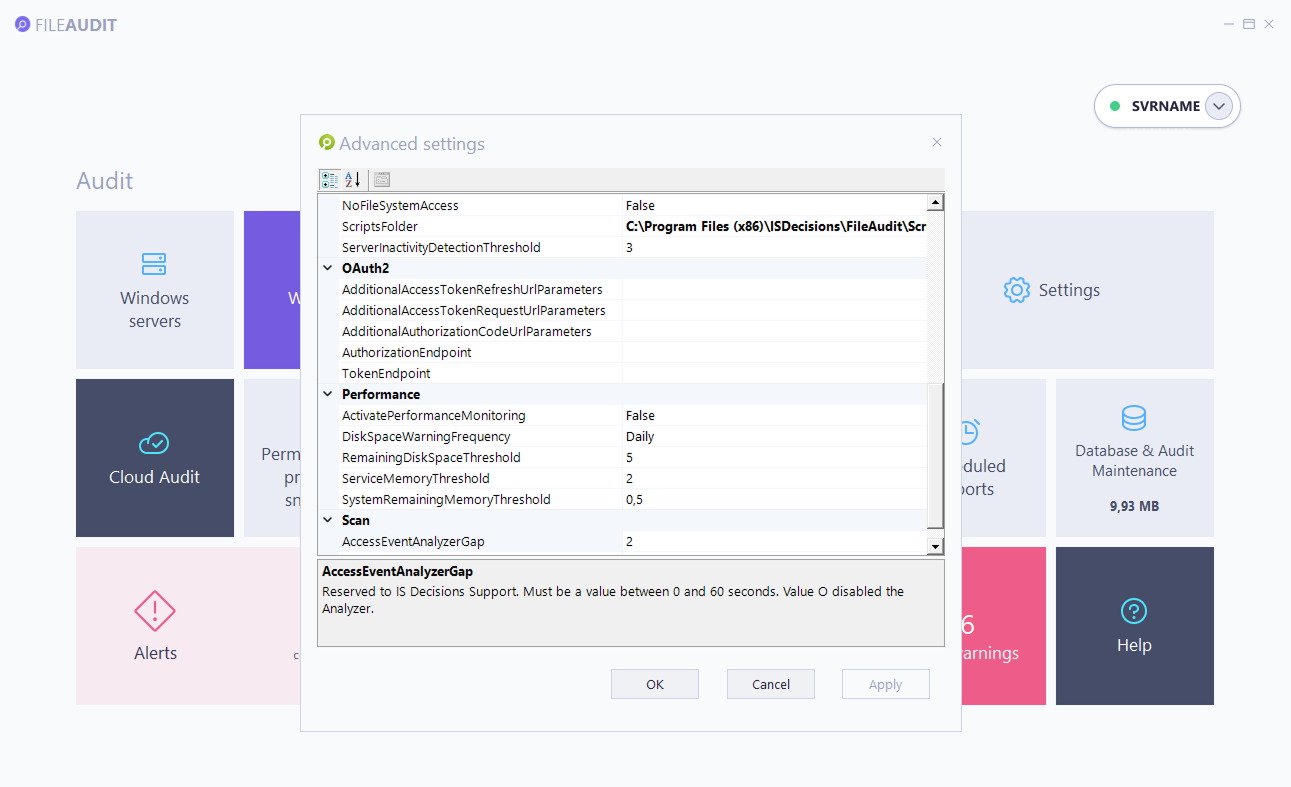
Advanced settings expose internal parameters that fine-tune specific FileAudit behaviors, such as database communication, Active Directory queries, scanning, and performance. They are separate from the tabs above and are intended for troubleshooting or specific environments, not for routine configuration.
Note
⚠️ Important
Do not change these parameters unless IS Decisions support instructs you to, or a documented use case requires it. In most environments they should stay at their default values. Some changes take effect only after the FileAudit service restarts.
Open the panel from the console with the F7 key. Parameters are grouped into categories:
Active Directory,
Cloud,
Database,
Mail,
Misc,
OAuth2,
Performance,
Scan.
Selecting a parameter shows its purpose and expected values at the bottom of the window.