Alerts
Understand FileAudit alert types, the filters that trigger them, and the predefined scripts that run an automated response.
FileAudit alerts are evaluated against collected access events in real time. An alert triggers when an event matches every condition defined in its rule.
Alert generation depends on three things being in place:
Windows object access auditing is active
The accessed path is monitored
The alert rule is enabled
When an alert triggers, FileAudit records it and acts on it: it sends a notification by email to the recipients defined in the alert, and can run an automated response if one is attached. Both are covered below.
Every triggered alert is also logged in the Alert history report.
Note
Alerts do not use snapshots. They react only to access events captured by the audit engine. If auditing is not configured on a path, no event is collected and no alert can fire for it.
See Windows audit Reference for how access events are collected
See Access types Reference for the event categories an alert can match.
FileAudit provides two alert types. They share the same filters but differ in what triggers them.
Single alert | Mass alert | |
|---|---|---|
Triggers on | One matching event | A volume of matching events over a time window |
Output | One alert per event | One alert aggregating the activity |
Typical use | Access to a specific sensitive file or folder, individual suspicious actions | Ransomware-like behavior, abnormal modification bursts, bulk deletions |
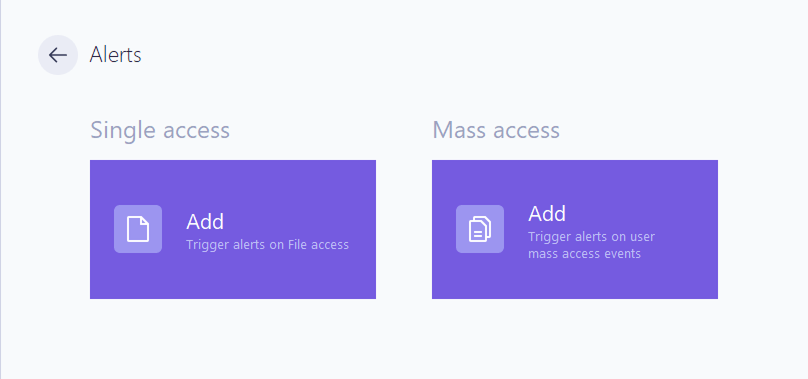
A mass alert is defined by its Frequency filters (see below). A single alert ignores those fields and fires on the first matching event.
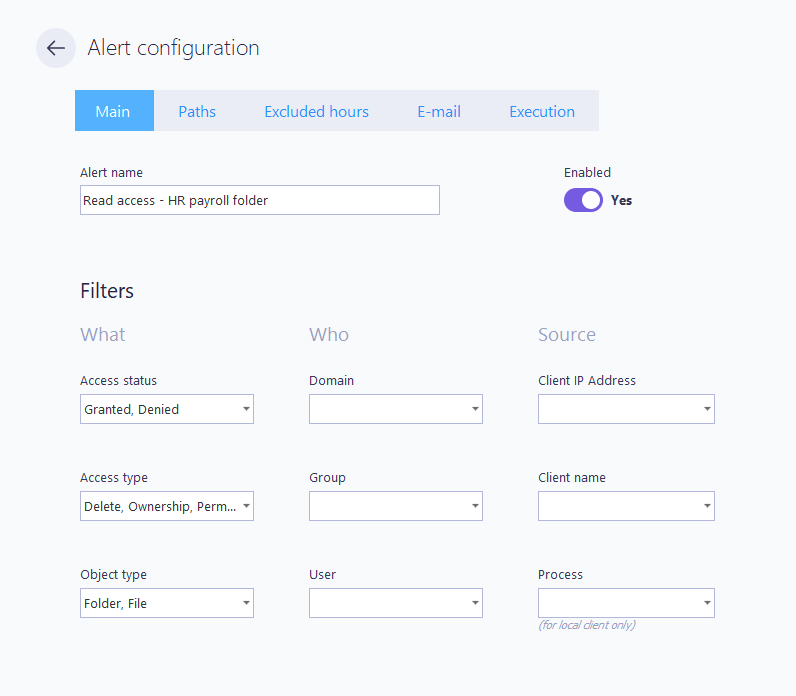
Filters define which events an alert reacts to. They are grouped under What, Who, and Source on the Main tab, and a path scope is set on the Paths tab.
An alert triggers only when an event matches every filter set on the rule. A filter you leave empty is not used as a condition, so the more fields you set, the narrower the alert.
On the Paths tab you scope the alert to one or more monitored Windows or Cloud paths; an alert with no path is not scoped to any resource and never triggers. The Paths tab supports * (any string) and ? (any character) wild characters.
Note
For what each What, Who, and Source field means and the values it accepts, see Filters Reference.
For the full list of values available in Access type, see Access types Reference.
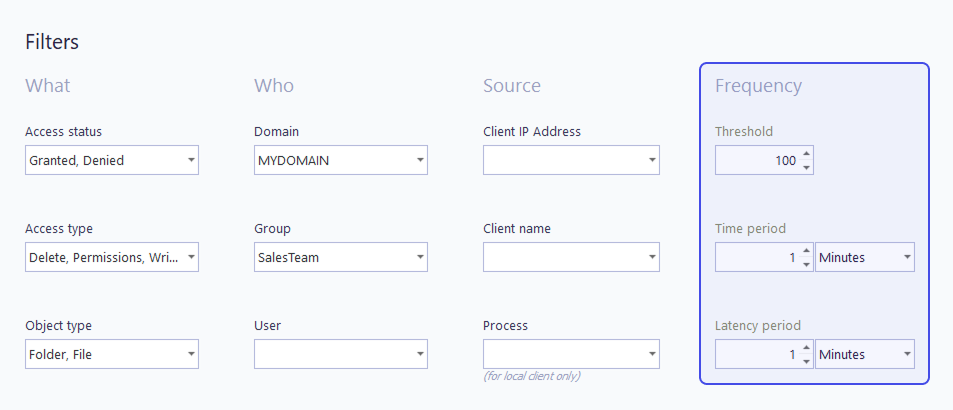
Mass alerts add a Frequency group on the Main tab, which turns a stream of individual events into a single alert when one user crosses a volume threshold. Three fields define the burst to detect:
Threshold,
Time period,
Latency period.
For each field's definition, see Filters → Frequency filters Reference.
A single alert ignores these fields and fires on the first matching event.
For example, a threshold of 100 over a 1 minute time period raises one alert when 100 matching events occur within any 1 minute window. This is the basis for ransomware detection: see How to detect ransomware with FileAudit Guide for a configured example.
The Excluded hours tab disables an alert during defined periods. Events occurring inside an excluded range do not trigger it.
Exceptions support:
Excluded time ranges per day of the week
Recurring weekly schedules
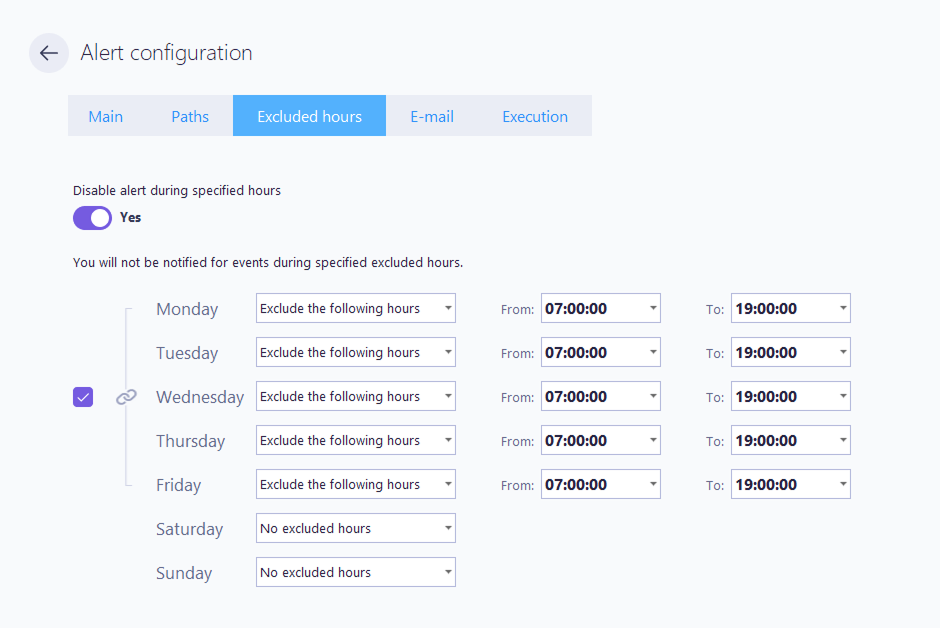
Use this to align alerting with business hours, scheduled maintenance, or other expected activity windows that would otherwise generate noise.
When an alert triggers, FileAudit can send a notification. Channels are set on the E-mail tab and in the alert rule:
Email to one or more recipients
Teams or Slack, through the email notification mechanism
See Configure email settings Guide to set up the mail server, and Send alert notifications to Teams or Slack Guide for the chat integration.
The triggering events and recipients are defined as part of the rule configuration.
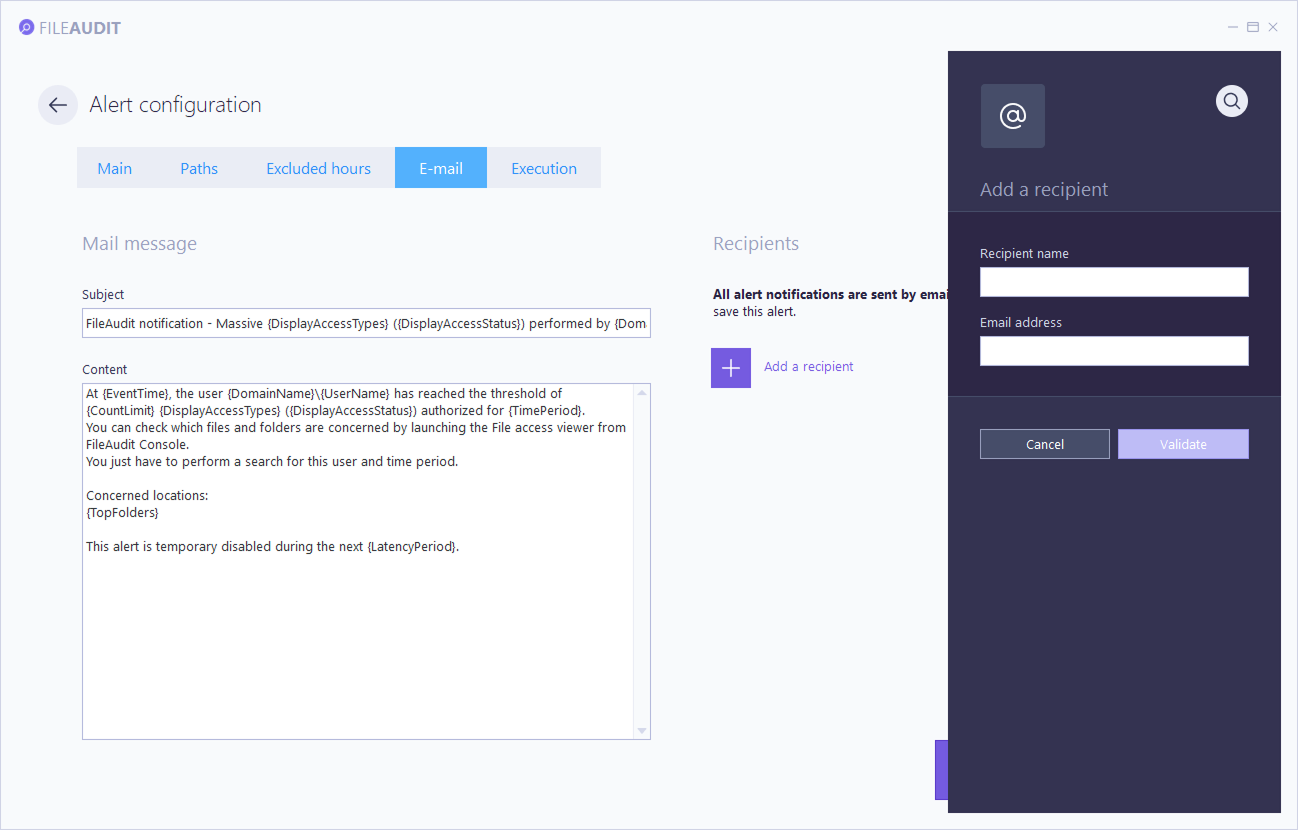
The email content itself can be personalized: you can modify the Subject and Content templates as desired. Dynamic variables are enclosed in curly brackets { }, and the available variables differ depending on the type of alert: single or mass.
Variable | Description |
|---|---|
AccessMask | Display the requested access rights |
AccessTime | Display the time of the access attempt |
ClientAddress | Display the client IP address |
ClientName | Display the client name |
DisplayAccessType | Display the access type(s) |
DisplayStatus | Display the status of the access attempt ('Granted' or 'Denied') |
DomainName | Display the user domain name |
FileName | Display the full path of the file accessed |
LogonId | Display the user login |
Process | Display the process(es) used to access the file. Available only if the access is done locally on the audited system |
RecNumber | Display the Microsoft Security log record number. For technical support purposes only |
ServerName | Display the server name hosting the file in question |
ShortFileName | Display the name of the file |
Source | Display the name or IP address of the source machine |
UserName | Display the user account name |
Variable | Description |
|---|---|
ClientAddresses | Display the client IP addresses, separated by comma |
ClientNames | Display the client names, separated by comma |
CountLimit | Display the access-count threshold that triggers the alert when reached within the defined time period (Frequency filters) |
DisplayAccessStatus | Display the status of the access attempt ('Granted' or 'Denied') |
DisplayAccessTypes | Display the access type(s) |
DomainName | Display the user domain name |
EffectiveCount | Display the number of events detected during the {EffectiveTimePeriod} |
EffectiveTimePeriod | Display the time period during which the {EffectiveCount} number was counted |
EventTime | Display the time when the threshold was reached |
LatencyPeriod | Display the time period during which the alert will be temporarily disabled once triggered (Frequency filters) |
TimePeriod | Display the rolling time period during which the number of accesses is counted (Frequency filters) |
TopFolders | Display the path of the top-level folders where the mass access events were generated |
UserName | Display the user account name |
The Execution tab runs a response automatically when the alert triggers, turning an alert into containment rather than just a notification.
FileAudit provides predefined scripts so you do not have to write your own. Each script combines one or more atomic actions:
Action | Effect |
|---|---|
Log off | Signs out the user's active session on the source server |
Disable user | Disables the user account in Active Directory, so the user can no longer log in |
Disable computer | Disables the computer account in Active Directory |
Shut down | Shuts down the machine from which the access was performed |
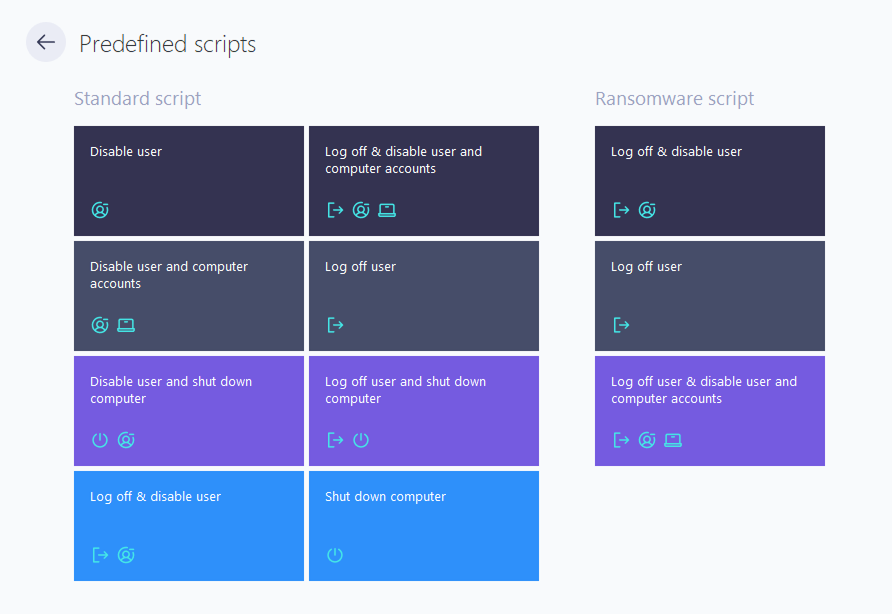
Predefined scripts are assortments of these actions, grouped into two families:
Standard scripts: general-purpose responses, from a single action (Disable user, Log off user, Shut down computer) up to combinations such as Log off & disable user and computer accounts.
Ransomware scripts: a focused subset built for fast containment of a spreading attack, centered on logging off and disabling the offending account, optionally with its computer account.
You can also run a custom executable instead, with its own working directory, parameters, and domain context.
⚠️ Important
These actions disable accounts and shut down machines. Test a script against a non-critical account before attaching it to a live alert.
Pair a ransomware script with a mass alert: the mass alert detects the burst of activity, and the script contains the account or machine before damage spreads.
See Manage alerts Guide to configure alert rules and attach an execution script.