Filters
Narrow FileAudit reports and alerts by access type, user, source, path, time period, and frequency.
These filters scope a search to a server and one or more paths. They appear in access reports and snapshot reports, not in alert or scheduled report configuration.
Field | Description |
|---|---|
Database | The database to report on. Includes the production database and any archived databases managed by the application. |
Server | Display events from a specific audited Windows or Cloud server. Auto resolves the server automatically from the path you enter. |
Path | Restrict results to specific files or folders. |
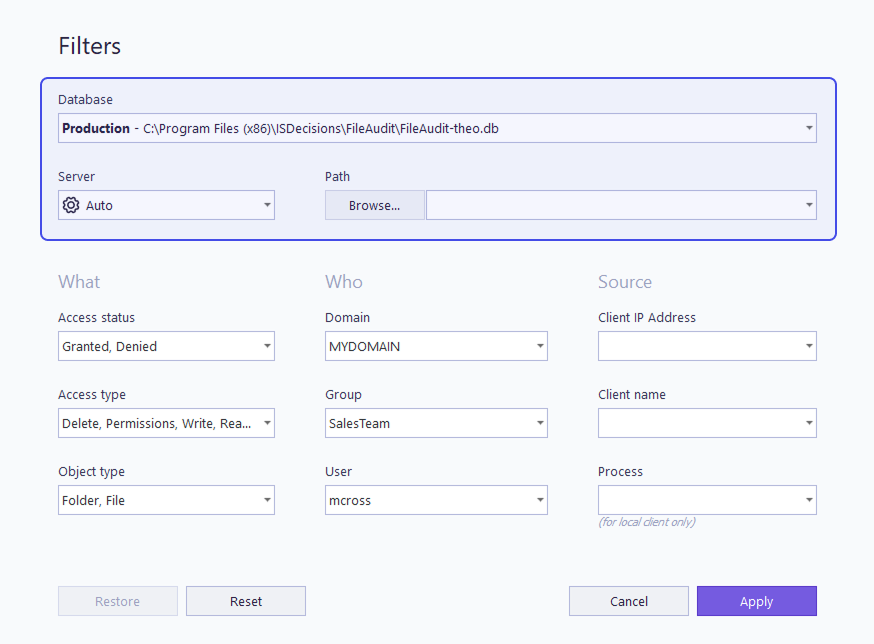
The Path field supports wildcards: * matches any string, ? matches any single character. To search several paths at once, set Server to Auto, then enter the paths separated by commas in the Path field.
Note
If you enter a path that is not currently monitored, FileAudit detects it and offers to set up the audit configuration through its wizard. Follow the wizard steps to configure NTFS auditing for the new path. See Manage Windows audit Guide.
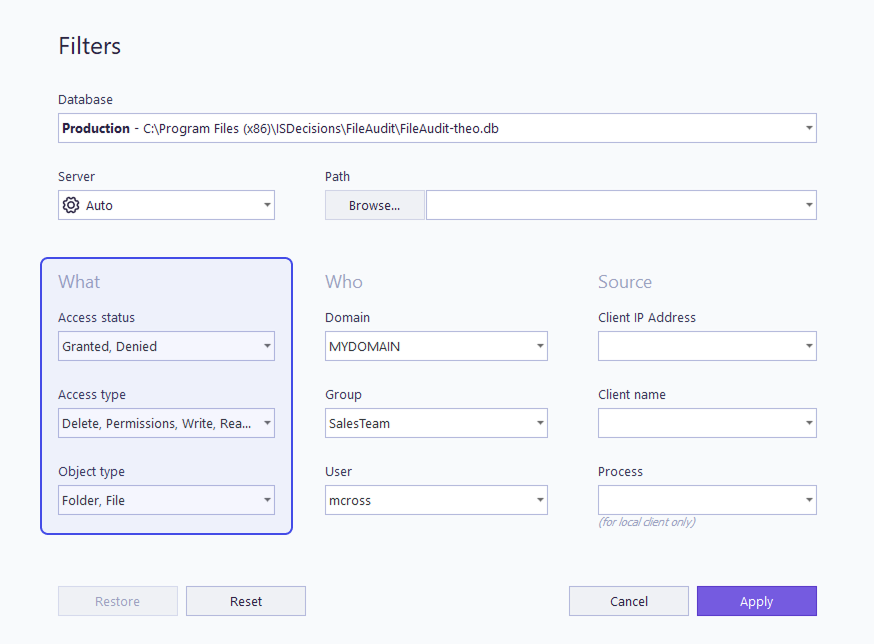
The What filters select events by the nature of the operation and the type of object involved.
Field | Description |
|---|---|
Access status | Restrict results to Granted access, Denied access, or both. |
Object type | Restrict results to files, folders, or both. |
Access type | Select one or more operations to match, such as Read, Write, Delete, or Rename. |
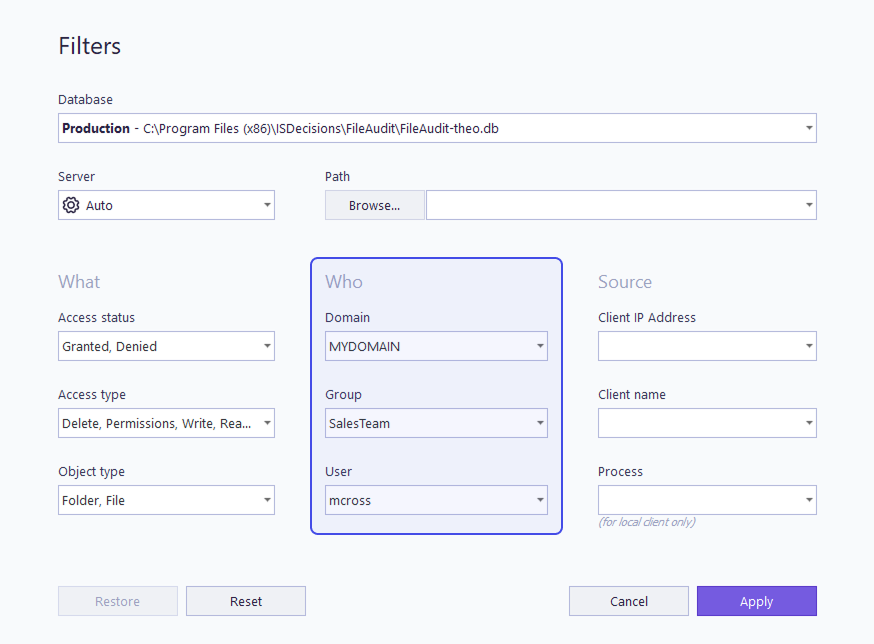
The Who filters select events by the identity that generated them.
Field | Description |
|---|---|
Domain | Match events for a specific Active Directory domain, entered by its NetBIOS name. |
Group | Match events generated by members of a specific Active Directory group. |
User | Match events generated by a specific user. |
A few constraints apply to group selection:
Groups without users (for example, a group containing only machine accounts) are not allowed.
Groups from sub-domains or parent domains are not supported.
After the service starts or restarts, it needs a short time to build the group list. During this interval, any group selection is rejected, usually for a few seconds.
The Group and User fields accept an advanced syntax to combine multiple identities, described in Include or exclude users below.
The Group and User fields support a syntax to include or exclude several identities in a single filter. Separate multiple entries with commas. Prefix an entry with a minus sign (-) to exclude it.
Entry | Result |
|---|---|
| All accesses by members of the Sales and Marketing groups. |
| All accesses by Everyone except members of the Marketing group. |
| All accesses by Sales members, except users who also belong to Managers. |
In the combined case, if Sales and Managers share no members, all Sales members are included. If every Sales member also belongs to Managers, no data is returned.
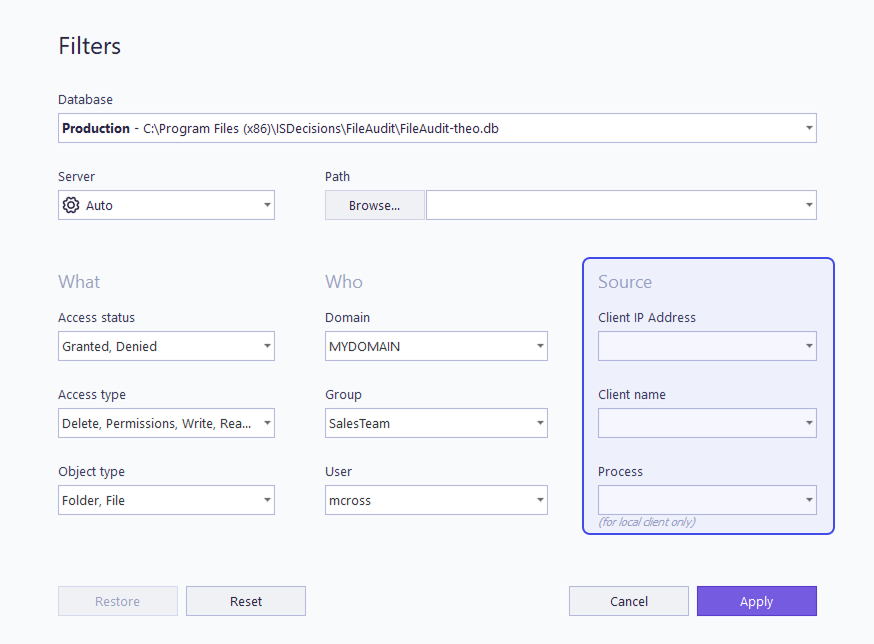
The Source filters select events by where the access originated.
Field | Description |
|---|---|
Client IP address | The IP address of the machine that performed the access, when the access came through the network. |
Client name | The name of the machine that performed the access, when the access came through the network. |
Process | The name of the process that generated the access attempt. Applies only when the file or folder was accessed locally, on the machine hosting it. |
The When filters define the time period covered by a scheduled report. Because a scheduled report runs repeatedly, these options are evaluated relative to each execution date, producing dynamic content on every run.
Several preset selection options are available. Choosing Custom unlocks granular control through the From and To dropdown lists, which include relative time options:
Selecting Event from in the From list, or Event to in the To list, lets you define an exact boundary for the period.
These selections enable the date and hour fields, where you set the start and, if needed, the end date and time.
For how to create and schedule a report, see Manage schedules reports Guide.
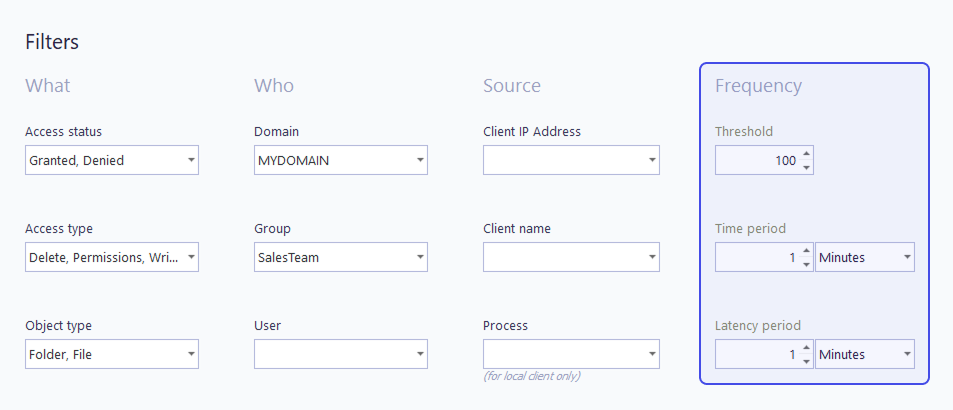
The Frequency filters appear only when configuring a Mass access alert. They define the volume of matching events that triggers the alert, used to detect bulk copying, deletion, or movement by a single user.
Field | Description |
|---|---|
Threshold | The number of accesses matching the alert criteria, at or above which the alert triggers within the time period. |
Time period | The rolling window over which matching accesses are counted. |
Latency period | The time the alert stays disabled after triggering. Enter |
For how to create and tune alerts, see Manage alerts Guide.
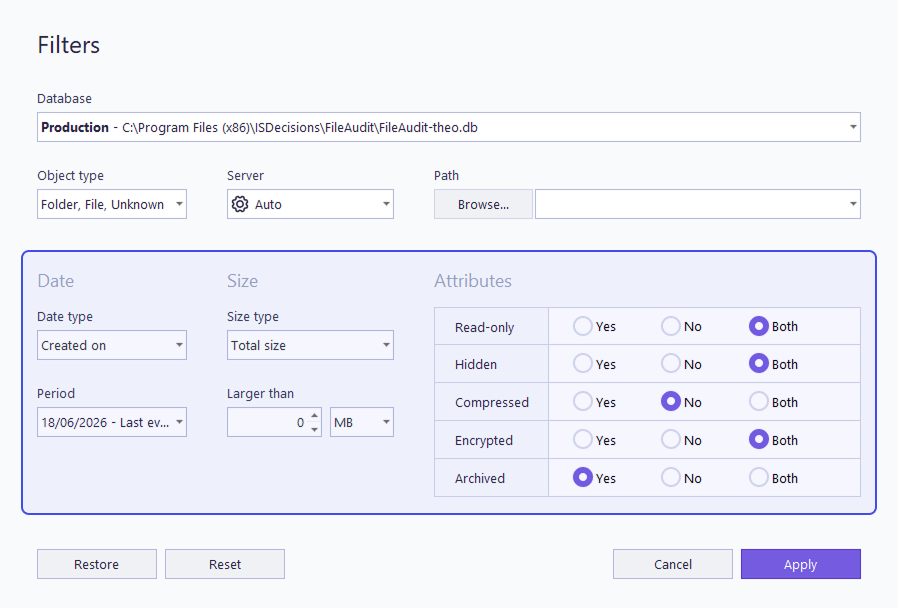
Snapshot reports use a distinct set of filters, because they describe the metadata captured rather than access events.
Field | Description |
|---|---|
Object Type | Restrict results to files, folders, or both. |
Date type | Match items by the date they were created, accessed, or modified. |
Period | Restrict the report to a specific time period relative to the selected date type. |
Size type | Match items by their size: |
Larger than | Minimum size threshold, in MB or GB, relative to the selected size type. |
Read-Only | Match items whose Read-Only attribute is set. Display Yes, No, or both. |
Hidden | Match items whose Hidden attribute is set. Display Yes, No, or both. |
Compressed | Match items whose Compressed attribute is set. Display Yes, No, or both. |
Encrypted | Match items whose Encrypted attribute is set. Display Yes, No, or both. |
Archived | Match items whose Archived attribute is set. Display Yes, No, or both. |
For how snapshots are generated and read, see Manage permissions and properties snapshots Guide.
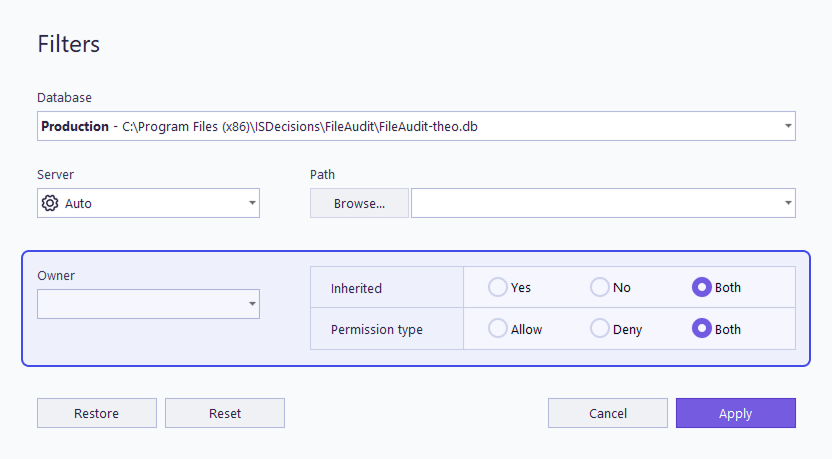
Snapshot reports use a distinct set of filters, because they describe the state of permissions rather than access events.
Field | Description |
|---|---|
Inherited | Match items whose permissions are inherited from a parent folder. Display Yes, No, or both. |
Permissions type | Match items by their Allow or Deny basic permissions. Display Yes, No, or both. |
Owner | Match items by their owner. |
For how snapshots are generated and read, see Manage permissions and properties snapshots Guide.