Detect Ransomware with FileAudit
Set up mass access alerts and an automated script to detect and stop a ransomware encryption attack on your file servers.
Configure FileAudit to detect a ransomware encryption attack and react to it automatically.
You will create three mass access alerts and attach a script that logs off the offending user as soon as the attack is detected, before an administrator even reads the notification.
This guide assumes your audit paths and email settings are already configured.
When ransomware encrypts a file, it performs three operations in sequence:
It reads the file content into memory,
writes the encrypted data into a new file,
then deletes the original.
Across many files at once, this produces a burst of file access events on the server.
In FileAudit, this burst appears as three consecutive access types: a read, a write, and a delete.
To catch it, you set one mass alert for each, all on the same threshold. When all three fire at the same time, you are almost certainly looking at a mass encryption attack.
Note
To learn more about how FileAudit detects ransomware, read our blog article on How to Detect Ransomware with FileAudit.
Create one mass alert each for read, write, and delete access. Use the same threshold on all three so they trigger together during an attack.
Go to the Access tab under Alerts and select Add a mass alert.
Give the alert a name (for example, Mass Delete) and select the matching access type.
Leave the threshold at its default of 100 events in 1 minute. This is the recommended setting.
The three alerts must use the same threshold. If they differ, they will not fire together and you lose the read-write-delete signal that identifies an attack.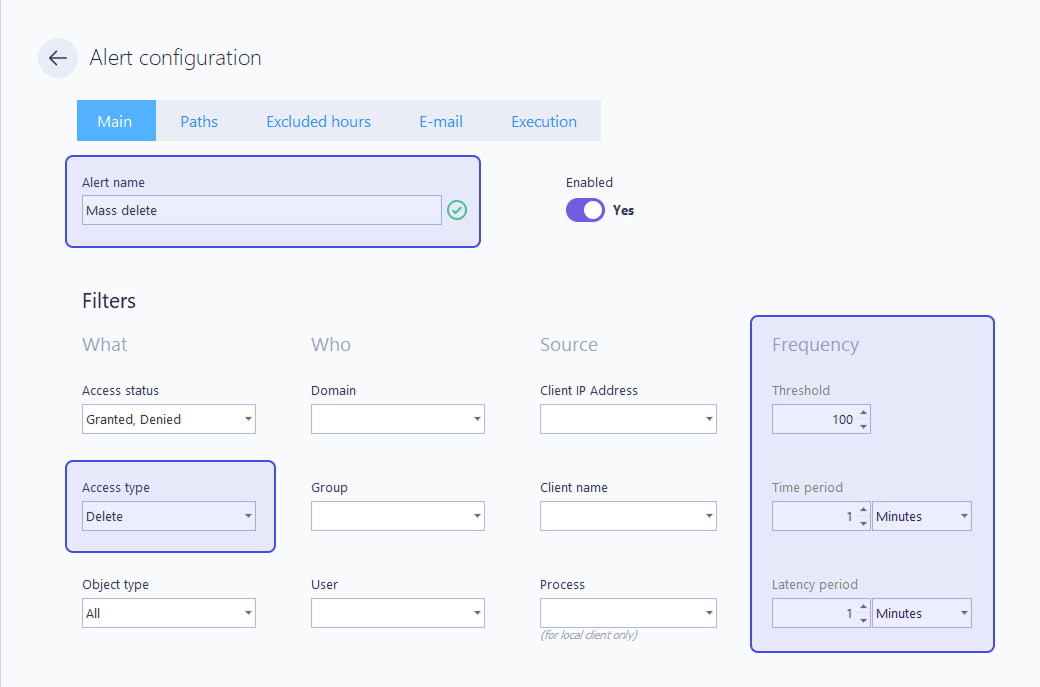
In the Paths tab, enter
*to cover every audited path.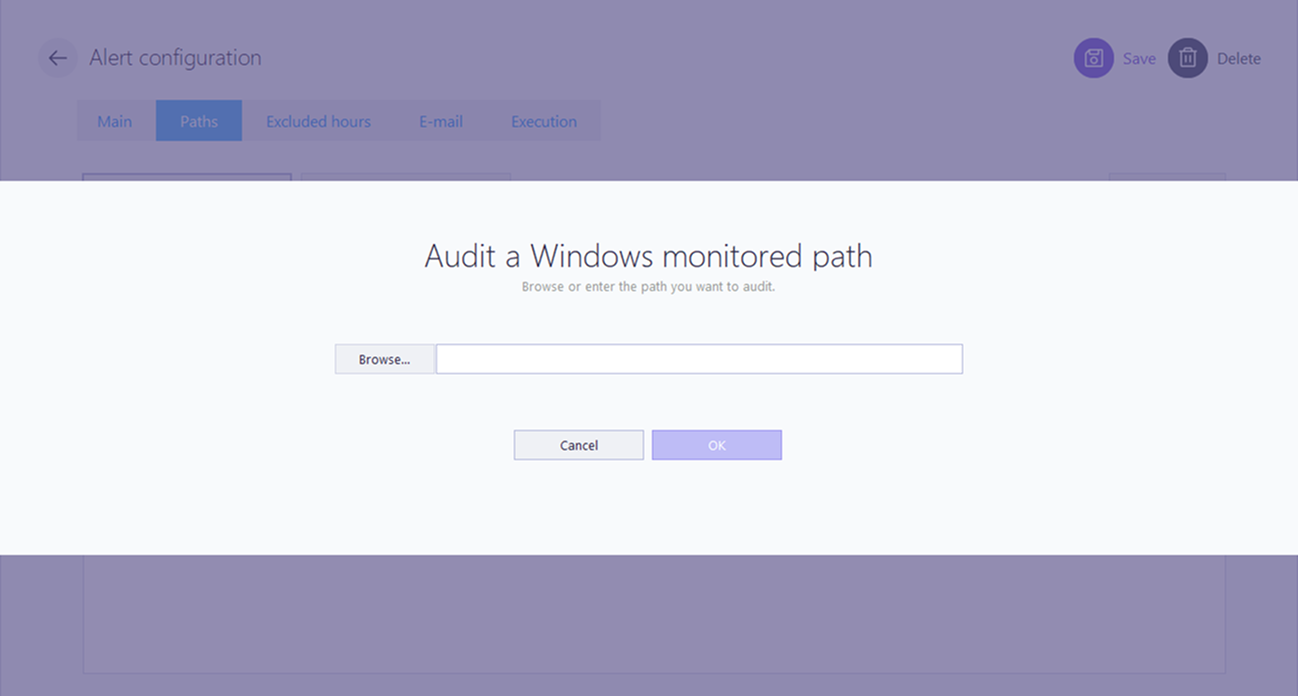
In the Email tab, enter the recipients who should receive the alert.
Save the alert.
Repeat steps 2 to 6 for the Mass Write and Mass Read alerts.
The three alerts now appear in the Alerts tab.
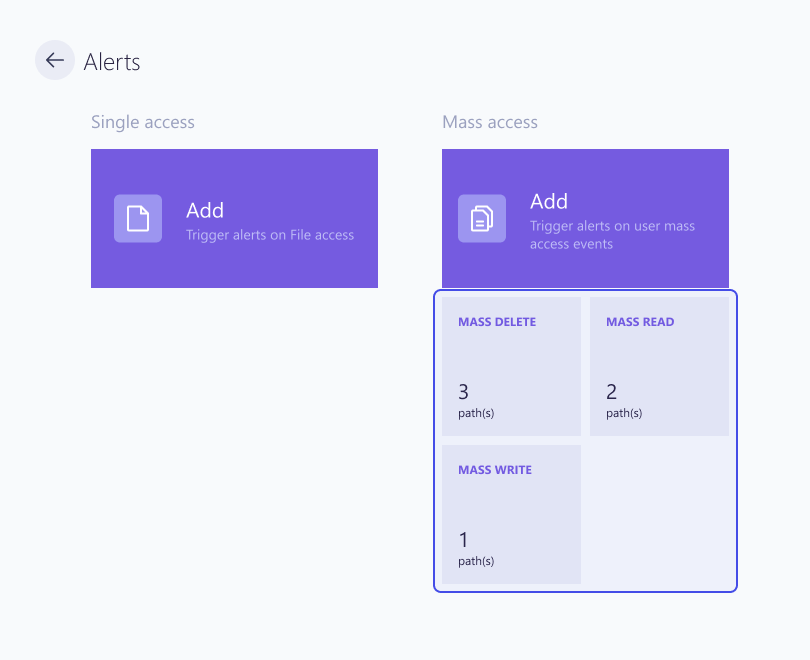
FileAudit can run a script automatically when an alert fires, closing the attacker's session before an administrator reads the notification. FileAudit ships with predefined ransomware scripts, so you do not need to write or download anything. Choose one script and apply the same one to all three alerts.
Open one of the three alerts and go to the Execution tab.
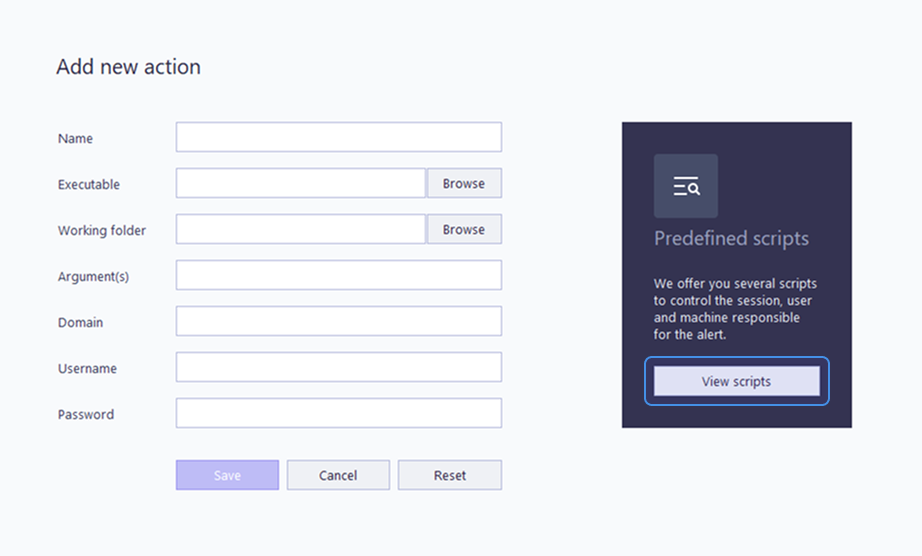
In the Executed action dropdown, select Add new action.
In the Predefined scripts panel on the right, click View scripts.
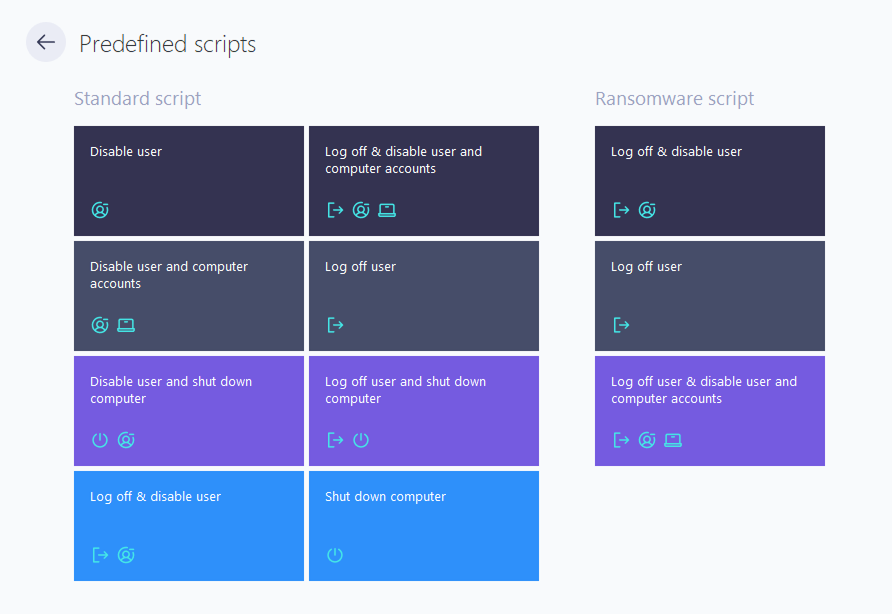
Under Ransomware scripts, choose one of the three options (see below), then save the action.
Open the other two alerts and select the same action from the Executed action dropdown so all three use it.
The three Ransomware scripts options differ only in how aggressively they lock out the threat:
Script | What it does | When to use it |
|---|---|---|
Log off user | Logs off the session that triggered the alerts. | Stops the active encryption process with the lightest impact. |
Log off & disable user | Logs off the session and disables the user account. | Prevents the same account from signing back in to resume the attack. |
Log off user & disable user and computer accounts | Logs off the session, disables the user account, and disables the computer account. | Strongest containment: also blocks the source machine from the domain. |
⚠️ Important
The action must run under a domain administrator account. Logging off a session, and disabling user or computer accounts, requires domain administrator rights. Enter those credentials in the action's Domain, Username, and Password fields.