Database architecture
Understand which database engines FileAudit supports and how to manage and size your audit database for production.
FileAudit relies on a central database to keep the information shown in the console available, searchable, and consistent across the whole audit environment.
The database holds:
File and folder access events collected from the Windows Security log
Alert history
Snapshot and inventory data
Permission (ACL) information
Scan and server metadata
A single, shared database means every console and report draws from the same source, whatever the size of the deployment.
FileAudit ships with a free SQLite database so you can start auditing immediately, with no external database server and no extra configuration.
For anything beyond evaluation, the engine you choose determines how well the database scales as audited activity accumulates.
Engine | Size limit | Best for | Requirements and constraints |
|---|---|---|---|
SQLite (default) | Free disk space on the drive | Evaluation, testing, low-activity environments | Provided in the installation package. Limited scalability and performance under load. |
Microsoft SQL Server (2008+, 32/64-bit) | No theoretical limit | Production, large or active environments | Recommended for scalability, resilience, and enterprise integration. |
Microsoft SQL Server Express (2008+, 32/64-bit) | 10 GB | SMB and smaller production environments | Free edition. Most SQL Server features, with CPU and RAM limits. |
MySQL (5.6+) | Engine-dependent | Existing MySQL infrastructure | Requires the ODBC driver. The MySQL .NET connector must not be installed. |
The default SQLite database is stored at C:\ProgramData\ISDecisions\FileAudit\Database. You can move it and update the path in the database settings.
⚠️ Important
For medium to large environments, IS Decisions strongly recommends Microsoft SQL Server for scalability, performance, and long-term stability.
The Database manager centralizes all database operations. You reach it from the Database & Audit Maintenance tile on the dashboard, or from Settings. The screen shows the current connection, database information (record count, oldest and newest event, data and file size), and the scheduling options, with the Database manager and Audit tabs at the top.
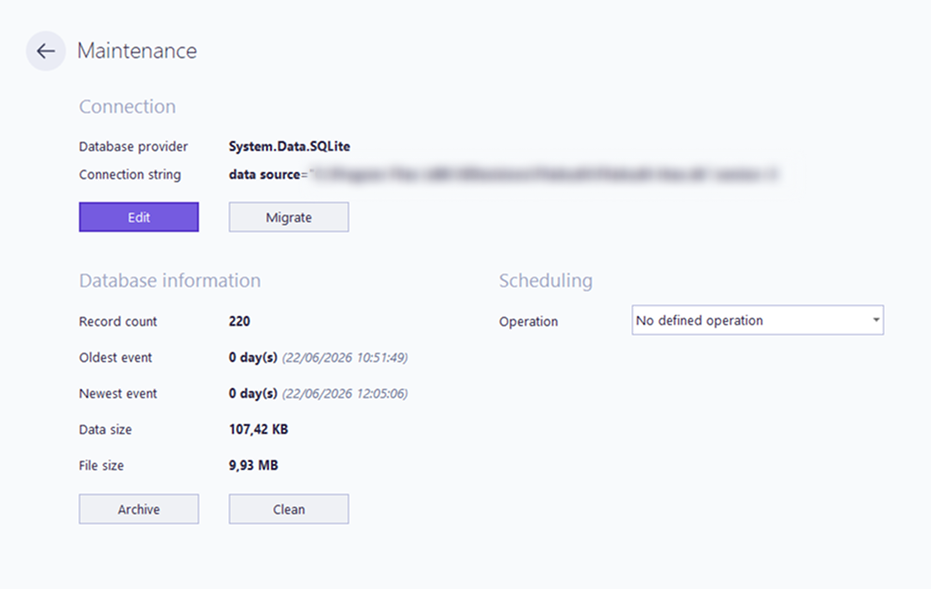
The Database manager provides five operations:
Edit: change the production database. To keep your current data visible in the console, migrate instead of editing.
Migrate: transfer data to another database, then switch production to it. Covers the common moves from SQLite to SQL Server, or from one SQL Server to another. See Migrate to another database Guide.
Archive: move data from the production database to an archive database, fully or up to a chosen number of days. See Archive database Guide.
Clean: remove data, for example erase records older than a defined period. See Clean records Guide.
Scheduling: automate cleaning or archiving as a recurring task.
To set up a production database from scratch, see Set production database Guide.
The FileAudit database is built around the following main tables:
Table | Content |
|---|---|
FA_Events | Audited access events |
FA_LastEvents | Internal tracking of the last scanned events |
FA_ALERT | History of triggered alerts |
SNAPSHOTS | Index of snapshots |
REALFILES / REALFOLDERS | File and folder inventory |
ACES | Access Control Entries (ACL) |
SCANERRORS | Scan errors and warnings |
SERVERS | Inventory of discovered and scanned machines |
For the full field-level definitions, value lists, and the entity-relationship diagram, see Database tables and fields Reference.
Use SQL Server in production rather than SQLite, which is meant for evaluation and does not scale under sustained activity.
Monitor database growth: every audited event adds to the database, and depending on the level of activity it can grow quickly. Plan retention with scheduled cleaning or archiving to keep its size under control.
Host the database on a dedicated, backed-up server so audit data survives a host failure.
Test migrations in a staging environment before running them in production.
Align with your DBA team's standards and backup policies so the audit database fits existing maintenance routines.
Before moving to production, activate your license to leave Trial mode.