Reduce audit noise from Windows search
Stop Windows search from generating a read event per file by indexing the searched locations, including file server shares.
Windows searches run on indexed folders do not generate any events in FileAudit (except when the index is rebuilt), because the search uses the index rather than the files themselves.
Searches run on non-indexed folders with content search enabled are different. To retrieve the information, Windows has to open each file to read its contents, and FileAudit records every one of those reads. A single search can then produce a large number of false positives in your audit trail.
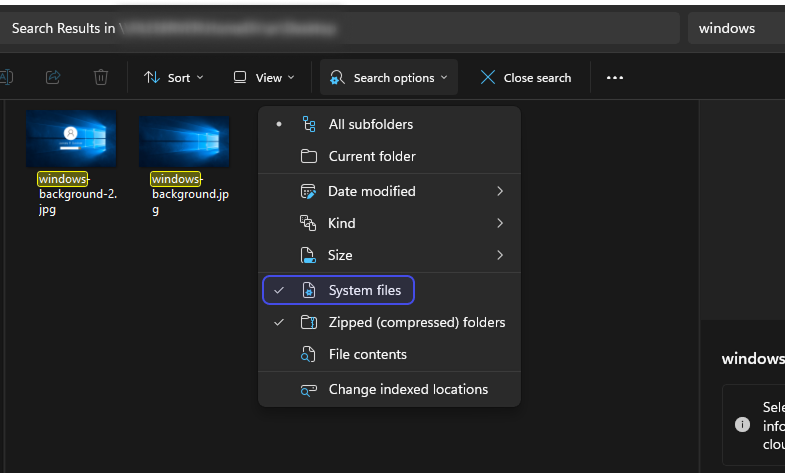
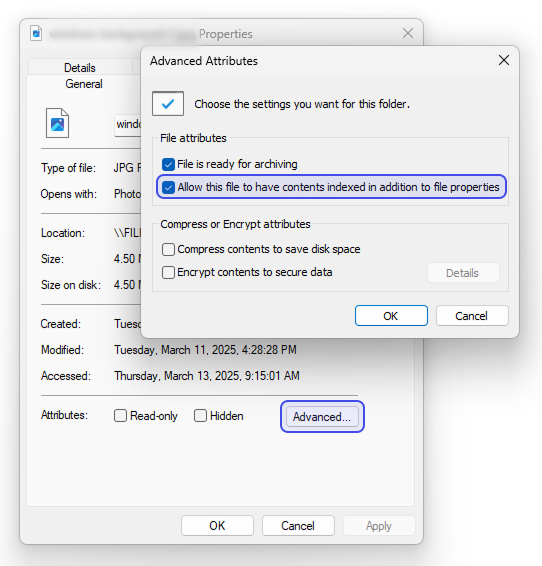
To avoid this, we recommend indexing the folders that users search. Verify that index contents is checked:
If the searched folders are on a file server, the Windows Search Service must be installed before you can index the shares. It is not installed by default.
On a local machine, skip this section and go straight to indexing.
Note
See Access types Reference for how FileAudit records a read.
On a file server, the Windows Search Service is not installed by default. Install it before indexing the shares. On a local machine, skip this section and go straight to indexing.
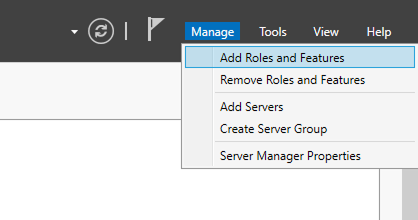
In Server Manager, click Manage > Add Roles and Features.
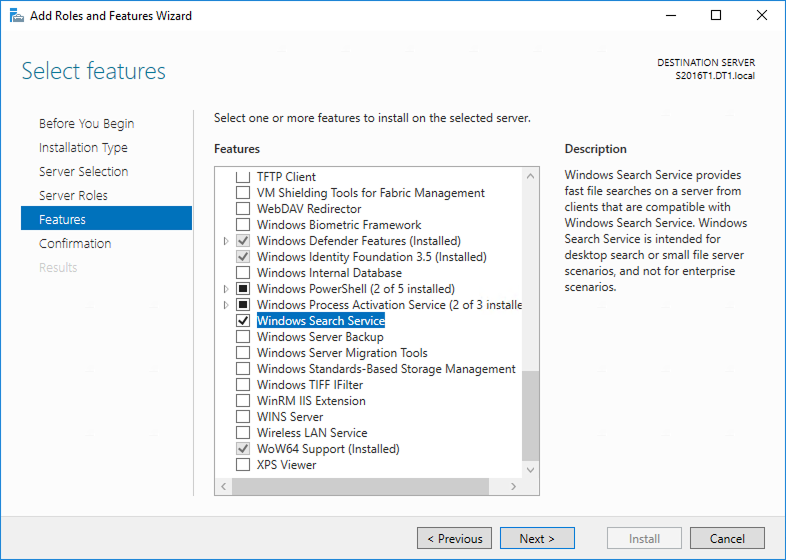
Select the Windows Search Service feature and complete the wizard.
After installation, make sure the Windows Search service is started. On some Windows Server versions it is set to Disabled by default.
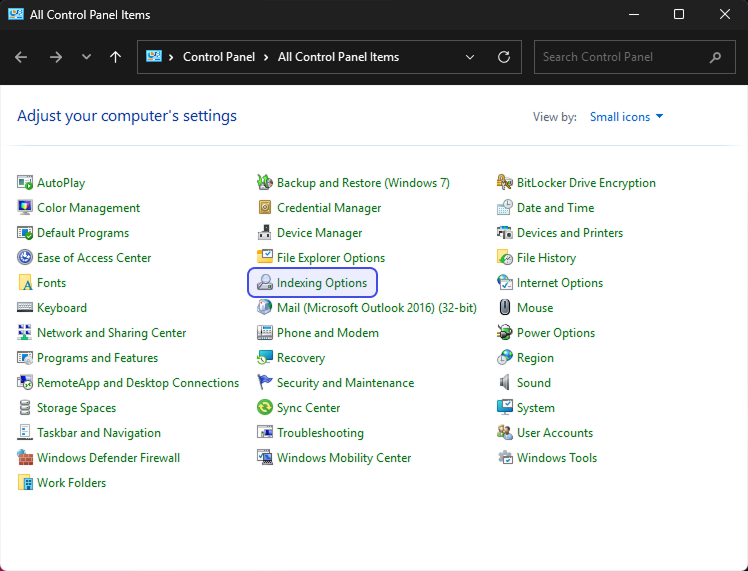
Open Control Panel > Indexing Options.
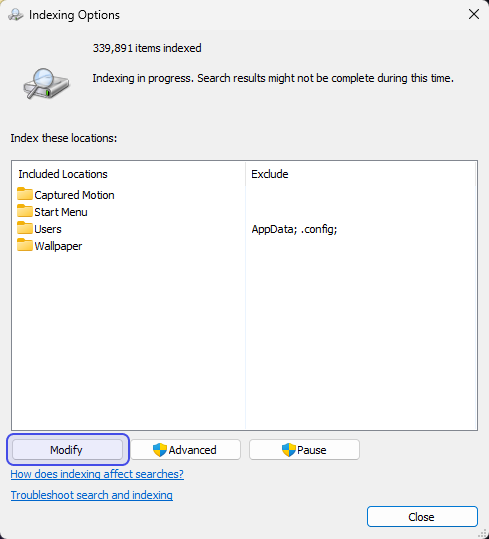
Click Modify.
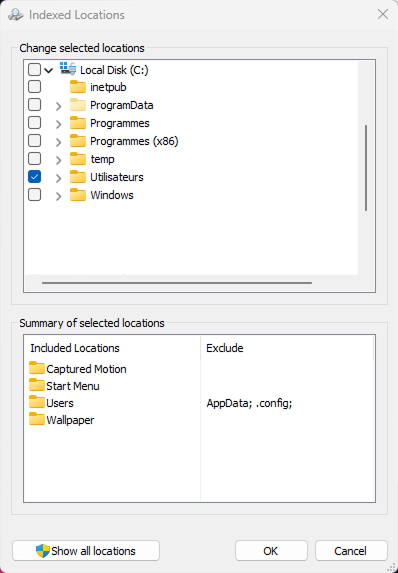
Select the drives and folders users search, then confirm. You can add a single folder or an entire drive; Windows indexes them automatically.
Once indexing completes, searches on these locations no longer generate read events.
Note
⚠️ Important
Windows Search cannot be used with DFS. On a DFS namespace, searches are sent to the root DFS server instead of the indexed target, so indexing does not stop the read events.