Displaying the events
View the file access events generated by FileAudit for your audited path.
This tutorial continues from Configuring your first audit path Getting started.
It uses the audited path C:\FileAudit-Test set up in that step, and the FileAudit console should already be open.
FileAudit records what happens in the folder, so the report stays empty until something does.
Open
C:\FileAudit-Testin Windows Explorer.Create a text file, type a few lines, and save it.
Reopen the file, change the text, and save it again.
Create a second file, then delete it.
These few actions produce access events of several types on the folder. Leave the first file in place: you will delete it in Setting up an alert Getting started to trigger your first alert.
Open the FileAudit console.
Click All reports.

Open the report All access events.
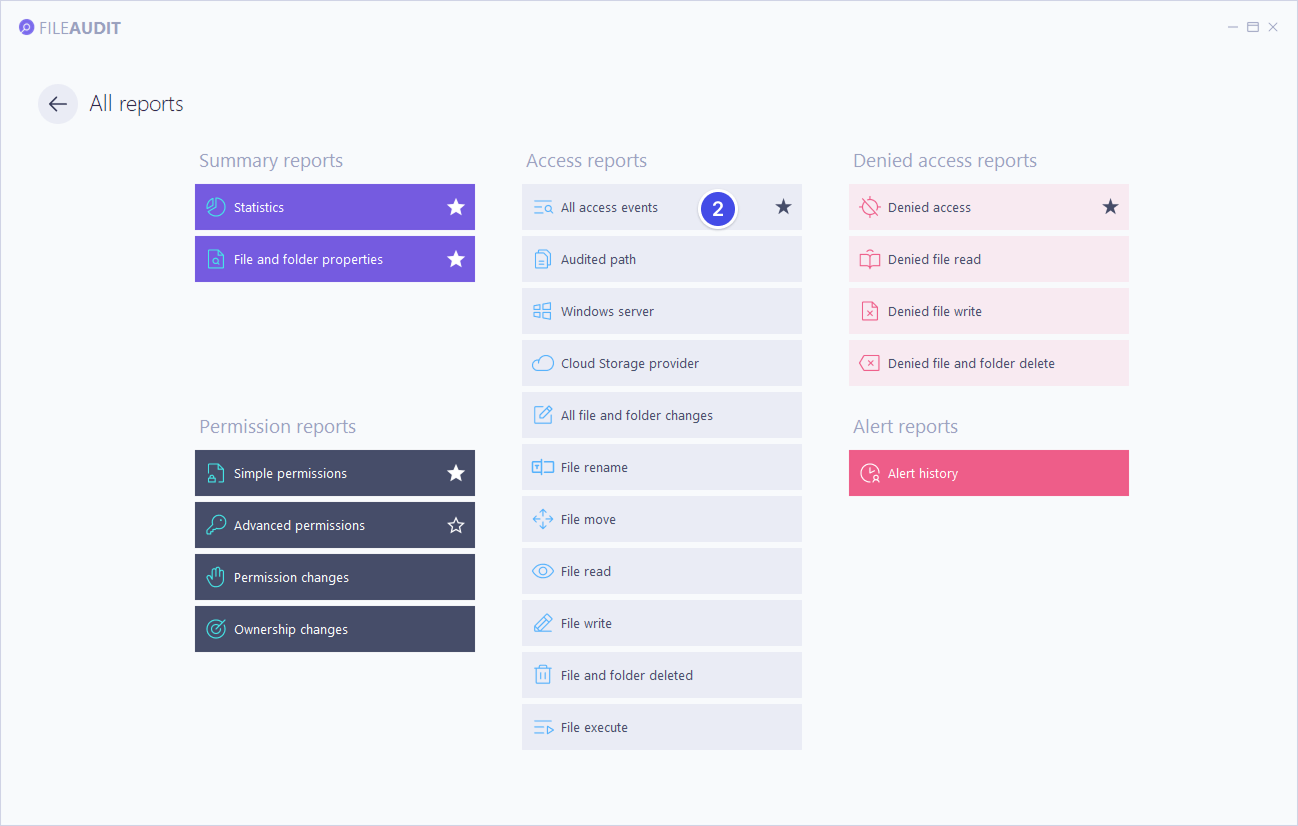
By default, the report displays the most recent file access events.
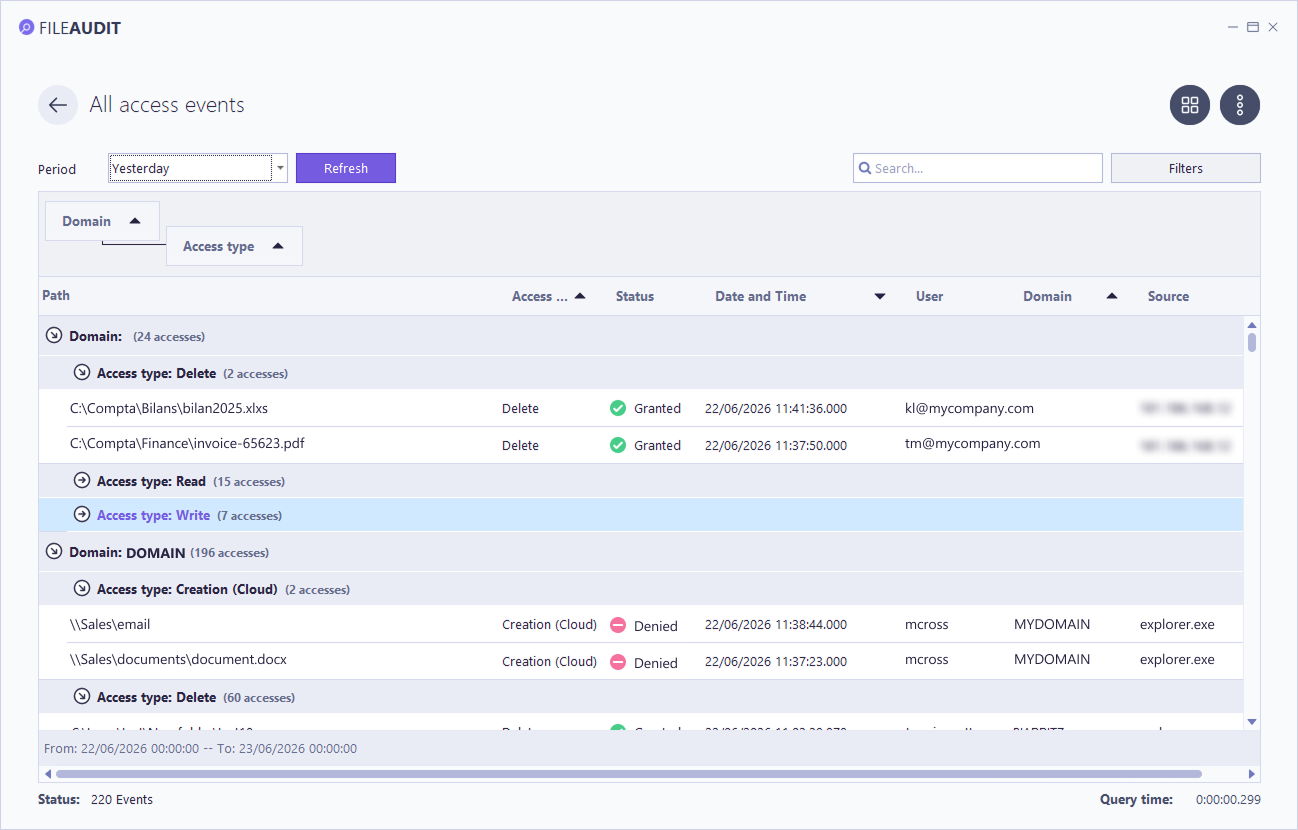
In the All access events report, look for the activity generated for C:\FileAudit-Test.
Click on the Filters button. Enter the path in the Path field and apply.
Each event shows:
the user who accessed the file or folder,
the access type (for example, file creation, modification, deletion, or opening),
the file or folder path,
the date and time of the action.
Note
️💡️Tip: By right-clicking on the black ribbon of the report columns, you can customize the information displayed in the report, such as the “Choose columns” option.
Similarly, right-clicking on the upper frame of the report allows you to refresh the report or return to the FileAudit console dashboard.
Useful resources
Once you've reviewed the access events, set up an alert to be automatically notified about access to your audited path: Setting up an alert Getting started.