Configure SQL Express
Configure SQL Express to work with FileAudit based on the selected authentication type and the permissions required for the database.
Before connecting FileAudit to your database hosted in SQL Express, you need to prepare access to that database. Follow the guide below to do so:
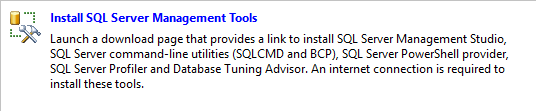
Download and install SQL Server Management Tools (SSMS).
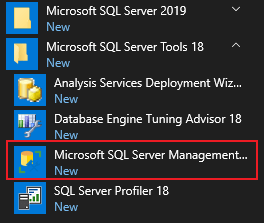
Open SQL Server Management Studio.
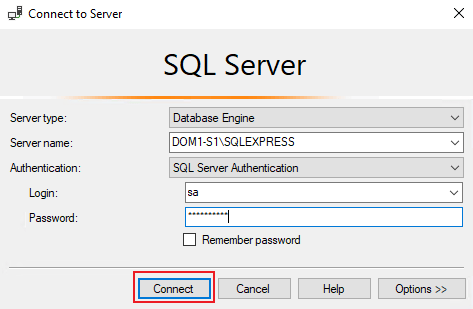
At the logon window:
Enter the server name and instance (e.g.
SERVERNAME\SQLEXPRESS).Choose SQL Server Authentication.
Enter your credentials and click Connect.
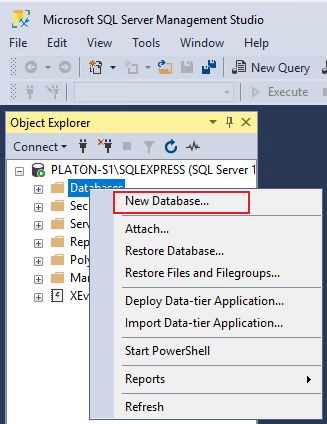
Create the FileAudit database:
In the Database name field, enter e.g.
FileAudit.Click OK.
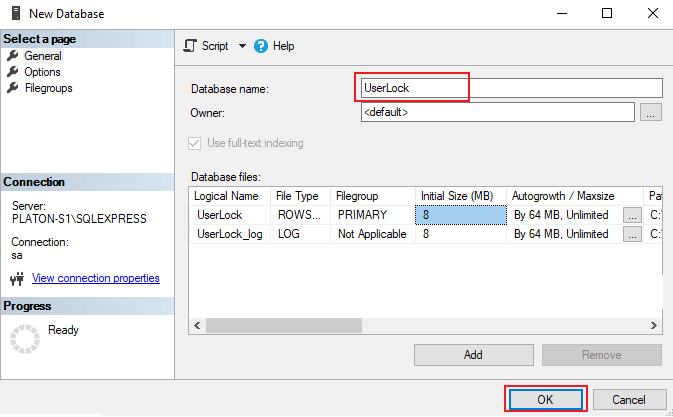
Add the account that is going to access the database. Depending on the type of authentication you want to use in FileAudit — Windows or SQL Authentication — you need to add a different account.
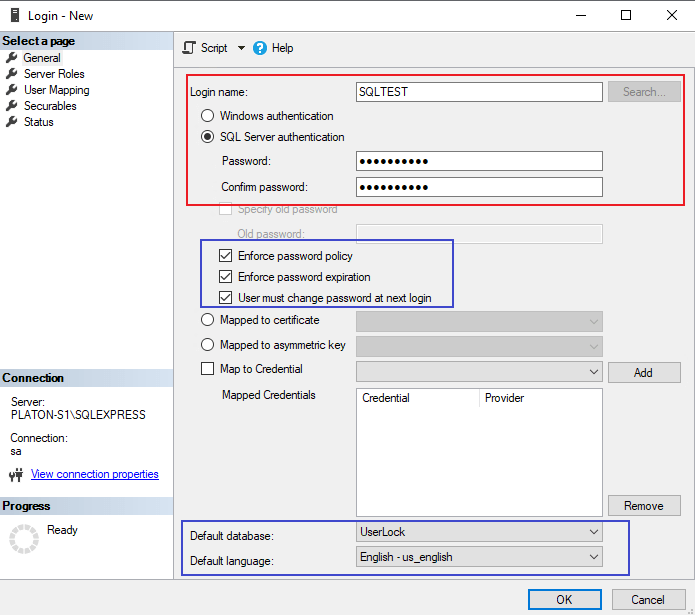
For SQL Authentication: create a dedicated SQL account (recommended, instead of using
sa):In Login name, type e.g.
FileAuditAdmin.Select SQL Server authentication and assign a password.
Adjust password policies if required by your IT policy (enforce policy, expiration, force change at logon).
Optionally set a default database and language.
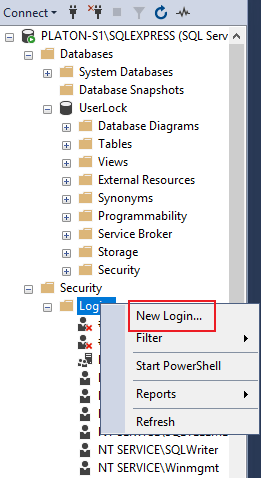
For Windows Authentication: by default, the FileAudit service runs as the SYSTEM account. If SQL Server is installed locally, add
NT AUTHORITY\SYSTEM. If SQL Server is on a remote server, add the machine accountDOMAIN\FILEAUDITSERVER$instead (replaceDOMAINandFILEAUDITSERVERwith the corresponding names).
Assign database roles:
In User Mapping, select the
FileAuditdatabase.Assign roles:
db_datareader,db_datawriter,db_ddladmin.Click OK to validate.
Then configure the connection string in FileAudit like explained in Set production Database Guide
The FileAudit tables should be automatically created in the database and new events be inserted just after the first connection.
Remote access to SQL Server
If your SQL Server is not installed on the same server as the FileAudit service, you need to enable remote connections in the SQL Server properties.
You also need to enable TCP/IP in SQL Server Configuration Manager.
Secure authentication: avoid using the
saaccount for day-to-day operations. Create a dedicated SQL account for UserLock with the required roles only.Plan for growth: SQL Express has a 10 GB size limit. Monitor usage and consider migrating to a full SQL Server if your deployment grows.
Set up backups early: configure regular SQL Server backups before moving into production.
Restrict access: limit network access to the SQL Express instance with proper firewall and permissions.