Manage Windows audit
Add and verify audited paths, control auditing per server, and revoke servers from the FileAudit console.
FileAudit organizes Windows auditing around two objects: the servers it monitors and the paths (folders or files) audited on each server. This guide covers the recurring operations on both:
adding paths
checking paths
removing paths
enabling or disabling a server
verifying the audit status on a server
revoking a server
maintenance of the audit configuration
Note
👉 To understand how FileAudit collects events from the Windows Security log, see Windows audit Reference.
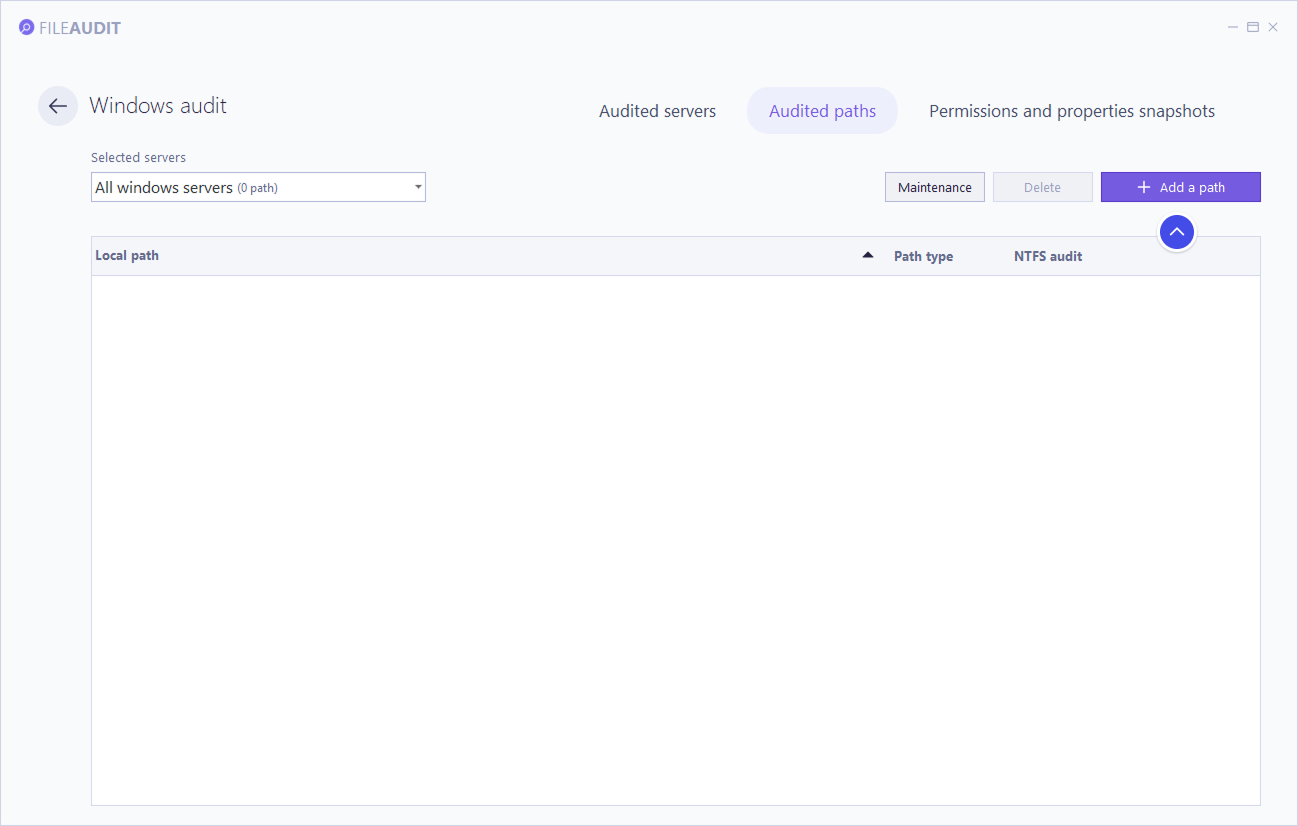
You can add a path to audit at any time. A wizard handles the configuration and applies the required Windows audit settings automatically.
In the console, go to Windows paths or Windows servers.
Click Add a path, then browse to the file or folder to audit.
Complete the wizard. For the detail of each step (audit policy, SACL deployment, inheritance, real-time monitoring), see Configuring your first audit path Getting started.
If the path is on a server FileAudit does not yet monitor, adding the path registers that server in the audited servers list automatically.
💡️ Tip
You can add a path by right-clicking a file or folder in Windows Explorer and selecting FileAudit from the context menu.
Use this check when events stop appearing for a path, or after a folder's permissions or audit settings may have been changed by another tool or a GPO.
In Windows paths, select the path to verify.
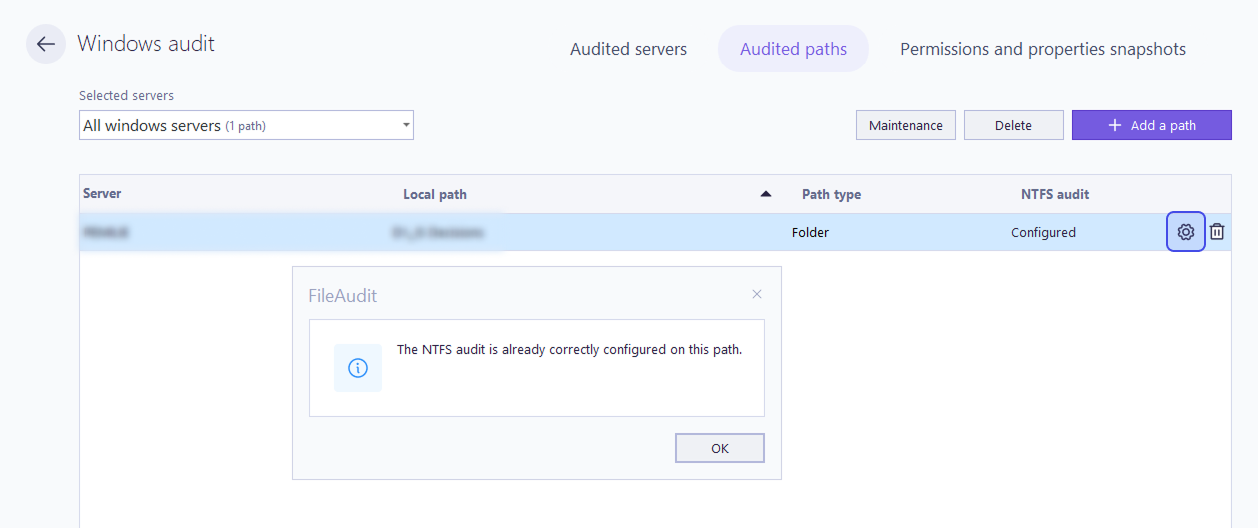
Click Check audit.
If the NTFS audit is configured correctly, a confirmation message appears.
If a problem is detected, the wizard opens so you can reconfigure the SACL on that path. Complete the wizard to restore the configuration.
Automatic check
FileAudit continually checks the audit configuration status for every path entered in its different views and settings, for example in:
the Access reporting views,
a scheduled report configuration,
an alert rule definition.
When a path is not yet configured for auditing, FileAudit will prompt you to configure it using the same wizard as the Add an audited path procedure.
Removing a path stops monitoring it but keeps the events already collected.
In Windows paths, select one or more paths.
Click Delete and confirm.
Note
Access events already stored in the database are preserved. Only the monitoring configuration is removed.
Disabling a server pauses event collection without losing its configuration. This is useful during maintenance windows or when troubleshooting a noisy server.
In Windows servers, click the server tile to open its detail panel.
Toggle Active Audit off to pause collection, or on to resume it.
While auditing is disabled, no events are written to the database for that server and its alerts stop firing. Audited paths and alert rules are retained, so re-enabling the toggle restores collection without reconfiguration.
This check confirms that the Windows Audit Object Access policy is correctly applied on the server, which is the policy that allows Windows to generate file access events at all.
In Windows servers, open the server tile.
Click Check audit status.
If the check reports a problem, the policy may be overridden by a GPO. See the Warnings Reference page for diagnostic messages, and Windows audit Reference for how the policy interacts with Group Policy.
Revoking removes a server from FileAudit entirely. Use it when you stop monitoring a machine for good and want to free its licensed slot.
In Windows servers, open the server tile.
Click Revoke server and confirm.
Note
⚠️ Important: Revoking is irreversible.
It deletes all events associated with the server from the database and frees one licensed server slot. You can also choose to remove the audited path configuration at the same time.
From the Database & Audit Maintenance tile on the dashboard, you can schedule regular maintenance of the audit configuration on audited servers from the Audit tab.
When an audited path is added, FileAudit activates the object access audit policy on the server where the audited files are stored, as well as NTFS auditing on each path. These maintenance tasks check that these configurations have not been modified or overwritten by a GPO, and reconfigure them if necessary.
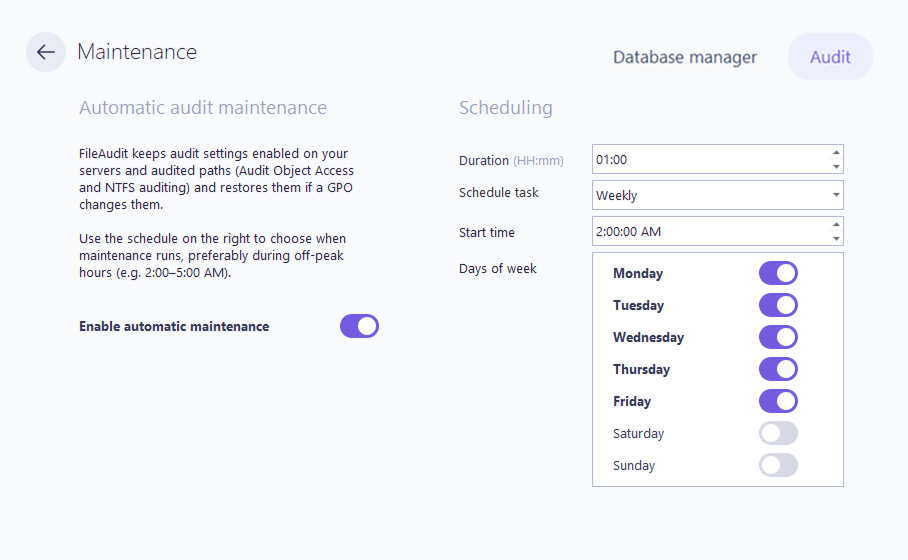
The Scheduling panel in Audit let you run automatic audit maintenance on a recurring basis.
Enable automatic maintenance switch.
Configure the duration. If the maintenance check does not complete running over all your audited paths within this time, it will pick up where it left off the next time it is scheduled.
Set Schedule task to the frequency you want.
Set the Start time.
Select the Days of week to run the task.
💡️ Tip
We recommend scheduling this task outside peak hours.