Archive database
Move auditing data to a separate archive database to keep production lean, and query it when needed.
Archiving moves data from your production database to a separate archive database. You can move everything, or keep a defined number of recent days in production and move the rest.
Archiving keeps your data: unlike Clean records, which permanently deletes records, an archive stays available for auditing and reporting.
Before you start, make sure you have:
The connection details for the destination archive database (server, instance, and credentials, depending on the provider).
Network access to the destination database from the FileAudit service.
On the main screen, click the Database & audit maintenance tile. On the Database manager tab, click Archive.
Click the three dots (
...) at the end of the Connection string field to open the Database connection window.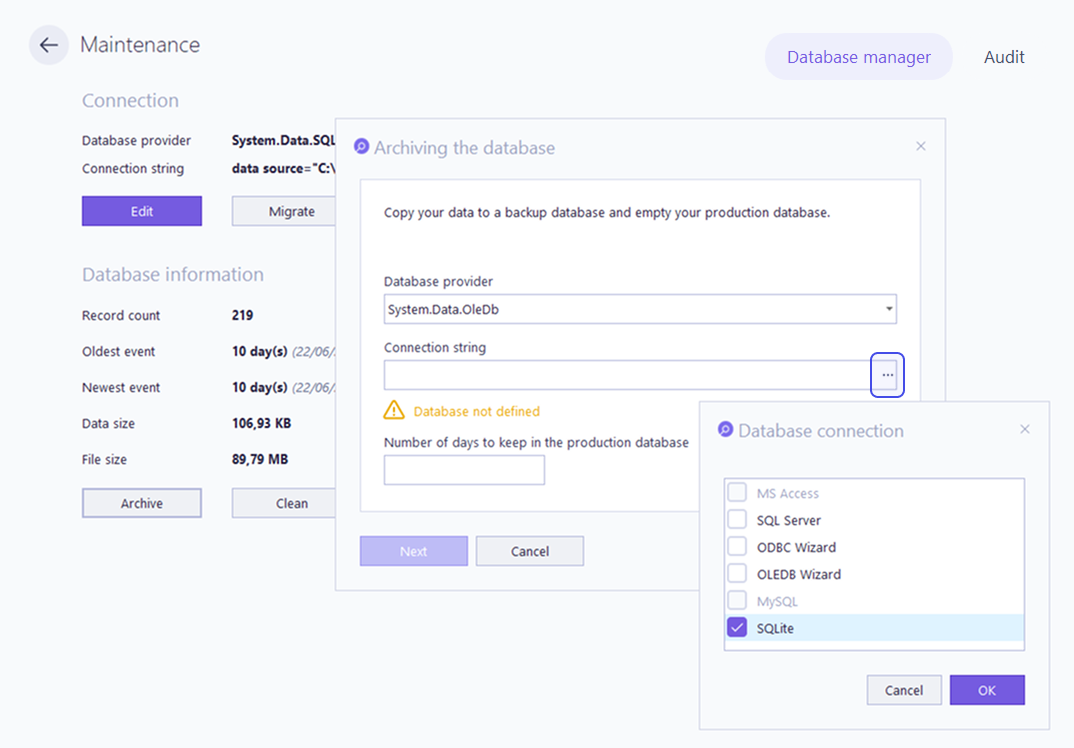
Select your archived database connector (such as SQL Server, ODBC Wizard, OLEDB Wizard, or SQLite) and click OK. A window opens for you to enter the connection details for that connector.
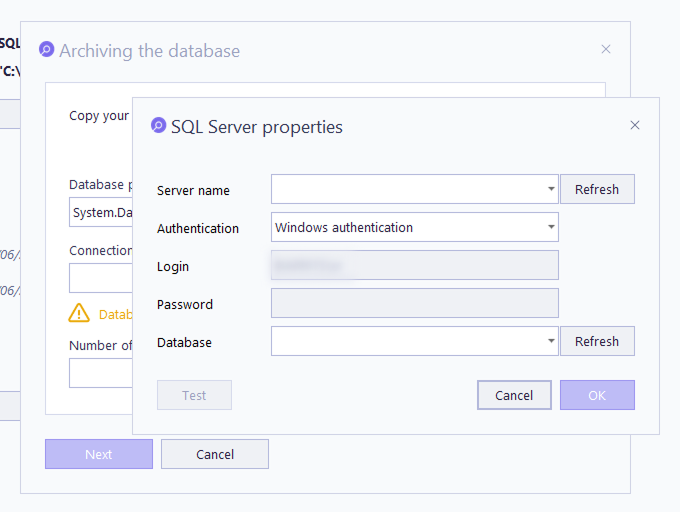
Fill in the connection details and confirm.
Back in the Archiving the database dialog, set the Number of days to keep in the production database. Enter
0to archive the entire production database.Click Next.
Click Archive.
Note
⚠️ Important
Archiving empties the archived events from your production database. Records older than the number of days you keep are moved out and no longer appear when auditing the production database. They remain available in the archive.
💡️ Tip
You can restore an archived database to audit it again. If you only need its data, set it directly as your production database. If you want to keep your current data as well, follow the migration procedure using your production database as the source and the archived one as the destination.
The Scheduling panel in Database manager runs archiving automatically on a recurring basis.
In the Operation field, select Archive all events to archive everything, or Archive events older than and set the number of days to keep in production.
Set Schedule task to the frequency you want.
Set the Start time.
Select the Days of week to run the task.
To schedule record cleaning instead of archiving, see Clean records.
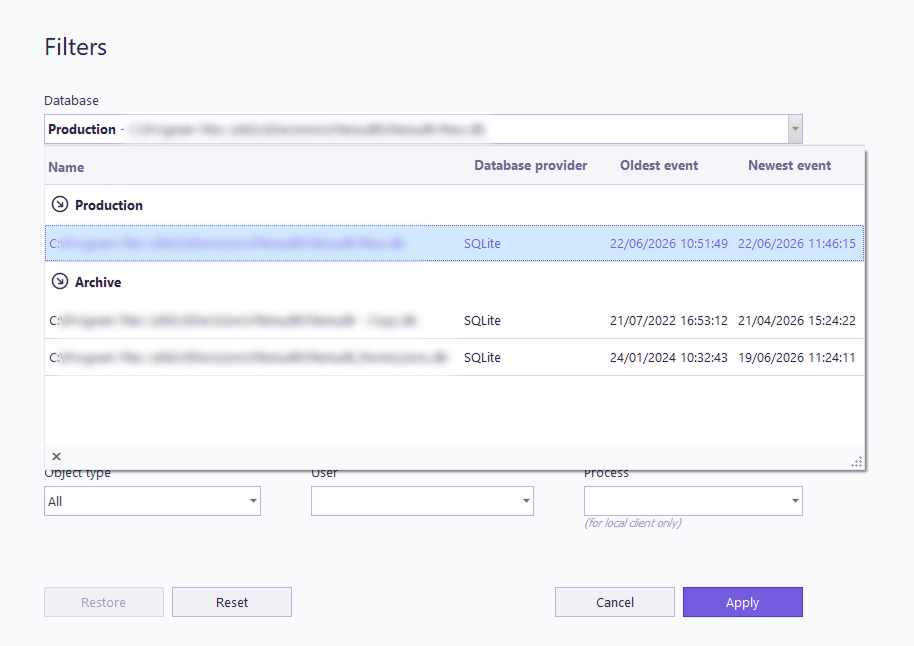
As soon as you archive a database, whether from Database manager or through the scheduler, it appears in the list of archived databases available in report filters.
You can run reports on your older databases without moving them back to production:
Open the report you want.
Click Filters.
Select the archived database from the Database list.
Click Apply, then refresh the report.
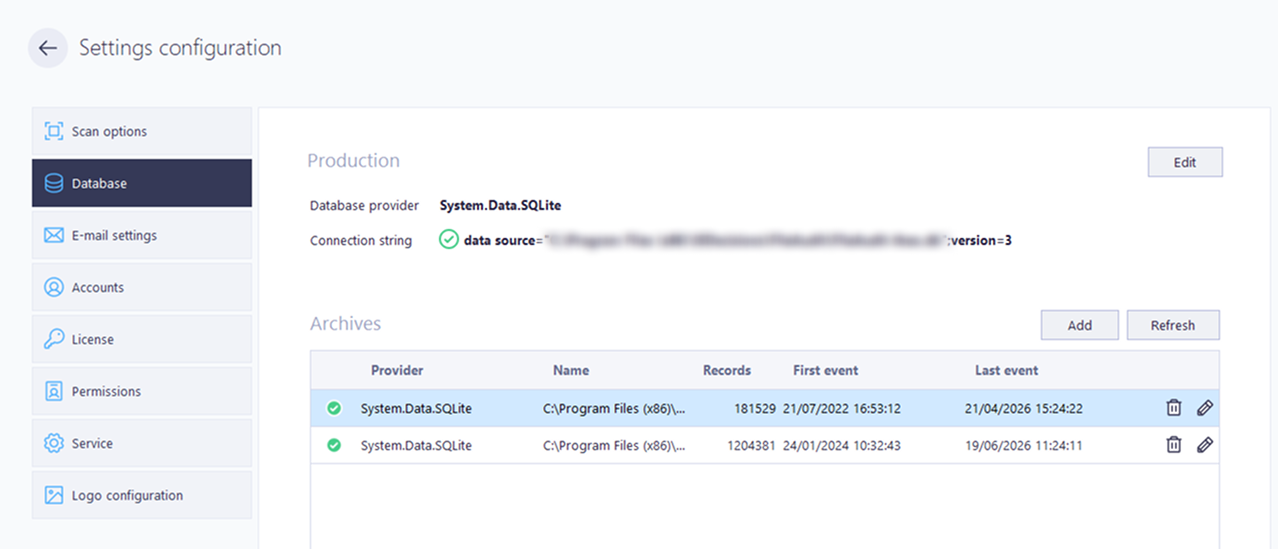
To work with a database created outside FileAudit, add it manually from Settings > Database so it appears in the list:
Open Settings, then the Database tab.
In the Archives section, click Add.
Select the database connector and enter the connection details for the archive.
Click Save.
Note
⚠️ Important
A database can be added as an archive only if it has a FileAudit schema (the FileAudit tables). A database without this schema is not recognized and is rejected.
Note
Scheduled reports always run against the production database. Selecting an archive in a report filter does not change which database scheduled reports use. See Manage scheduled reports Guide.