Best practices
Configure the essentials that keep FileAudit reliable over time: audit coverage, noise, database growth, alerts, and access control.
Sensitive data is rarely confined to a single share. Add the remaining paths that need auditing one at a time, so that any increase in event volume can be traced back to a specific addition.
List the shares that actually hold sensitive data, rather than auditing entire volumes.
Avoid configuring paths that contain system files, since the operating system generates many of its own events on them. In MS-DOS, system files are typically identified by the
.sysextension. In the Windows NT family, they are mainly located underC:\Windows\System32.Add them as audit paths one at a time, checking event volume after each addition.
See Manage Windows audit Guide.When auditing large volumes of data (>1 TB), schedule the task during off-peak hours. FileAudit checks the inheritance configuration on the first levels of subfolders to ensure NTFS settings propagate correctly and auditing is enabled on all subfolders and files. Depending on the number of files/folders and server performance, this check can take some time.
Take a permissions snapshot of your audited paths so you have a baseline to compare future changes against.
See Manage permissions and properties snapshots Guide.If you use the Cloud option, add your cloud storage sources as well.
See Manage Cloud audit Guide.
Every path you add brings its own background activity. Noise usually comes from backup or antivirus processes, service accounts generating expected activity, or irrelevant file types. Exclude them from the audit:
Go to Settings > Scan options.
Under Excluded accounts, Excluded executables, or Excluded files, click the corresponding Add button.
Enter the value, then click Validate.
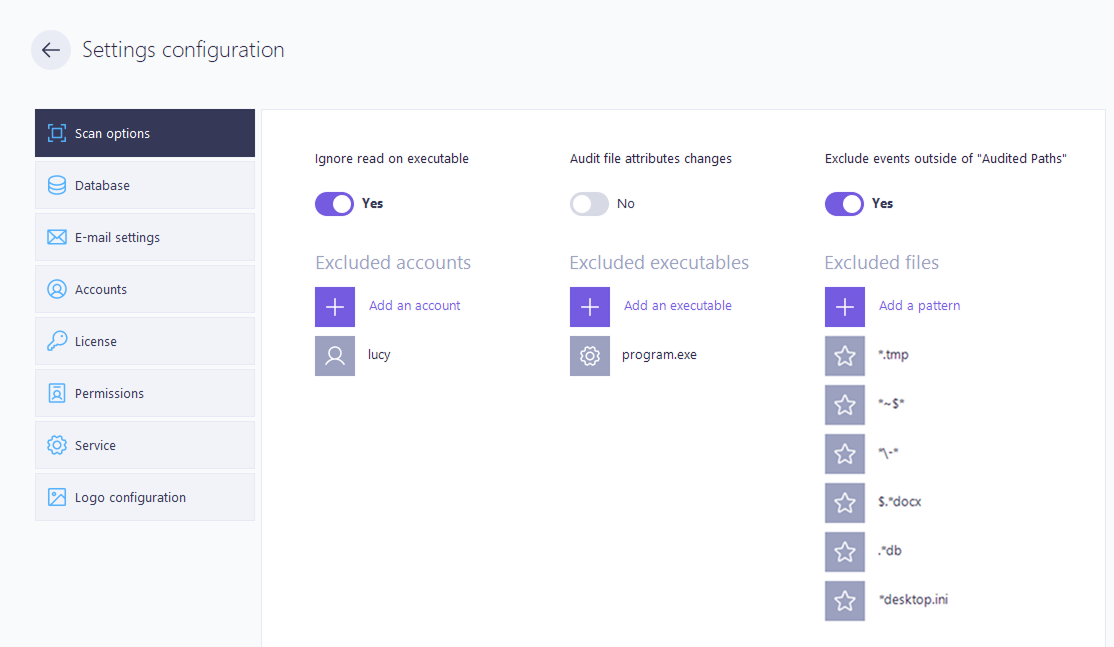
Wildcards (* and ?) work for file patterns only. Account and executable exclusions match exact entries as they appear in the reports.
💡️ Windows search can also generate noise on non-indexed folders with content search enabled: see Reduce audit noise from Windows search Guide.
💡️ To cut the volume of events written to the Security log itself, see Reduce Security event log volume with Advanced Audit Policy Guide.
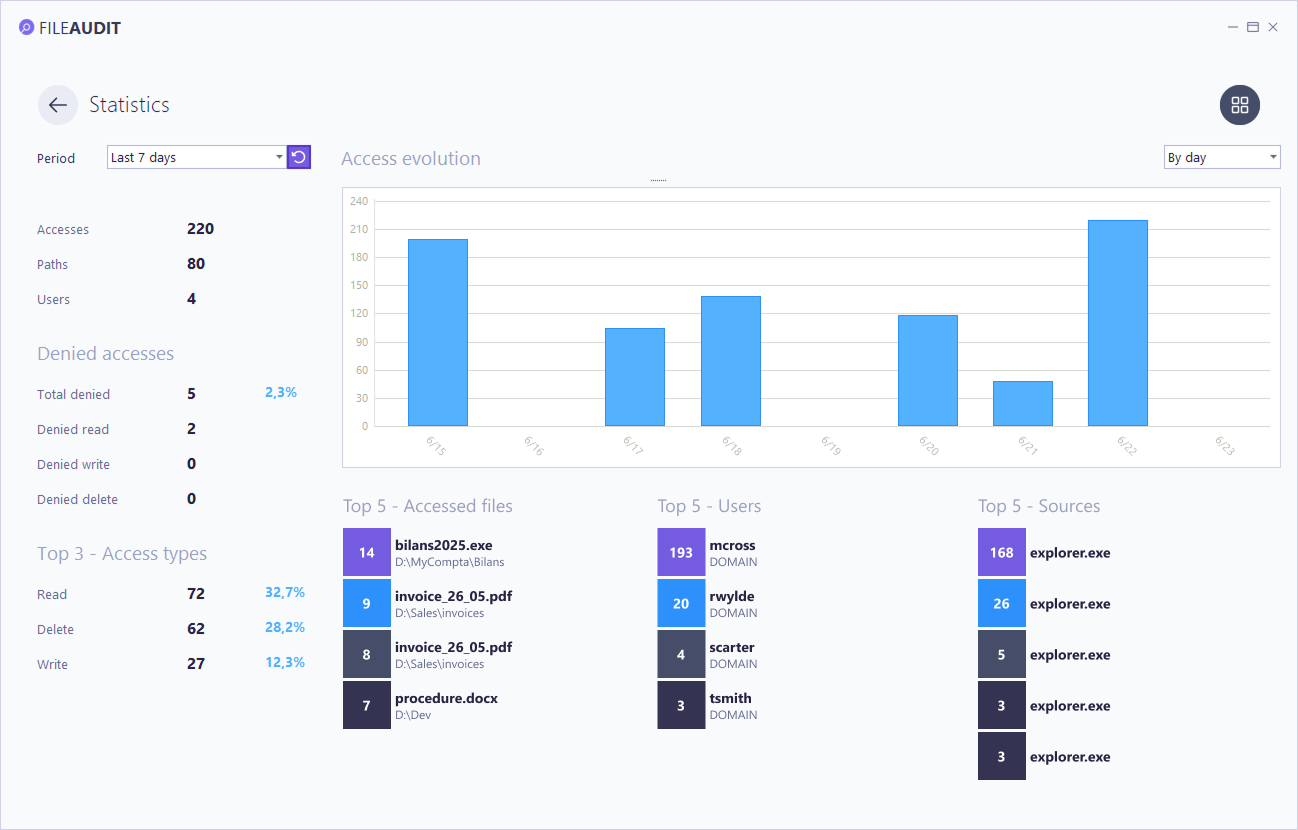
Exclusions reduce noise, but a busy file server still produces a lot of legitimate events.
Measure the real volume before it becomes a problem.
Open the Statistics report to identify which paths, users, and sources generate the most activity. See Reporting Reference.
Check the database size after a few days of representative activity.
If it grows beyond roughly 10 GB, plan a migration to Microsoft SQL Server Guide and set up recurring archiving Guide.
Alerts, scheduled reports and warning messages all go out through the same email configuration. If it is wrong, every notification described on this page fails silently.
Open Settings > Configuration and complete the email settings, following Configure email settings Guide.
Send a test email from that screen to confirm that delivery works.
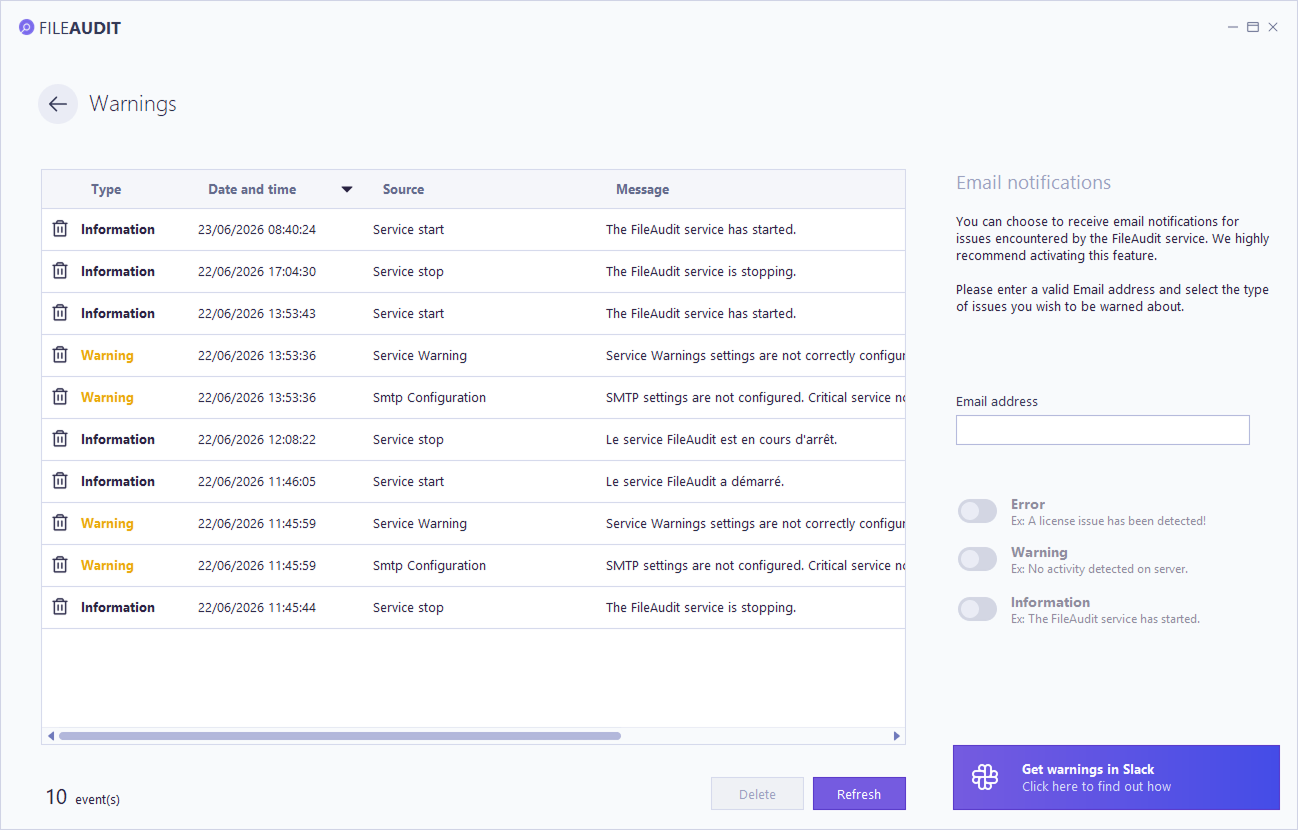
Open the Warnings page, enter one or more addresses in Email address, then turn on the notification types you want to receive: Error, Warning, and Information.
Warnings report problems affecting the service itself rather than file activity: a license issue, an SMTP server that cannot be reached, or a server that has stopped reporting activity.
Note
See Warnings Reference for the full list of messages and what each one means.
Warnings can also be sent to Slack from the same page: see Send notifications to Teams or Slack Guide.
A mass alert notifies you when a large number of reads, moves, or deletes happen within a short time window. It is the fastest way to catch abnormal behavior such as ransomware encrypting files in bulk, or a user copying a large volume of sensitive data.
Create a mass access alert on the paths that matter most.
Set the threshold to a high number of events over a short period, for example several hundred events within one minute.
Keep the latency period (one minute by default) so a single incident does not produce a flood of notifications.
To respond automatically, attach a script that runs when the alert fires, for example to log off the user or shut down the machine involved.
Note
Full configuration in Manage alerts Guide
Ready made scenario in Detect ransomware with FileAudit Guide.
Alerts cover incidents. Scheduled reports cover the rest, and they are what turns audit data into something someone actually looks at.
Choose the reports that match your review cycle, for example access to your most sensitive paths, or failed access attempts.
Schedule them by email on a fixed cadence. Weekly is a reasonable starting point.
Send them to a distribution list rather than a single mailbox, so the review survives holidays and role changes.
See Schedule reports Guide for the available report types and scheduling options.
Audit data is sensitive: it shows who accessed which files and when. Decide who can see it before you share the console.
Identify who needs the console, and whether they need to change the configuration or only consult the data.
Configure access accordingly, following Set up FileAudit permissions Guide.
Review the list whenever someone changes role or leaves.
FileAudit runs in Trial mode by default, with no license key required. Trial mode is not meant for production: activate your license before you start relying on the deployment.
Open Settings > License.
Enter your license key.
Confirm that the console no longer reports Trial mode.
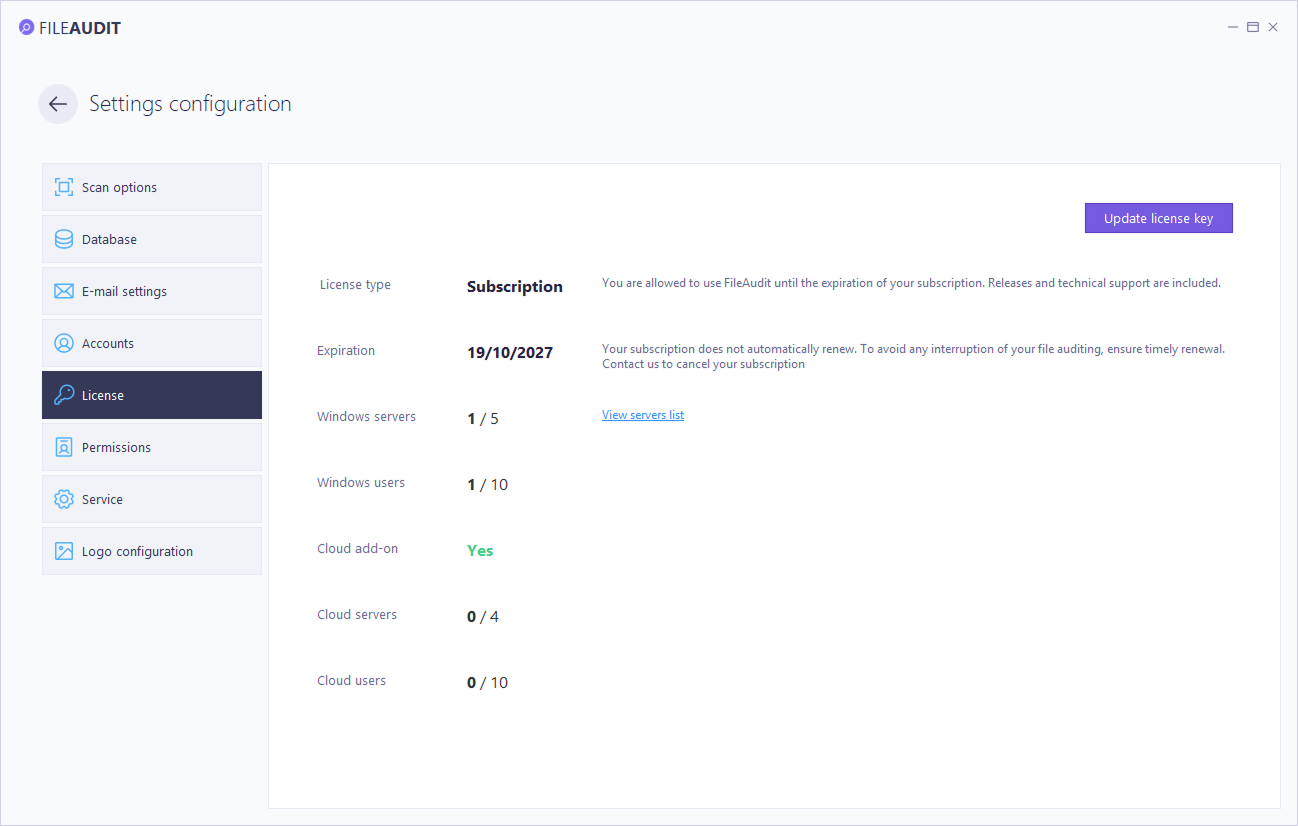
See Manage the license Guide for renewals and changes of scope.
A Group Policy refresh can disable Windows auditing on an audited server, and a remote server can lose the permissions its impersonation account relies on.
In both cases FileAudit stops collecting events on that server while the rest of the deployment keeps working normally, and a server that has stopped reporting looks the same in the console as a server with no file activity.
By default, FileAudit generates a warning notification if an audited server has had no activity in the last 3 days. The maintenance Guide can also detect a lost audit policy and fix the issue automatically. Either way, you can run this check on a regular basis, and after any change to an audited server.
Open All reports > All access events and confirm that events are arriving with recent timestamps for each audited server.
On any server that looks unexpectedly quiet, open Local Security Policy and confirm that Audit Object Access is still enabled.
If you audit remote servers, confirm that the impersonation account is still configured in FileAudit and still holds the required permissions on those servers.
Note
The audit policy and impersonation account requirements are detailed in Windows audit Reference.
Day to day operations are covered in Manage Windows audit Guide.