Configuring your first audit path
Configure your first audit path to start collecting file access activity with FileAudit.
FileAudit must be installed and you must be able to open the FileAudit console.
Configuring a path switches on Windows auditing behind the scenes, so FileAudit needs administrator rights on the machine that hosts the folder. FileAudit uses them to enable the Windows Audit Object Access policy and to deploy the NTFS audit settings (SACL) on the folder, at steps 6 to 8 below.
An audit path is a single file or folder you ask FileAudit to watch. Once a path is configured, FileAudit records who accessed it, when, and how, and stores every event in its database.
In this example you will audit a test folder named C:\FileAudit-Test. Create it first if it does not already exist.
At each step of the wizard you can let FileAudit apply a setting automatically or handle it yourself. For your first path, accept the automatic option at every step. It is the recommended configuration and the fastest way to a working audit.
Open the FileAudit console.
Go to Windows paths.
Click on Add a path.
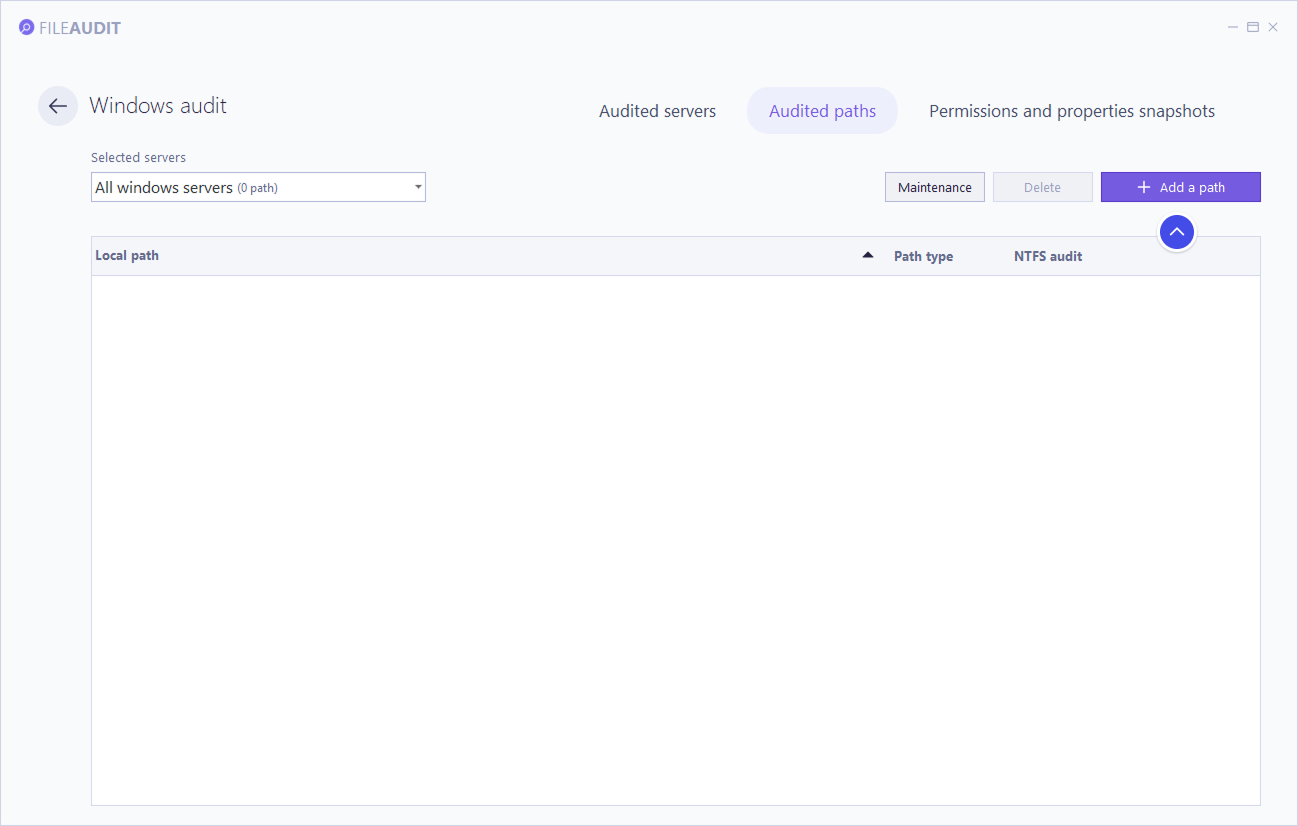
Select the path
C:\FileAudit-Test.Click on Next and keep the default audit settings.
Please note that FileAudit will automatically enable the required Windows auditing settings.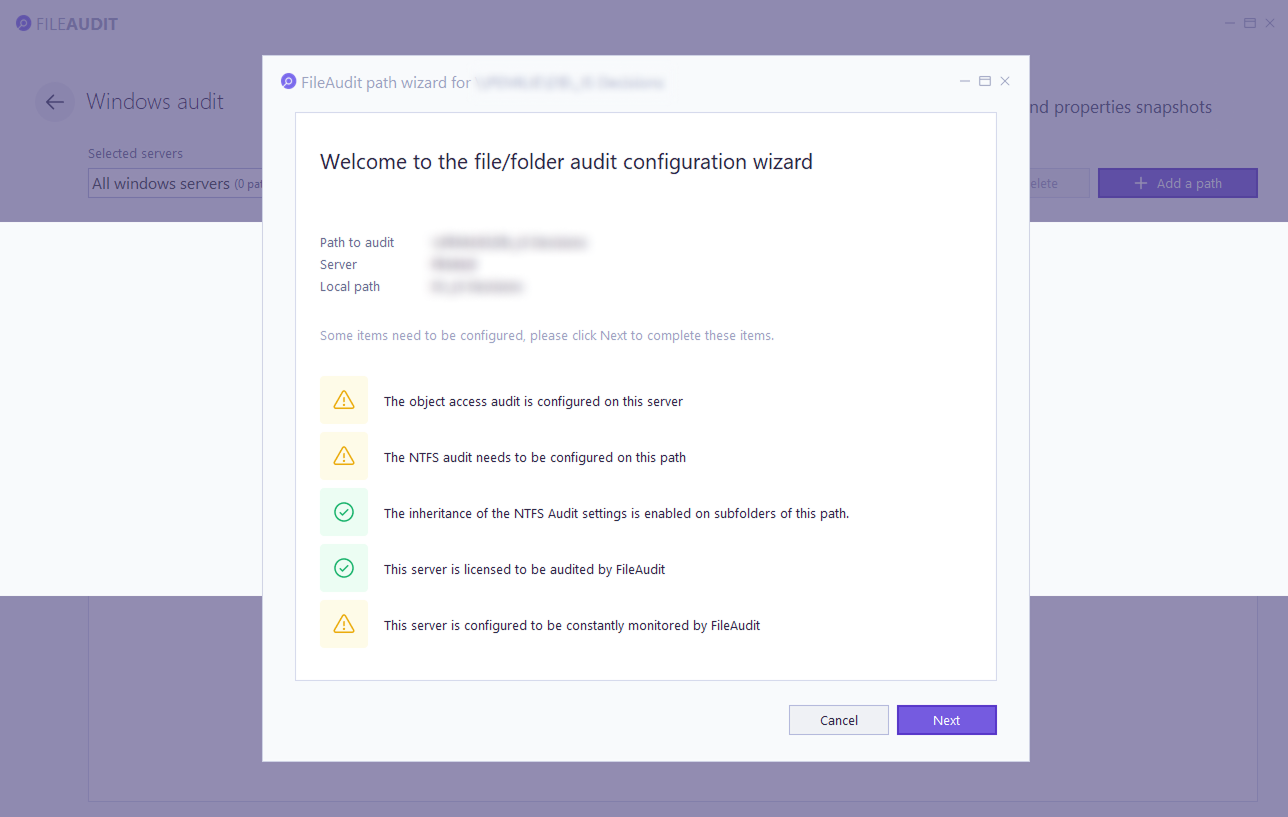
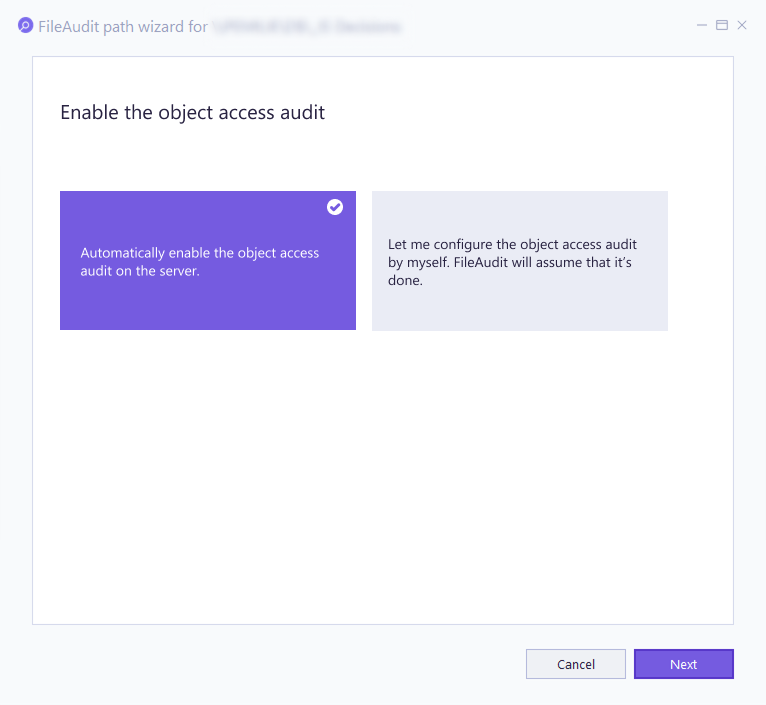
Select whether FileAudit should automatically enable the "Windows Audit Object Access" policy or assume it is already configured.
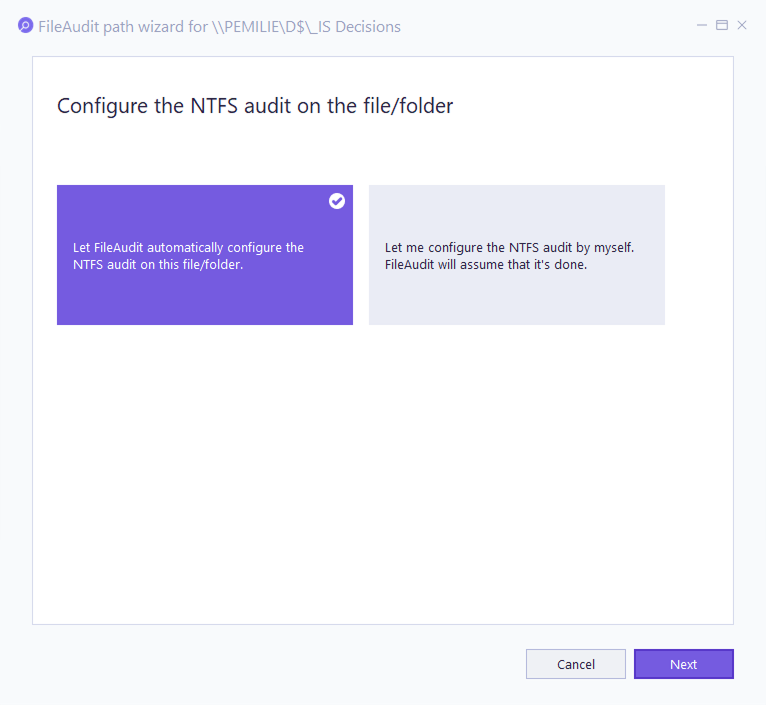
Select whether FileAudit should automatically configure NTFS auditing (SACL deployment) on the file or folder, or assume it is already configured.
Choose how NTFS audit inheritance is handled by FileAudit.
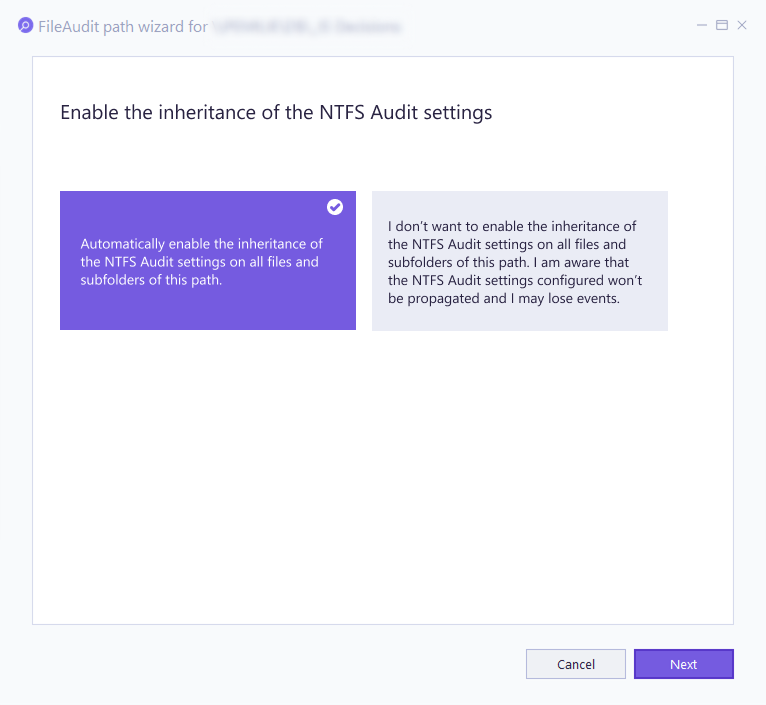
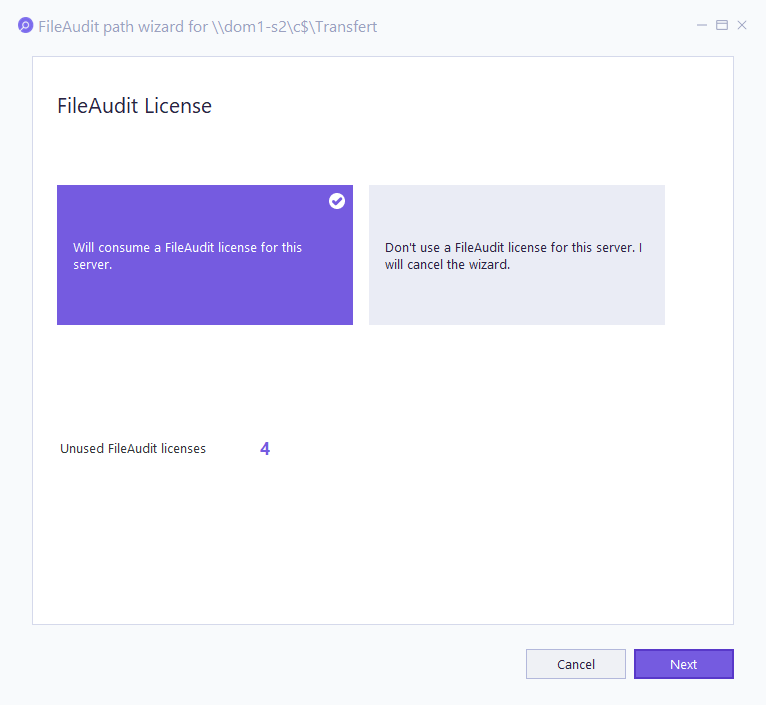
The folder host will be added to the ‘Licensed servers’ list.
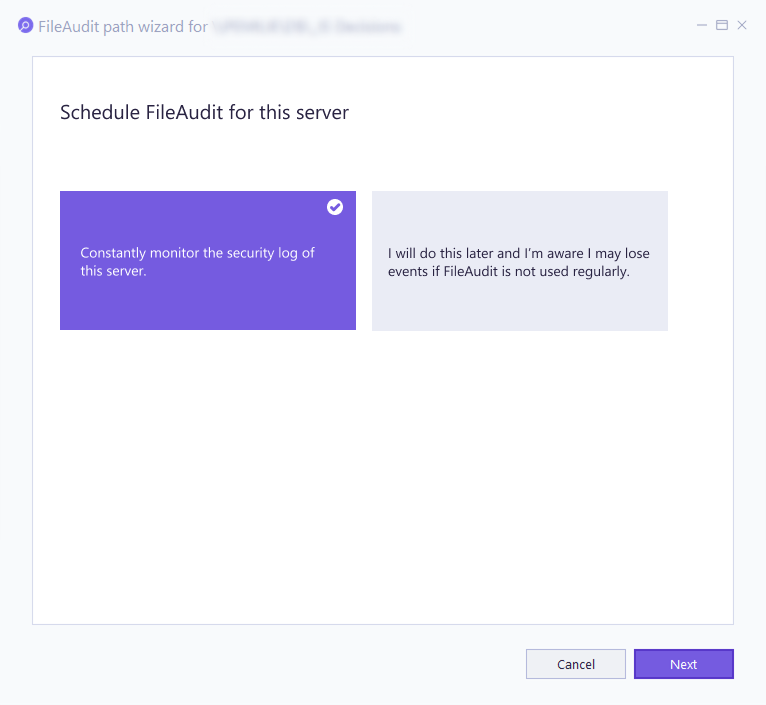
Enable real-time event monitoring.
Your path is now configured. It appears in the Windows paths list, and FileAudit records every access event on
C:\FileAudit-Testand stores it in its database.
Note
💡 Tip: A path can be added by right-clicking a file or folder in Windows Explorer and selecting FileAudit from the context menu, or entered manually using filters in reporting views.
Continue the scenario in Displaying the events to open the All access events report and see the activity FileAudit is now recording on C:\FileAudit-Test.