Setting up an alert
Configure a single access alert that sends an email notification when a specific file access event occurs.
FileAudit provides 2 types of alerts:
Single access alerts, triggered by an individual access event,
Mass access alerts, triggered when multiple access events occur within a defined period.
This tutorial uses a Single access alert.
Make sure you have completed the previous steps in this guide:
Configuring your first audit path: an audit path such as
C:\FileAudit-Testis set up.Displaying the events: file access events appear in the All access events report.
Open the FileAudit console.
Click Alerts.
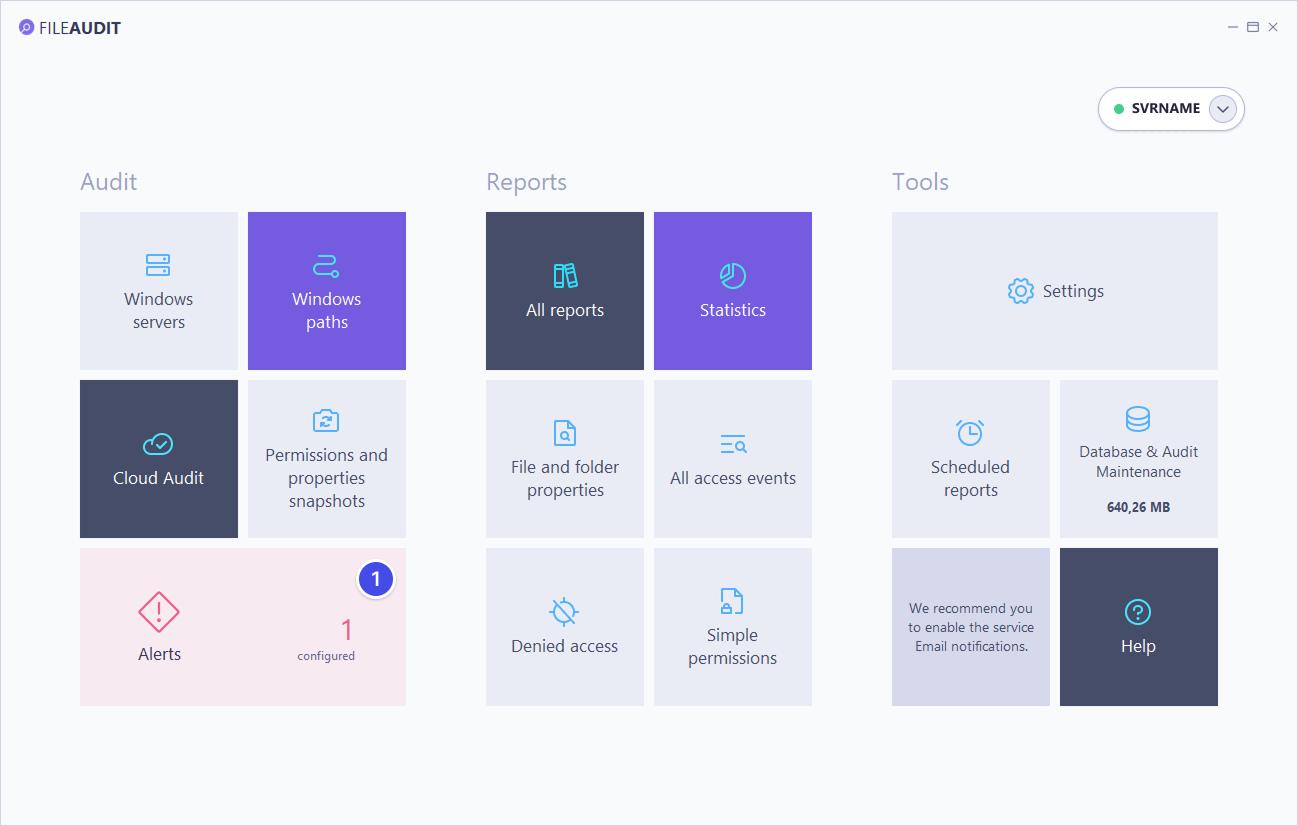
Under Single access, click Add.
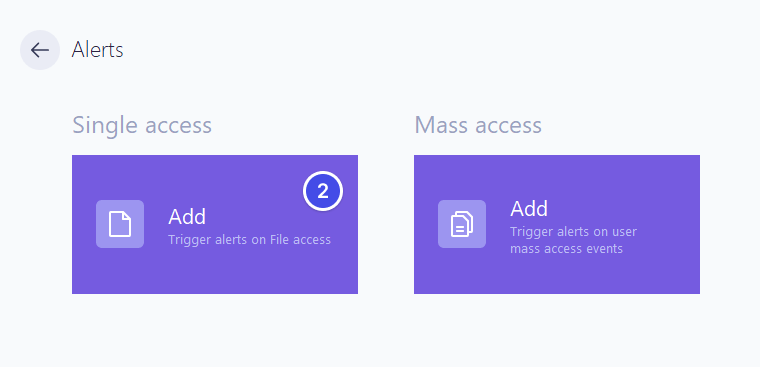
From the Main tab, in the Access type drop-down list, select a simple condition such as File deletion.
Note
The fields Domain, User and Source should be kept empty if you want to be alerted for any domain, user or source that generates an event.
The Source field allows you to specify the name of the process generating the access attempt when the file/folder is accessed locally or the IP address of the machine from which the access has been performed when the access is performed through the network.
Select the audited path
C:\FileAudit-Testfrom the Paths tab.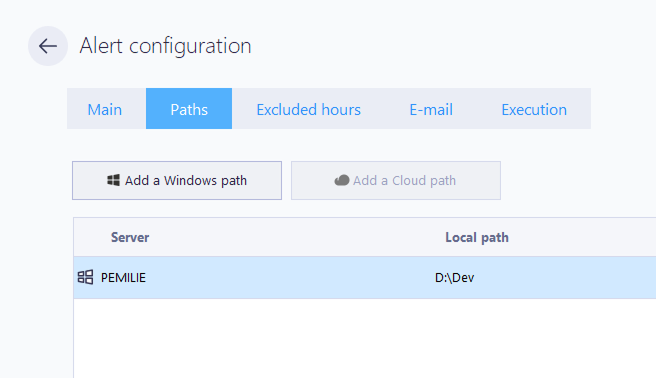
From the Email tab, enter a destination email address.
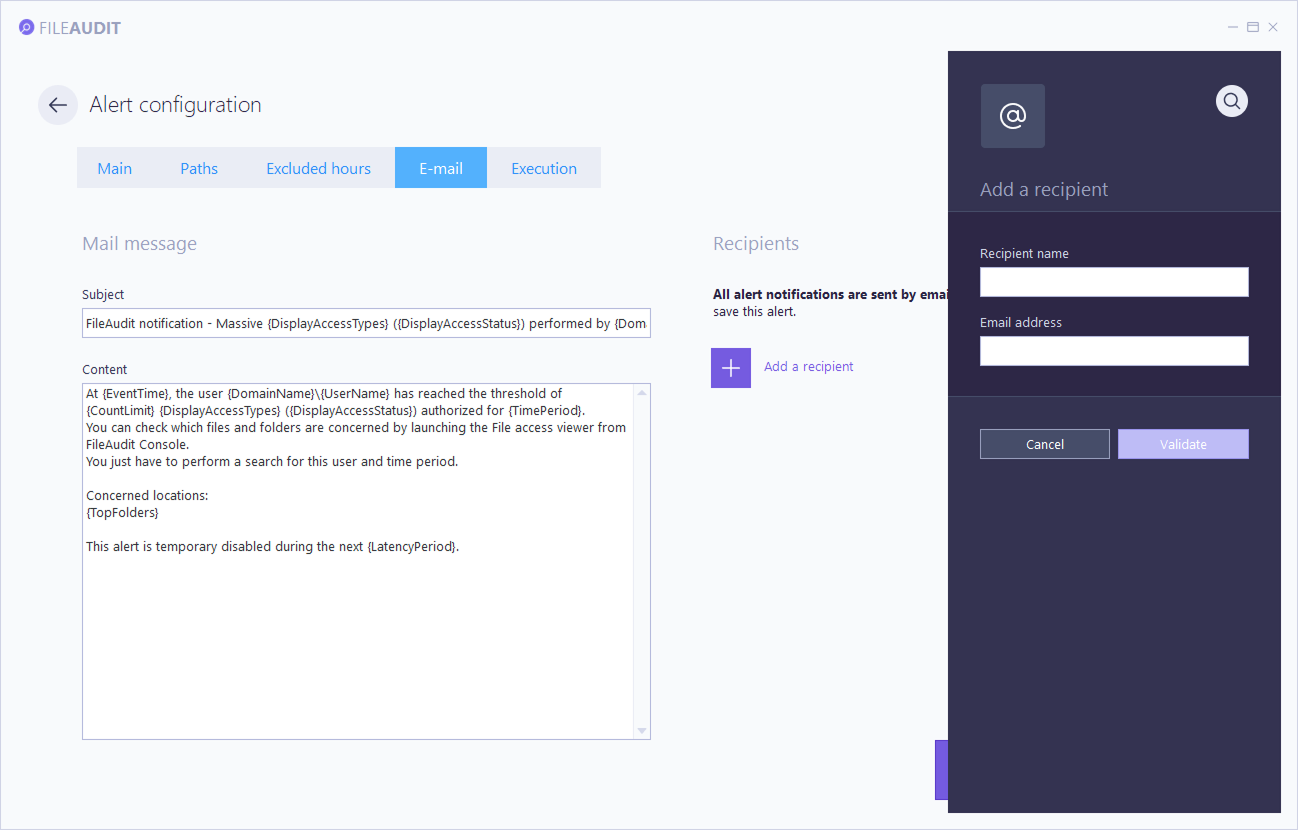
Click Save.
FileAudit sends alert notifications by email. If this isn't already configured, set it up now with your organization's SMTP server:
In the FileAudit console, open Settings and select E-mail settings.
In Server, enter your SMTP server address.
In Port, enter the port your server uses.
In Sender E-mail, enter the address that will appear as the sender.
Set Mode according to what your server accepts, and provide credentials if required.
Click Save, then send a test email to confirm delivery.
Note
This covers the standard case (internal relay, hosted mail server, basic authentication). If your provider requires OAuth2 (Microsoft 365, Google Workspace), see Configure email settings for the full procedure.
Delete a file in C:\FileAudit-Test.
If configured correctly:
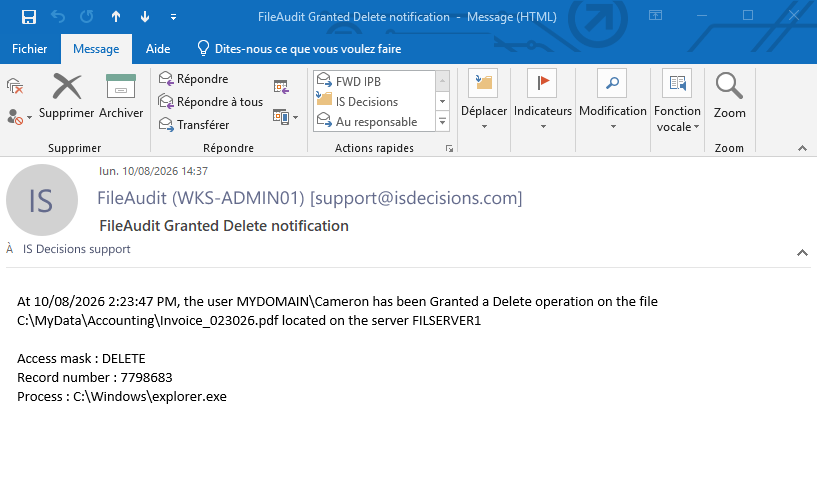
The alert is triggered.
A notification is sent to the configured email address.
You have now:
Configured an audit path
Viewed file access events
Created a single access alert
You have the basics to start using FileAudit. Continue with Best practices to make sure your setup is production-ready.