Manage the license
Register your FileAudit serial number, check your licensed capacity, and revoke servers you no longer need to audit.
Your FileAudit serial number is delivered by email from the IS Decisions sales department.
Open the Settings view and select the License tab.
Paste your serial number into the License key field.
Click Apply.
Once registered, your license type, expiration date, and capacity appear in the Details section.
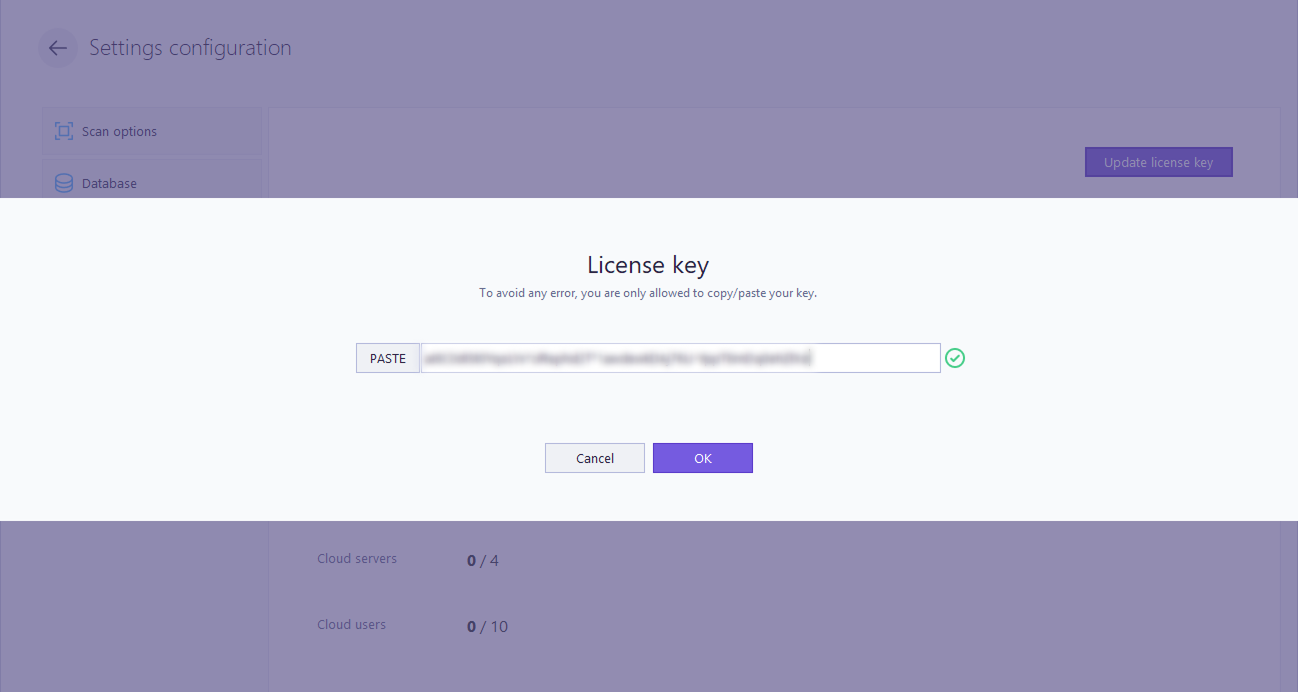
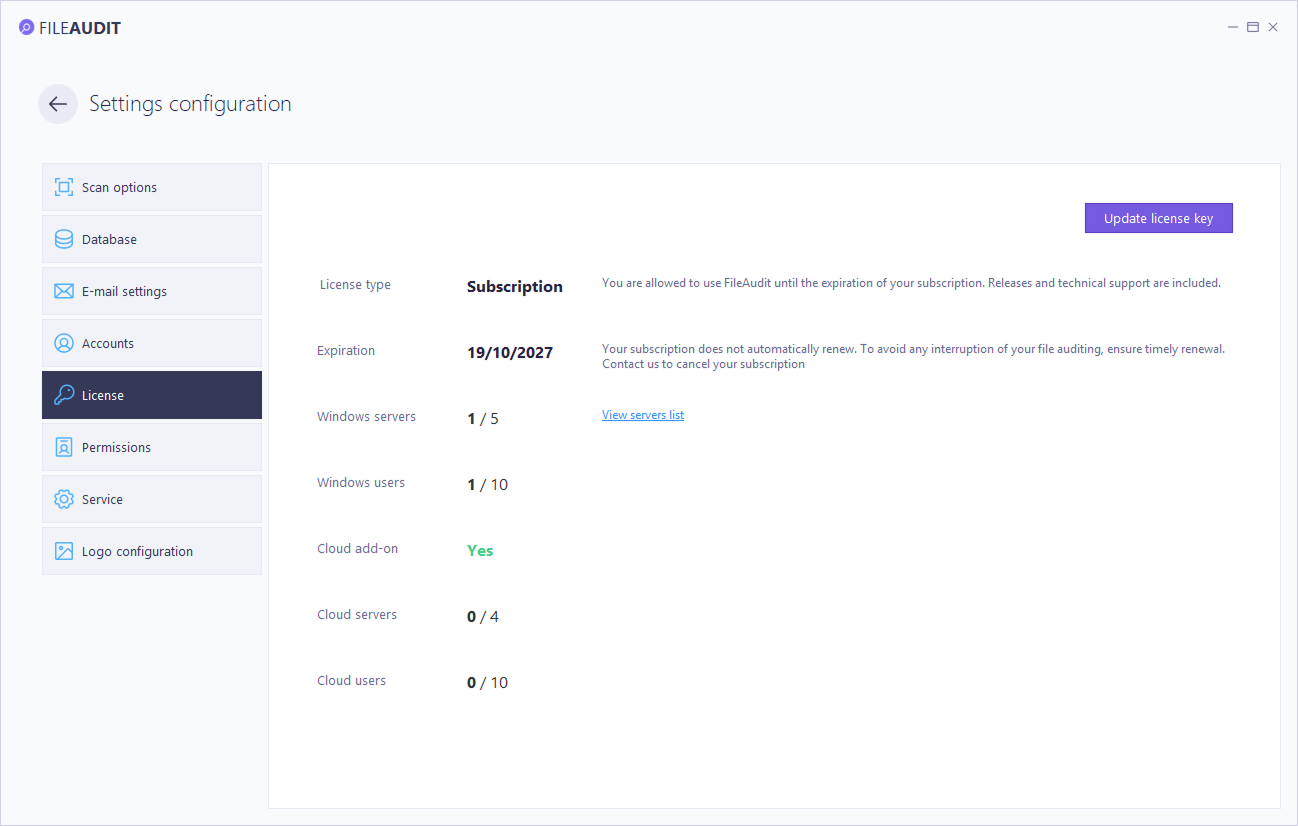
The License page reports your license type, the expiration date, and the licensed capacity in servers and users.
Usage is displayed against that capacity for Windows servers and users. When the Cloud add-on is licensed, cloud servers and users are shown as well.
Use this section to confirm you have enough capacity before adding new audit paths. Two limits apply:
Server limit reached: you cannot audit a path on a new server until you revoke another server first. See below.
User limit reached: users beyond the licensed count are not audited. Their access events do not appear in FileAudit, so you may miss activity.
Revoking a server frees its license slot so you can audit a different server instead.
Note
⚠️ Important: Revoking a server permanently deletes all of its access events from the FileAudit database. This cannot be undone. Make sure you have archived or exported any events you need to keep before revoking.
In the License tab, open the License computers section.
Click the server name to open its panel on the right.
Click Revoke.
Confirm in the popup by clicking OK.
See Manage Windows audit Guide.