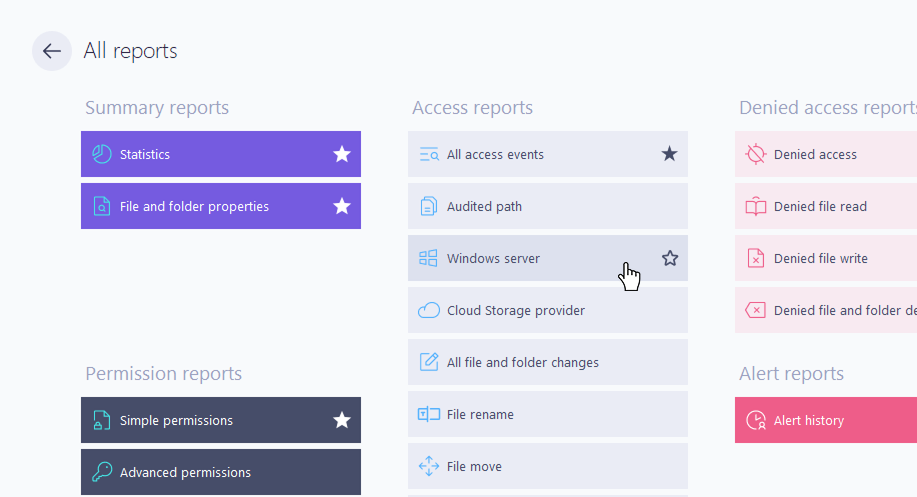
Reporting
Understand the FileAudit report types, the data sources behind them, and how to filter, export, and schedule results.
FileAudit builds reports from two distinct data sources. Knowing which source a report uses tells you what must be configured for that report to return data.
Event-based reports read the Windows Security events produced by Object Access auditing. They reflect activity as it happened: who accessed what, when, and how.
Reports built on event scanning:
Access reports and denied access reports
Statistics
Permission changes and ownership changes
Alert reports
These reports return data only if Windows Object Access auditing is correctly configured on the monitored paths. See Windows audit for how auditing is set up.
Snapshot-based reports read data captured when a snapshot is generated. A snapshot records the state of your paths at a point in time, not a stream of events.
A snapshot captures:
NTFS permissions
Ownership
File and folder attributes
File and folder size information
Reports built on snapshots:
File and folder properties
Simple permissions
Advanced permissions
These reports do not depend on Windows Security events. If no snapshot exists, they return nothing. See Manage permissions and properties snapshots to generate them.
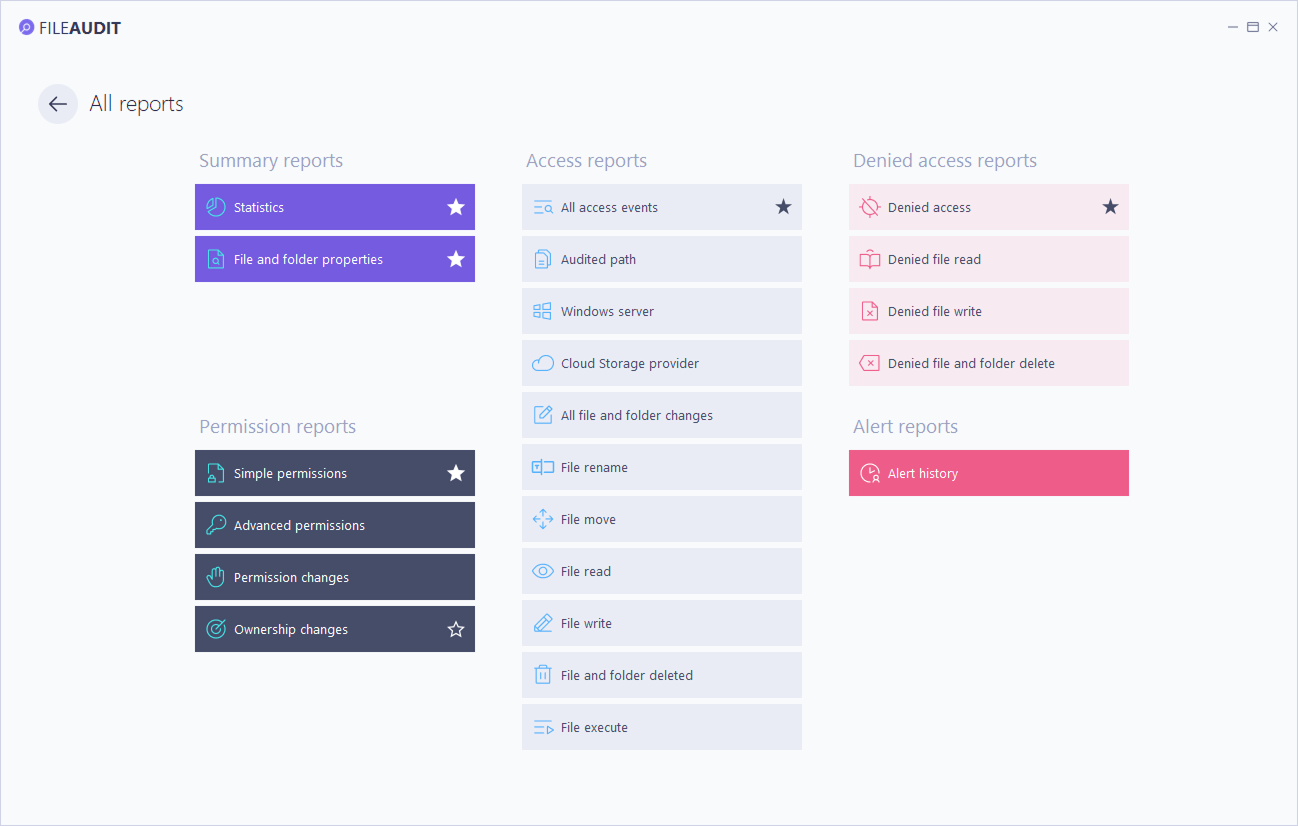
Access reports display file and folder access events, based on access types. Each report is a predefined view: same event data, different filter applied.
Report | Shows |
|---|---|
All access events | Every event, no predefined filter |
Audited path | Events on one or more specific paths |
Windows server | Events from Windows servers |
Cloud Storage provider | Events from cloud storage (Cloud add-on required) |
All file and folder changes | Delete, write, attribute, system, permission, and ownership events |
File rename | Rename events |
File move | Move events |
File read | Read events |
File write | Write events |
File and folder deleted | Deletion events |
File execute | Execution events |
Denied access reports use the same event data, restricted to refused access attempts.
Report | Shows |
|---|---|
Denied access | Every denied access attempt |
Denied file read | Denied read attempts |
Denied file write | Denied write attempts |
Denied file and folder delete | Denied deletion attempts |
💡 Tip
You can launch an access report on a specific file or folder from Windows Explorer: right-click the item and select FileAudit. The console opens on the Audited path report for that item.
Permission reports cover both the current state of permissions and the changes made to them.
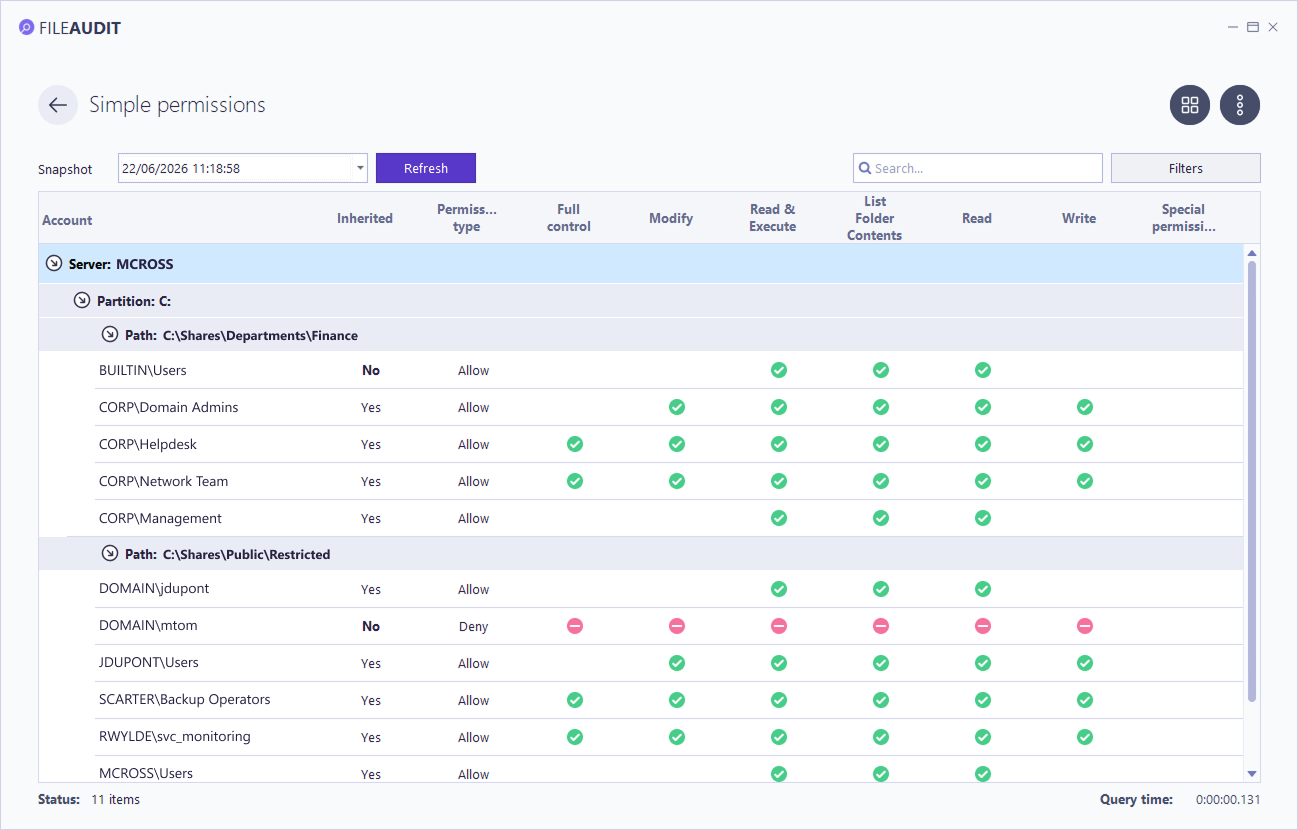
Simple permissions and Advanced permissions display NTFS permissions for monitored paths, in basic or advanced mode. Both require a snapshot. In these reports, only the root of each configured path is shown in full: a child file or folder appears only when its permissions differ from its parent. If an item is absent from the report, its permissions are identical to its parent.
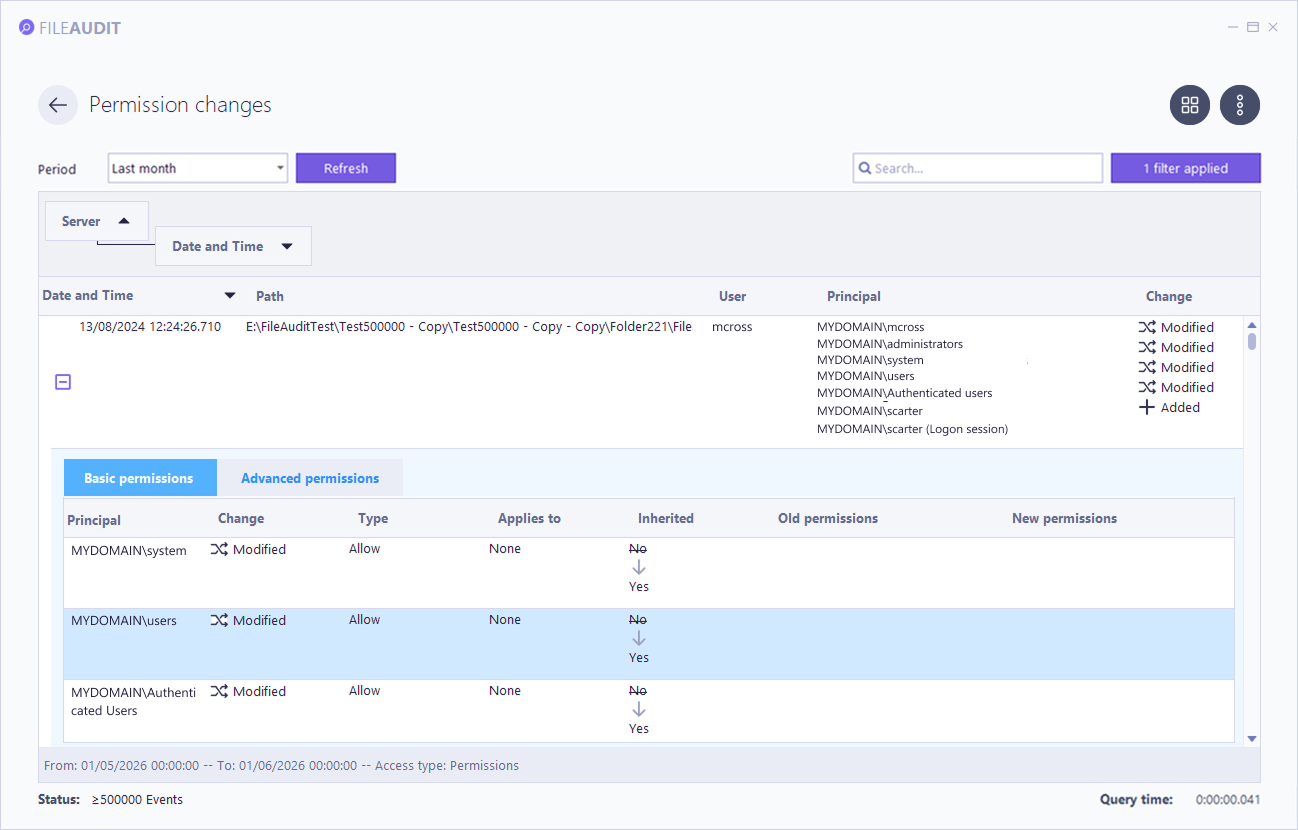
Permission changes lists every modification made to NTFS permissions: the user who made the change, the date and time, the path, and the impacted user or group (the Principal). Each row can be expanded to compare old and new permissions, in basic or advanced mode.
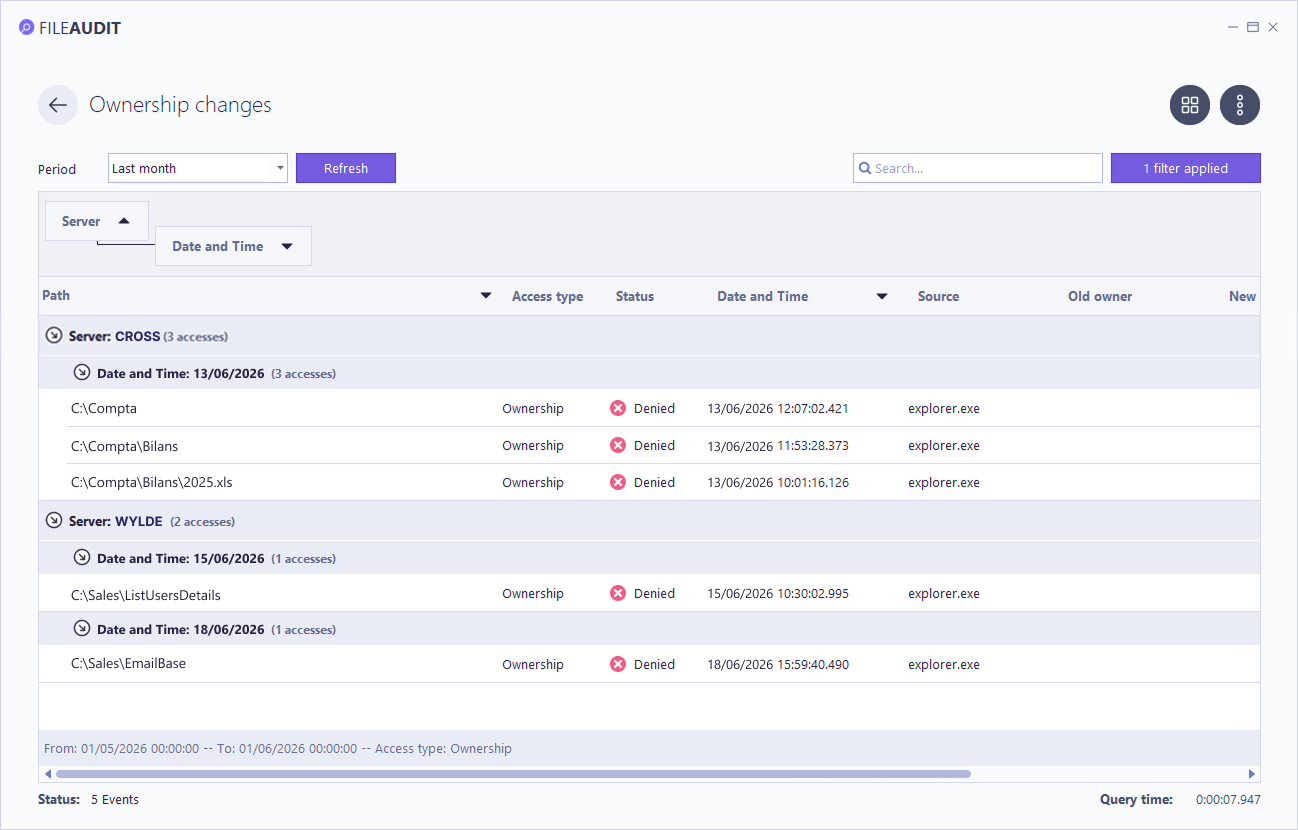
Ownership changes lists recorded attempts to take ownership of a file or folder: who, when, and on which path.
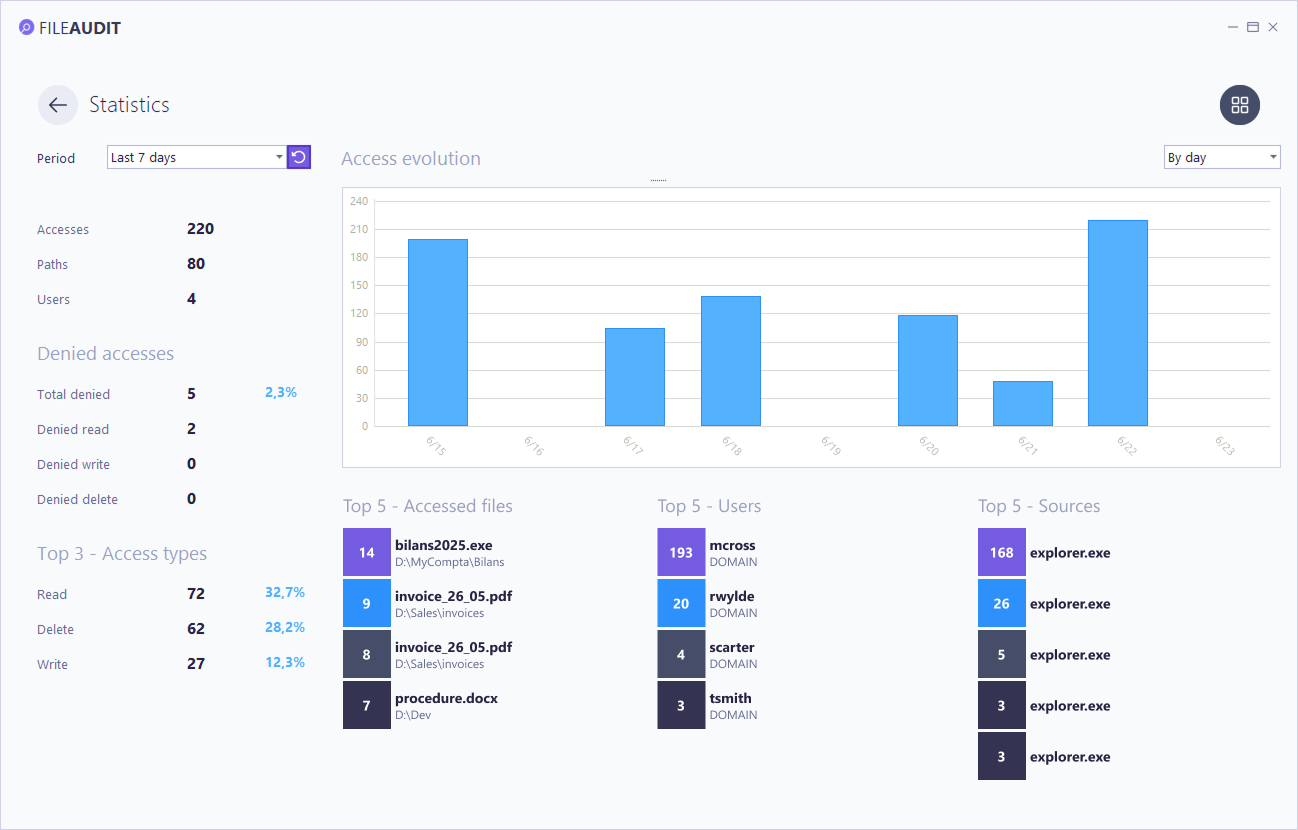
Statistics gives an aggregated overview of access activity over a selected period: activity trends, most active users, most accessed files, most active sources, and high-volume indicators useful for tuning your audit scope and exclusions. This report cannot be filtered, printed, or scheduled.
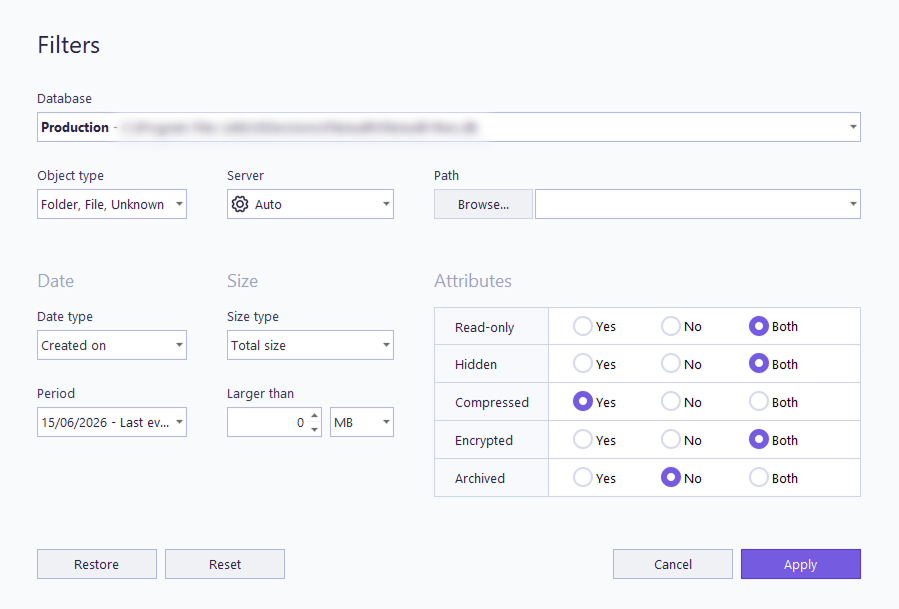
File and folder properties displays metadata captured in a snapshot: creation, modification, and last access dates, total size, compressed size, root folder size, and attributes (Read-only, Hidden, Archive, Compressed, Encrypted). Requires a snapshot.
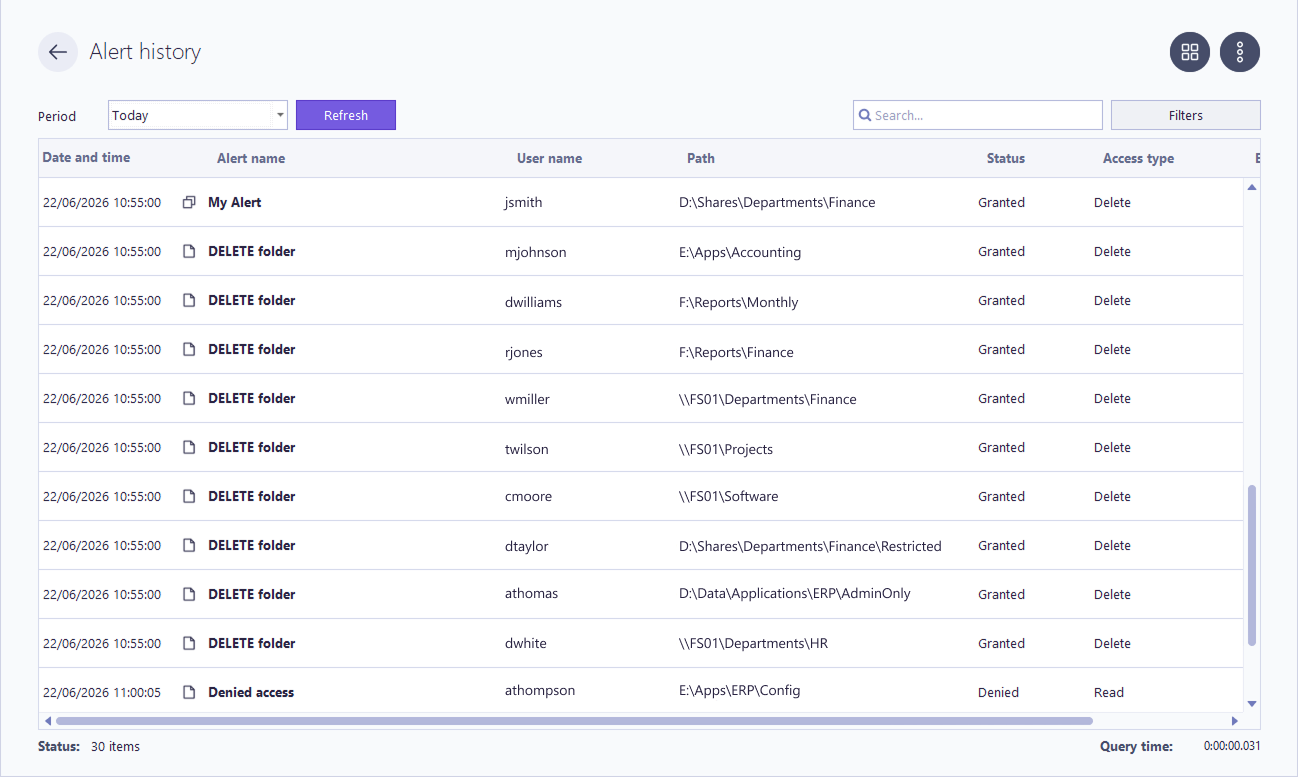
The Alert history report displays the events that triggered your configured alert rules, covering both single alerts and mass alerts.
To create and tune the rules behind these alerts, see the guide Manage alerts.
A report shows only the data you point it at. Before reading or exporting a report, you set its time range, its data source, and any filters that narrow the results.
The controls available depend on the report type:
event-based reports use a time period,
snapshot-based reports use a snapshot.
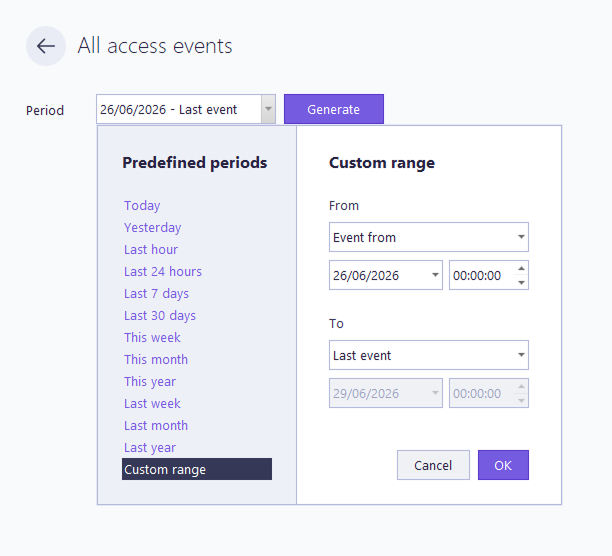
Access reports and other event-based reports open on a Period selector at the top of the view. It sets the time range the report covers and is applied before the report is generated.
The selector offers predefined periods and a Custom range option. Custom range opens From and To fields, each able to anchor on a fixed date and time or on a relative bound such as Event from (the first recorded event) and Last event (the most recent).
Snapshot-based reports (Simple permissions, Advanced permissions, File and folder properties) do not use a time period. They open on a Snapshot selector instead, because they read the state captured at a point in time rather than a stream of events.
Pick a snapshot from the list to display it. If none exists, the selector shows No snapshot available and the report returns nothing until one is generated. See Manage permissions and properties snapshots Guide to create them.
Most reports can be narrowed with filters. Click the Filters button to open the panel; once filters are set, the button shows how many are active (for example, 1 filter applied). The panel groups conditions under What, Who, and Source, plus a Path scope and a Server selector.
The filters available vary by report type: access, permissions, and summary reports each expose a different subset.
For what each field means and the values it accepts, see Filters Reference.
To target or exclude several users or groups in one field, see Filters → Include or exclude users Reference.
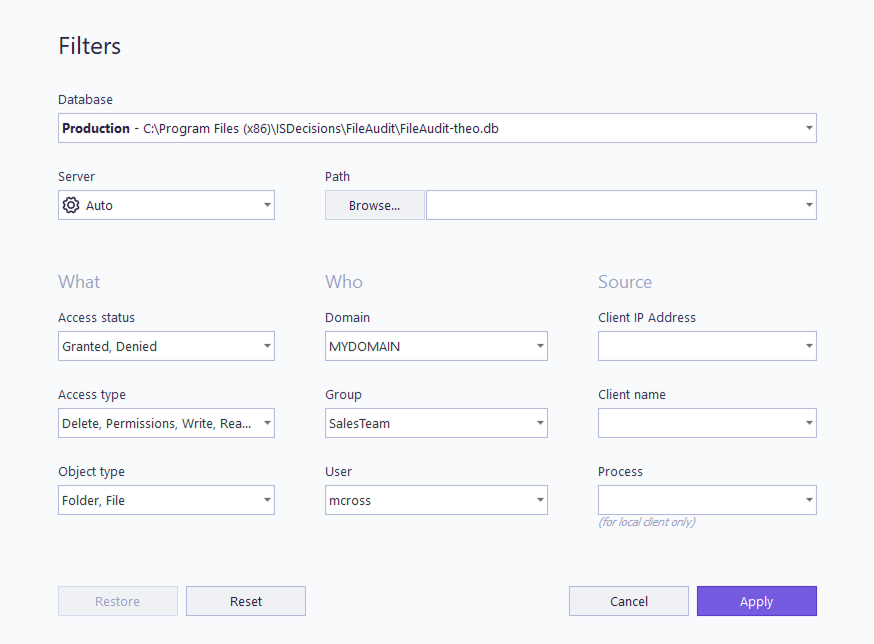
The Filters panel also includes a Database selector. By default a report reads the production database, but the selector lists any archived databases that have been registered, letting you run the same report against archived data instead.
Archiving keeps the production database lean while preserving older events for retention or compliance.
To create an archive and register it for querying, see Archive database Guide.
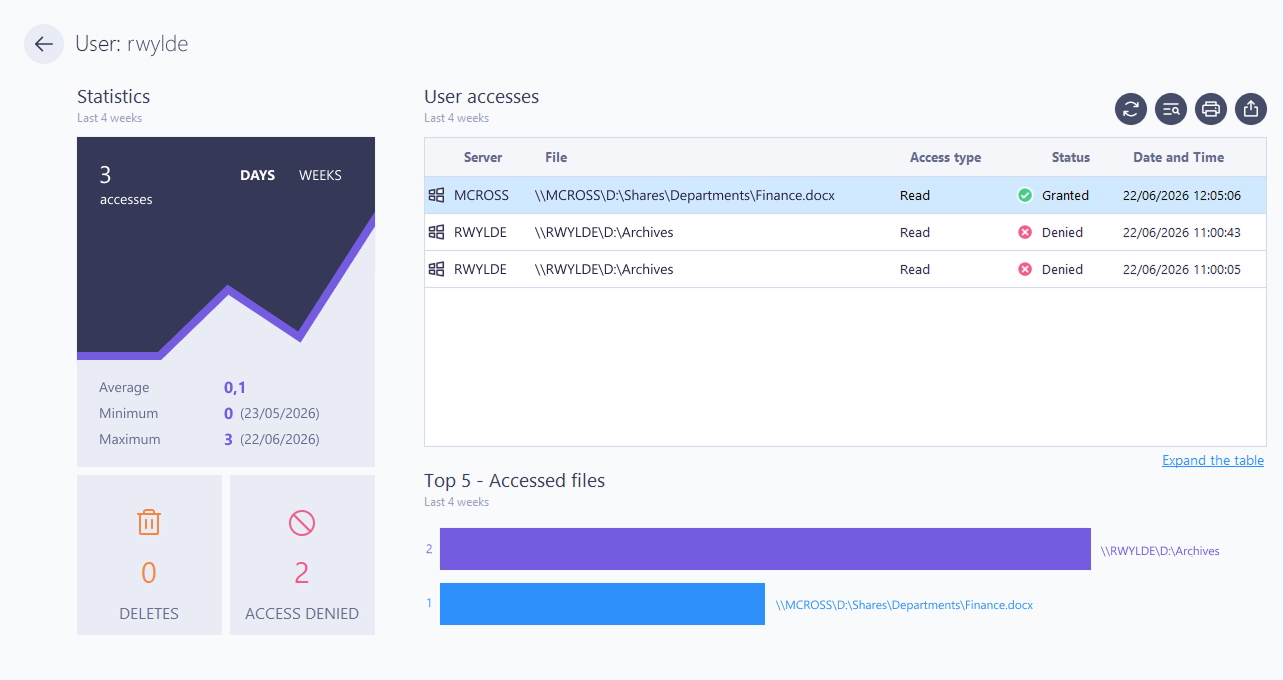
Click a user or path in a report to open a granular view of that object, covering the last four weeks:
an access evolution chart grouped by day or week,
a grid of all accesses,
the total count of deletions and denied accesses,
and the top 5 files accessed (for a user) or top 5 users (for a file or folder).
The grid keeps the same filter, print, and export options as the main views.
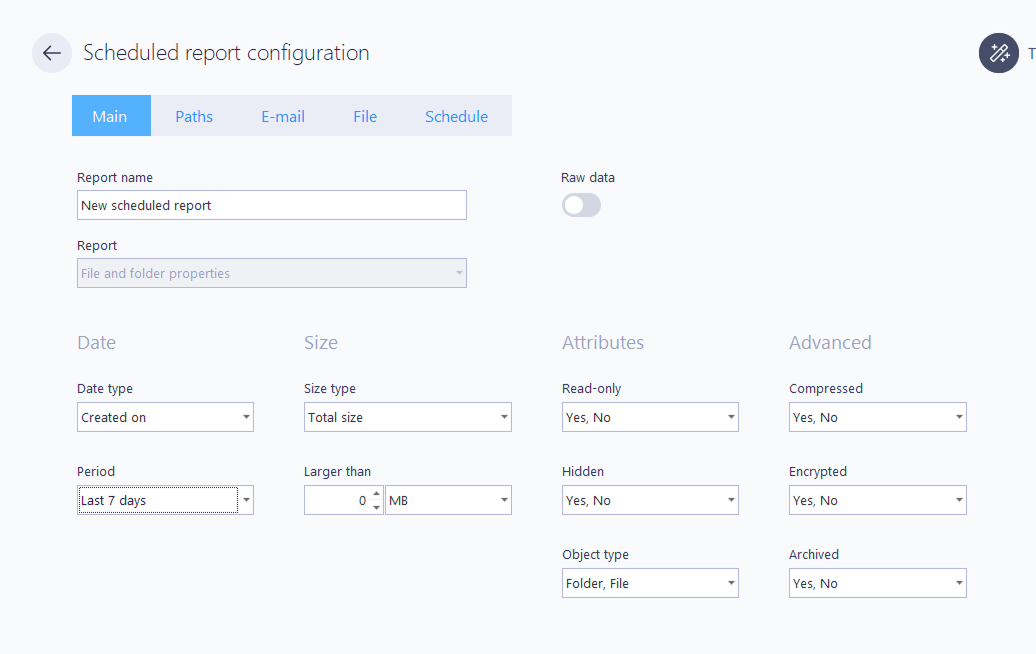
A scheduled report runs automatically on a recurring basis and is emailed as a PDF to chosen recipients or saved to a file location. Any filters applied to the report are kept when it is scheduled.
You can schedule a report two ways:
From the Scheduled reports tile on the FileAudit hub.
From any built-in report: open the Options menu … and select Schedule this report. You are taken to the scheduling configuration with your current filters preserved.
Scheduled report delivery by email requires configured email settings. For the full setup procedure, see the guide Manage schedule reports.
From the report Options menu (the … button) or the print preview, select Export data to save the view as PDF, XLS, TXT, CSV, HTML, MHT, or RTF. Ctrl+click a format to open its detailed export options.
The Raw Data export produces a CSV of the unformatted data.
Select Print to open a preview showing the page count; you can also export directly from the preview.
In the All Reports view, select the star icon on a report tile to pin it to the dashboard. Favorites keep their saved configuration, and there is no limit on how many you can pin.