Upgrade procedure
Upgrade FileAudit to a newer version while preserving your configuration, database, and scheduled reports.
Read the Requirements Getting started before installing a new version.
Check the following before launching the upgrade:
FileAudit provides a direct shortcut to launch the console in the Windows Explorer Context Menu. This shortcut can request a reboot when an upgrade of FileAudit is performed. To avoid any reboot, check that:
Close all other sessions on the system.
Do not use the Windows Explorer context menu before or during the upgrade. If it was used on the current session, close and reopen the session first.
Upgrading to FileAudit 6.5 or later may trigger a restart, caused by the Visual Studio Redistributable 2015-2022 component.
A major version upgrade requires a valid maintenance contract if you use a permanent license. See Manage your license Guide.
Back up your data before upgrading. If the upgrade fails or you need to roll back, these files let you restore the previous installation.
Stop the FileAudit service.
Back up the database.
The default database is located at
C:\ProgramData\ISDecisions\FileAudit\Database\FileAudit.db.If you use another database system (SQL Server, MySQL), back it up with your usual database tool.
Copy the configuration file
Default.xmlfromC:\ProgramData\ISDecisions\FileAudit\. This file contains your FileAudit configuration.Back up your scheduled reports:
Navigate to
C:\ProgramData\ISDecisions\Tasks,Copy every file named
FileAudit task for [report name].xmlThen export the matching tasks from Microsoft Task Scheduler, keeping their original names.
You can download the latest version from the console or from the official link.
From the FileAudit Console:
Open the FileAudit Console.
Click Help.
Click Check for updates.
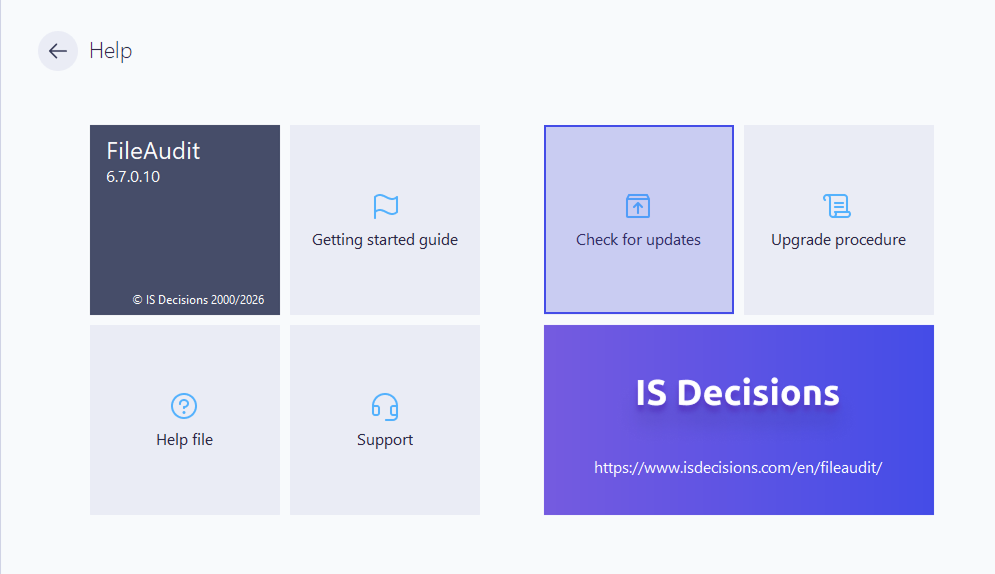
Download the latest available package.
You can also download it directly from the official URL: Download FileAudit.
A minor version upgrade is when the third or fourth version number changes, for example 6.6.0.29.
Run the installer for the new version.
Do not uninstall the previous version.
Complete the installation.
All FileAudit components are updated automatically.
A major version upgrade is when the first or second version number changes, for example 6.6.0.29.
Confirm your latest license key is registered under Settings → License. If you use a permanent license, make sure the maintenance contract is valid.
Close the FileAudit Console if it is open.
Run the installer for the new version.
Do not uninstall the previous version.
Complete the installation.
FileAudit is fully operational once the installation finishes.
⚠️ Important
After a major upgrade, if you had changed the service account, it is reset to Local System (the default account). Reconfigure it if needed.
If you need to roll back to the previous version:
Follow the backup procedure.
Uninstall the upgraded FileAudit.
Restore the backed-up files to their original folders: the database,
Default.xml, and the scheduled report task files.Re-import the scheduled tasks into Microsoft Task Scheduler, keeping their original names.
Install the previous FileAudit version.