Manage Cloud audit
Connect a cloud storage provider to FileAudit, verify that events are collected, and remove a provider when you no longer need to audit it.
Before connecting a provider, make sure the following conditions are met:
Requirement | Detail |
|---|---|
✅Cloud audit add-on | Add-on option to FileAudit. See Cloud audit Reference for how it works. |
✅Administrator account | You must be an administrator of the provider's subscription to approve access. |
✅Supported provider and plan | FileAudit connects to:
Each requires a minimum subscription plan, listed per provider in the Cloud audit. |
Open the Cloud Audit page in the FileAudit console, and click on the Start button.
Locate the tile for your provider and click Audit now.
Follow the on-screen instructions. FileAudit opens your default browser and redirects you to the provider's website to continue.
Sign in with an administrator account and authorize FileAudit to audit your data.
Return to the FileAudit console.
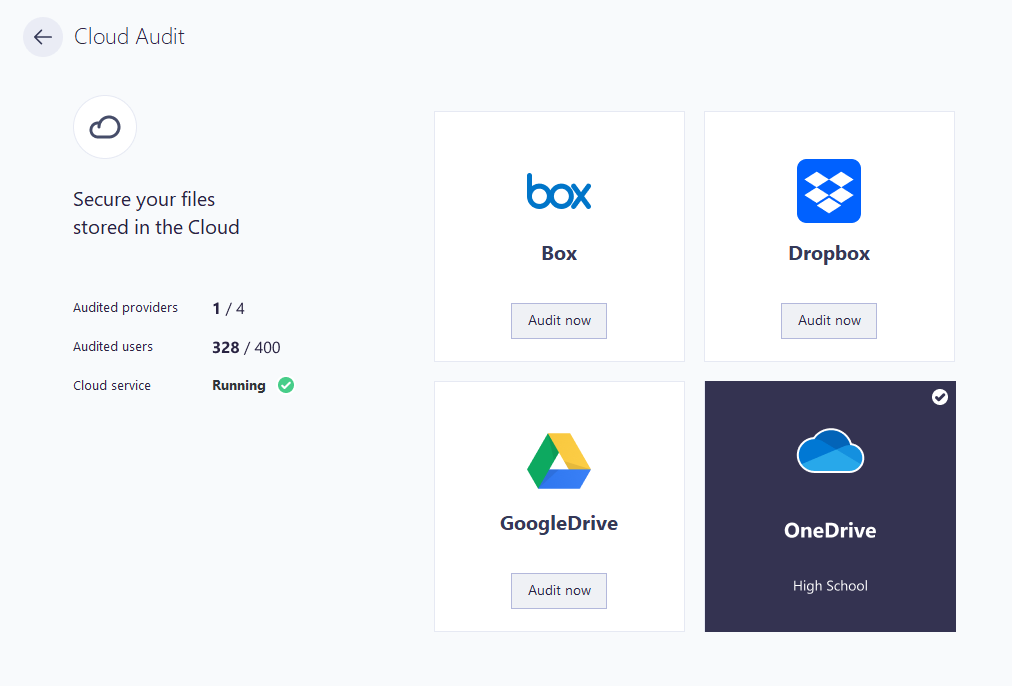
Cloud audit has no paths to configure. Once a provider is connected, all files and folders in the tenant are audited automatically.
Note
FileAudit requests read-only access to the provider's audit log. It collects activity metadata only, never file content.
After connecting, confirm that events are flowing into FileAudit:
Generate some file activity in the connected provider (for example, open or edit a file).
Open a report in FileAudit and filter on cloud events.
Allow for provider delay before expecting results.
Box and Dropbox deliver events within seconds.
Google Workspace and OneDrive can take 5 to 15 minutes.
This delay comes from the provider, not from FileAudit.
Note
See Cloud audit Reference for the latency details per provider.
Open the Cloud Audit page.
Click the tile of the connected provider.
Click Remove audit and confirm.
Note
⚠️ Important
Removing a provider stops new event collection, but all events already collected and stored in the FileAudit database remain available in your reports.
See the Cloud audit Reference documents for more details.
If the issue persists, contact IS Decisions support.