Configure a custom script to run when an alert triggers
Configure an alert to automatically run a custom script when it is triggered, allowing FileAudit to automate actions such as remediation tasks or the execution of external programs.
This guide covers the configuration of a custom script in the Execution tab of an alert.
When an alert is triggered, FileAudit can automatically react by executing an action. Some predefined scripts are available to make configuration easier. But this guide covers the case where you want to use your own script or executable.
So before you begin, make sure you have:
An alert already configured, without the Execution tab configured yet. See Manage alerts Guide
An account allowed to execute the script or executable, with enough rights to perform the action implemented in the script or executable.
Your script copied locally in a folder with access permissions for the account that FileAudit will use to execute the script.
In the Execution tab of an alert, select
Add a new actionfrom the Executed action dropdown list.Create your own script by completing the form:
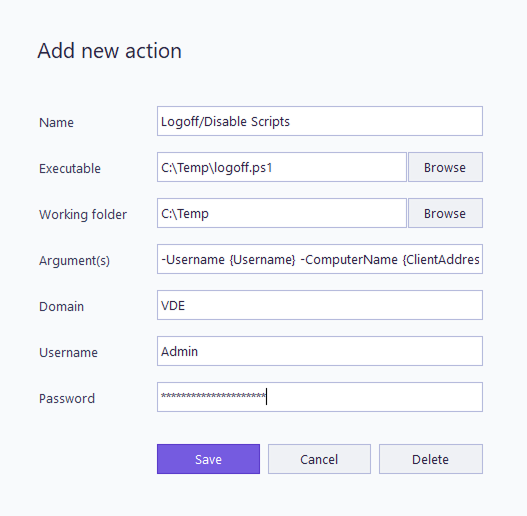
In Name, enter the name of the script. It must be unique.
In Executable, select the path to your script or executable file. Permitted executable types are .bat, .exe, or .ps1.
In Working folder, optionally select the current directory for the execution process. If empty, the process will have the same current drive and directory as the Executable.
In Arguments(s), enter the arguments for the executable file.
You can use dynamic variables in this field. Example: {Username} {ClientAddresses}
Please note that the following list of dynamic variables is applicable.In Domain, enter the Active Directory domain of the account that FileAudit will use to run the executable.
In Username, enter the account that has the permissions required for the execution and that FileAudit will use to run the executable.
In Password, enter the password of the previous account.
Click Save.
From the Executed action dropdown list, select the executable you want to edit or delete.
The Action settings appear below the dropdown list. Click Edit.
Edit the Execution settings, or click Delete.
Note
A tooltip will inform you if the script is used by several alerts. A link in the tooltip will allow you to see the affected alerts. If you edit or delete the configured executable, the changes will apply to every alert using this executable.