---
locale: "en"
updated_at: "2025-11-07T16:32:20.504Z"
canonical: "https://www.isdecisions.com/en/userlock/docs/reference/server-settings/general"
---
# General settings
Global settings on access policy, sessions, webhook and more.
> **Note**
>
> - To access this page, go to **Server settings ▸ General**.
> - You need at least *read* [permission](/userlock/docs/reference/server-settings/permissions) on Server settings to view this page.
## Access policy settings

When multiple access policies apply to the same user (for example through group membership), conflicts may occur.
This setting defines how UserLock resolves such conflicts when priorities are equal.
- **Most restrictive**: denies access if any matching policy denies it.
- **Least restrictive**: Allows access if at least one matching policy allows it. (Default)
> **Note**
>
> UserLock still applies its [priority management](/userlock/docs/reference/core-concepts/access-policies#policy-priority-management) (user > group > OU, temporary vs permanent). This setting is only used when priorities are equal.
## UserLock Anywhere
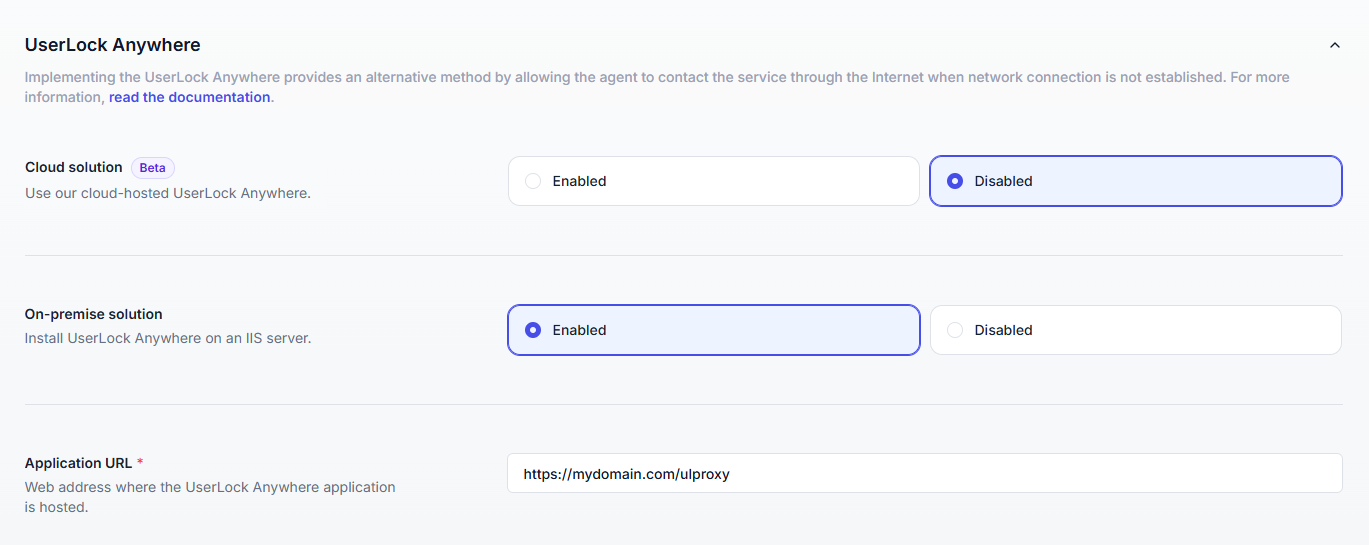
UserLock Anywhere allows UserLock agents to securely contact the UserLock service over the Internet when no LAN or VPN connection is available, ensuring that MFA and access policies remain enforced even when users are working remotely or off-network.
You can enable UserLock Anywhere in two ways:
- **Cloud (beta)** : Agents connect directly to the UserLock service through the IS Decisions Cloud API (recommended for most environments).
- **On-premise** : Agents connect through an IIS server exposed to the Internet (for environments requiring on-prem hosting or full control).
> **Note**
>
> 💡 For a full explanation of both modes, see [UserLock Anywhere](/userlock/docs/reference/modules/userlock-anywhere).
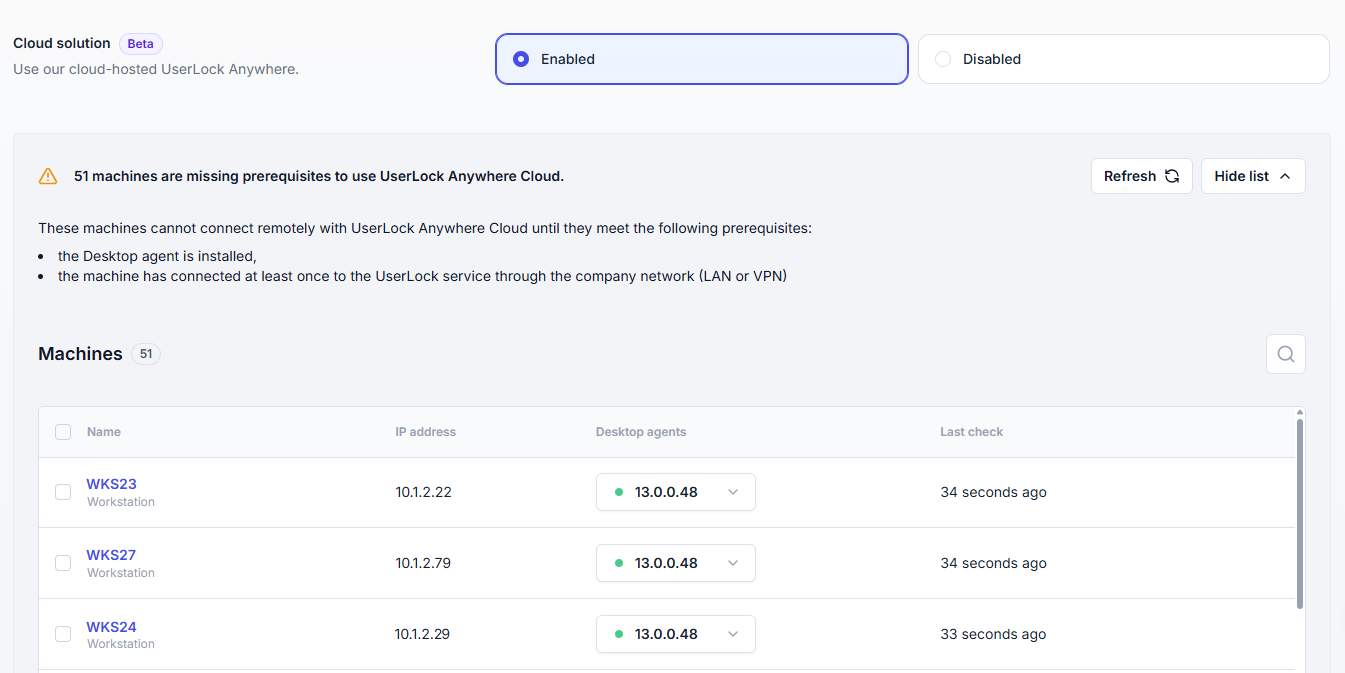
### Machines not Cloud-ready
When the Cloud mode is enabled, the following prerequisites must be met:
- The UserLock Desktop Agent **must be installed** on all remote machines.
- Each agent must have **contacted the UserLock service** at least once via LAN or VPN.
If a machine does **not** meet this requirement:
- The agent will not be able to authenticate remotely through the Cloud API.
- UserLock automatically detects and lists these machines.
- A **global alert** appears in the UserLock console, providing direct access to the list of non–Cloud-ready machines.
Administrators can use this list to verify agent connectivity and ensure all machines are properly registered before users work remotely.
> **Tip**
>
> To make a machine Cloud-ready, connect it once to the corporate network (via LAN or VPN) so the Desktop Agent can register with the UserLock server.
## Logons without UserLock connection
Modern users often work remotely, at home, on the road, or in public spaces. Even when disconnected from the corporate network, their devices may still contain sensitive data that must remain protected.
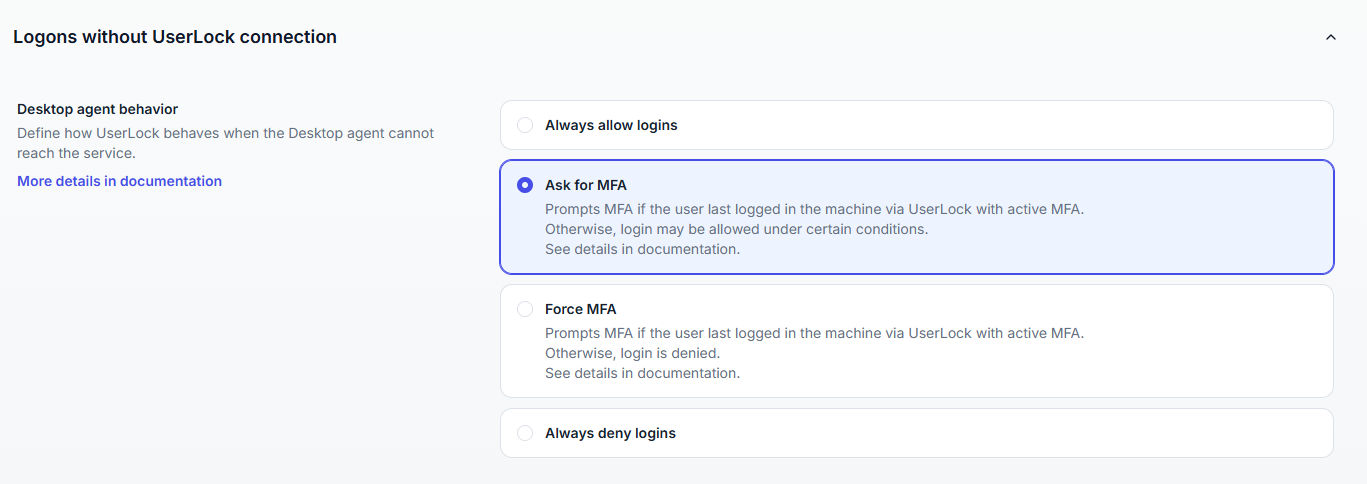
Logons without UserLock connection occur when the desktop agent is unable to reach the UserLock service. This can occur in a variety of cases, including:
- The network is unavailable on the agent or service side.
- The **Primary** or **Backup** UserLock server cannot be reached.
- The communication prerequisites between the agent and the service are not met.
> **What happens if the UserLock service is stopped?**
>
> If the desktop agent detects that the UserLock server is started and detects that the UserLock service is stopped, UserLock protection will be disabled, therefore the "Logons without UserLock connection" feature (as well as all other features) will not apply and connections will be allowed.
> **To avoid logons without UserLock connection**
>
> - Configure [UserLock Anywhere](/userlock/docs/reference/modules/userlock-anywhere) to let agents securely reach the UserLock service **over the Internet** when no LAN or VPN connection is available.
> - **Allow VPN connection** directly from the Windows logon screen so the agent can reconnect before authentication ([see help here](https://woshub.com/connect-vpn-before-logon/)).
⚠ **By default**, logons without UserLock connection are accepted.
Use the **Logons without UserLock connection setting** described below to change this behavior:
| Option | Behavior |
| --- | --- |
| **Always allow logins** | Users can always log on. *(Default)* |
| **Ask for MFA ** | If the user has previously logged into the machine with MFA and MFA was still active the last time they logged in via UserLock, MFA will be prompted. If the user has previously logged into the machine via UserLock without MFA and MFA was not active the last time they logged in via UserLock, the logon will be accepted without MFA. In other cases, the logon will be refused. **(1)** |
| **Force MFA** | If the user has previously logged into the machine with MFA and MFA was still active the last time they logged in via UserLock, MFA will be prompted. In other cases, the logon will be refused. **(1)** |
| **Always deny logins** | All logons are refused. |
**(1) **: Only applies after at least one user has logged into the machine via UserLock (before that, all logons without UserLock connection are accepted).
#### Examples for *Ask for MFA*
| **Scenario** | **Behavior** |
| --- | --- |
| The user has previously logged into the machine **with MFA** and MFA was still active the last time they logged in via UserLock | MFA required. |
| The user has previously logged into the machine via UserLock **without MFA** and MFA was not active the last time they logged in via UserLock | MFA not required; logon accepted. |
| The user has **never logged in** the machine via UserLock | Logon denied. |
#### Examples for *Force MFA*
| **Scenario** | **Behavior** |
| --- | --- |
| The user has previously logged into the machine **with MFA** and MFA was still active the last time they logged in via UserLock | MFA required. |
| The user has **never logged in** the machine **with MFA**. | Logon denied. |
> **Reminder about Windows cached logons**
>
> When the domain controller is unavailable, Windows can still allow logons using cached credentials (by default for the last 10 users, configurable up to 50).
>
> This mechanism is independent of UserLock and can permit access even if UserLock is unreachable.
>
> For more details, see [Microsoft’s documentation](https://learn.microsoft.com/en-us/previous-versions/windows/it-pro/windows-10/security/threat-protection/security-policy-settings/interactive-logon-number-of-previous-logons-to-cache-in-case-domain-controller-is-not-available)
> **What happens if "Disable MFA" or "Reset the MFA config" is performed?**
>
> - If "Disable MFA" is performed, user will have to log in to the machine via UserLock for "Logons without UserLock" to work.
> - If "Reset the MFA config" is performed, user will have to enroll then log in to the machine via UserLock for "Logons without UserLock" to work.
## Sessions
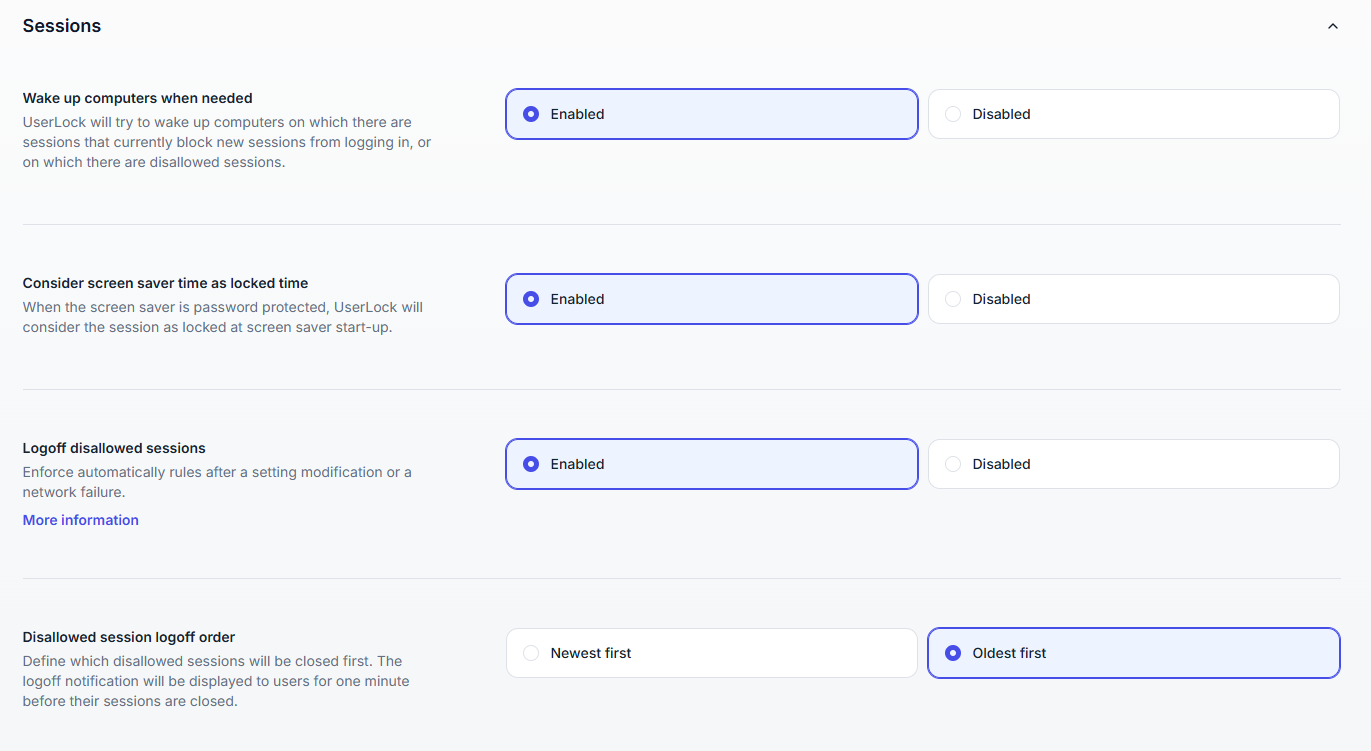
Options to control how sessions are monitored and enforced:
| Option | Description |
| --- | --- |
| **Wake up computers when needed** | Attempts to wake up machines that block new sessions or are running disallowed sessions. |
| **Consider screen saver time as locked time** | If the screen saver is password-protected, the session is considered locked when it starts. - Improves reporting accuracy and idle session enforcement. - Requires restarting the **UserLock Agent Service**. - A lock event is registered immediately (even during the 5-second cancel period). - Disabled by default. |
| **Logoff disallowed sessions** | UserLock enforces rules in real time after any period of lost protection *(e.g., network outage, server failure)*. - While protection is down, restrictions are not applied but session events are logged locally → Once restored, restrictions are enforced on sessions opened during the incident. - Access policy changes take effect immediately. After recovery, any workstation or terminal sessions that exceed updated policies are logged off. - To maintain protection during outages, consider setting up a UserLock [Backup Server](/userlock/docs/core-concepts/servers-types#backup-server). |
| **Disallowed session logoff order** | Defines which sessions are logged off first: oldest or newest. - *Oldest* is the default. - A logoff notification will be displayed to users for one minute before their sessions are closed. |
## Webhook

UserLock can push session events in real time to an external application.
Every logon, logoff, lock, unlock, or denied logon is sent as a JSON payload to the configured URL.
To configure webhook notifications, please first [read the guide](/userlock/docs/build-with-userlock/userlock-webhook), then enter your application URL.
## Time
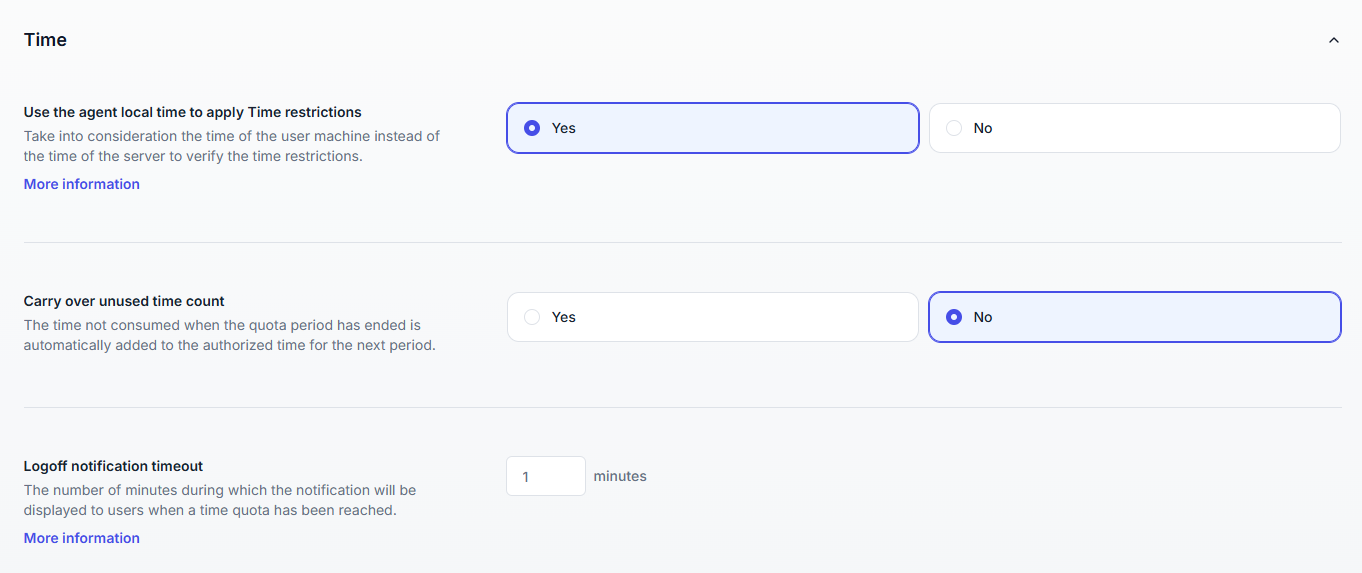
Controls how UserLock enforces time-based restrictions.
| Option | Description |
| --- | --- |
| **Use the agent local time to apply time restrictions** | Uses the local machine clock instead of the server clock. - Useful when the UserLock server and the user’s workstation are in different time zones. - If enabled, it is recommended to enforce a security policy that prevents users from changing the local clock, otherwise time restrictions could be bypassed. |
| **Carry over unused time count** | Adds unused quota time to the next period. |
| **Logoff notification timeout** | Defines how long the warning message is displayed before enforcing logoff when a user reaches their time quota. - This delay gives users extra time to save their work or log off manually. - It does not extend the configured quota itself. *Example: with a daily quota of 8 hours and a notification timeout of 10 minutes, logoff occurs after 8h10 (8 hours quota + 10 minutes warning).* |
## Misc
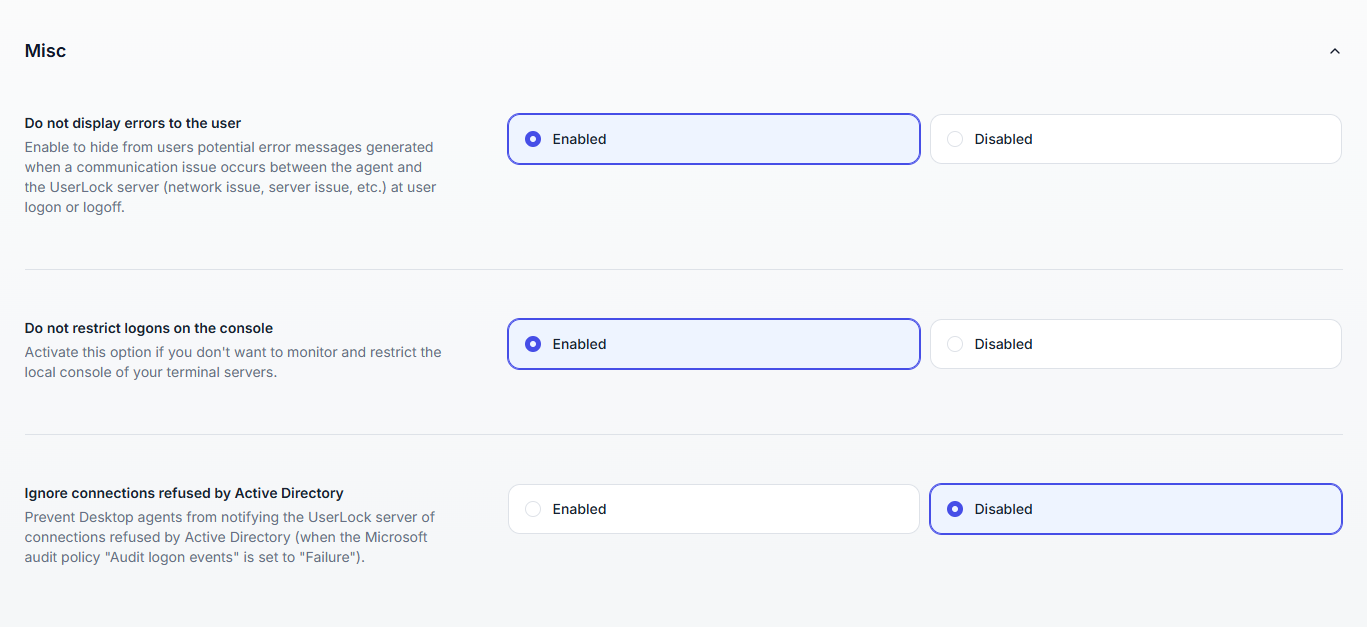
Additional configuration options:
| Option | Description |
| --- | --- |
| **Do not display errors to the user** | Hides error messages that might appear to users during logon or logoff if there is a communication issue between the agent and the UserLock server (e.g., network outage or server problem). *(Enabled by default)* |
| **Do not restrict logons on the console** | When enabled, UserLock does not monitor or restrict access to the local console of terminal servers. *(Disabled by default)* |
| **Ignore connections refused by Active Directory** | When the Microsoft Audit Policy **Audit logon events** is set to **Failure **(via Group Policy: *Security Settings > Local Policies > Audit Policy > Audit Logon Events*), desktop agents detect all Windows-refused logon attempts and report them to UserLock. Enabling this option disables that detection. *(Disabled by default)* |